
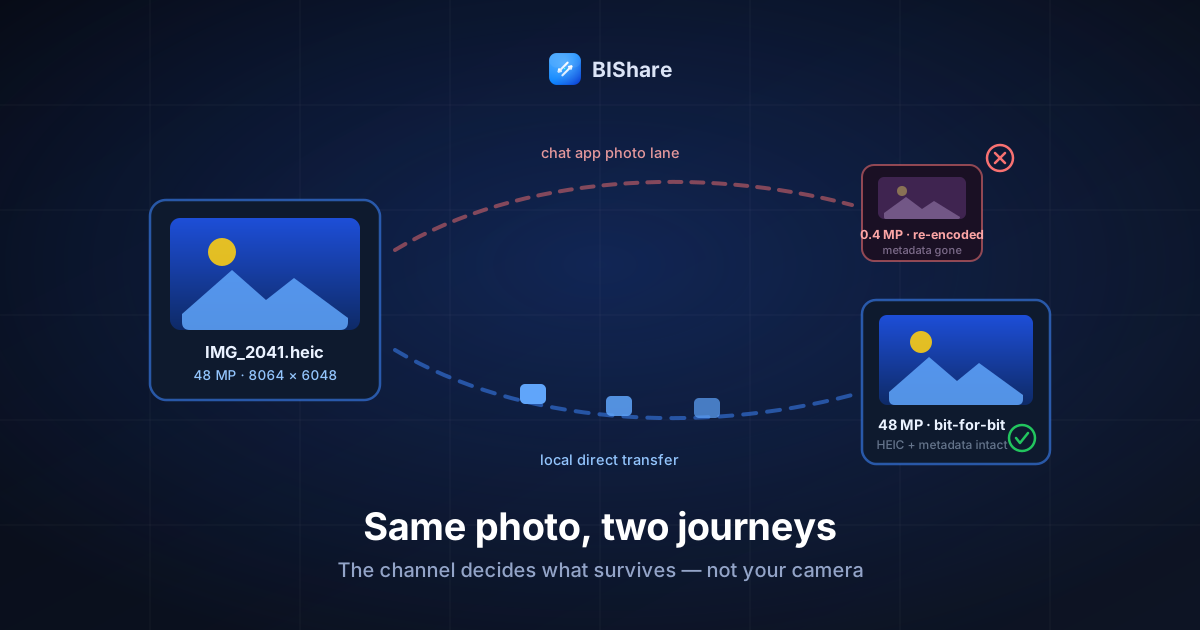
Your phone's camera is better than the channels you share through. A current flagship shoots 48-megapixel photos that weigh tens of megabytes and survive cropping, printing, and editing — and then the average sharing path shrinks that masterpiece to a few hundred kilobytes of soft mush before it reaches the person you sent it to. If you want to share high-res photos without losing quality, the quick answer is this: use a channel that treats your photo as a file — a direct local transfer between devices, a cloud drive set to original quality, or an encrypted transfer link — and never a chat app's photo lane, which exists to save the operator bandwidth, not to serve your pixels. The local route is the gold standard: same room, same Wi-Fi, originals moving device-to-device with nothing in between to "optimize" them.
That's the destination. This article is about the journey — specifically, the crime scene. Instead of listing apps, we're going to do a forensic teardown: what exactly dies when a photo loses quality, how to catch any channel damaging your photos in sixty seconds with numbers instead of squinting, and what each common path — chat apps, shared albums, email, AirDrop, cloud, local transfer — actually does to a photograph in its custody. By the end you'll never again wonder whether the photos made it intact; you'll know how to check.
The four wounds: what "losing quality" physically means
"Compressed" is doing a lot of vague work in most conversations about photo sharing. There are four distinct injuries, and knowing them apart matters because different channels inflict different ones — and different escape hatches heal them.
Wound one: downscaling. The channel throws pixels away. Your 8064×6048 original becomes 2048×1536 — a sixteenth of the information, gone. Downscaled photos look fine on a phone screen, which is the trap: the loss only shows when someone crops into a face, prints an A3, or zooms on a laptop. Resolution is the one property you can never recover afterward; no app "enhances" back what a channel deleted.
Wound two: re-encoding. The channel keeps the pixel count but re-compresses the image, usually to JPEG at an aggressive quality setting. Fine detail smears; skies and skin develop blocky gradients; sharp edges grow faint halos. Worse, this wound compounds: every re-encode of a re-encode stacks new artifacts on old ones — photographers call it generation loss. A photo that hops through two chat apps and a social feed has been re-encoded three times, and it looks like it.
Wound three: transcoding. The channel changes the format — most commonly converting an iPhone's HEIC to JPEG "for compatibility." Even at generous settings this is a lossy re-encode wearing a helpful costume, and it usually inflates the file while degrading it, because JPEG needs more bytes than HEIC for the same fidelity. Sometimes transcoding is genuinely necessary; the point is to know it's a quality event, not a neutral repackaging.
Wound four: stripping. The channel deletes the photo's metadata — capture time, camera and lens, GPS, color profile. Social platforms do this deliberately (partly for your privacy, which is fair), but if the shared copy becomes the only copy, the photo has amnesia: no date for the album, no location for the map, and — if the color profile went with it — colors that render subtly wrong on wide-gamut screens. For casual sharing this wound is cosmetic; for archives it's real damage.
A channel that inflicts none of the four is file-faithful: what arrives is byte-for-byte what left. Keep that term; the whole article is a hunt for file-faithful paths.
The 60-second audit: catch any channel red-handed
Here's the habit that replaces all guesswork, and it needs no special tools: send a photo to yourself through the channel, then compare three numbers between the original and what arrived.
Number one: pixel dimensions. Original 8064×6048, received 2048×1536? Wound one, confirmed. Find dimensions on an iPhone by opening the photo and swiping up (or tapping ⓘ); on Android, the ⓘ / details panel in Google Photos; on Windows, right-click → Properties → Details; on a Mac, open in Preview → Tools → Show Inspector.
Number two: file size. Same dimensions but 24.1 MB became 1.8 MB? That's wound two — the pixels are all nominally present, but they've been re-encoded to a fraction of the information. Sizes won't match to the byte across formats, but an order-of-magnitude drop is a confession.
Number three: the metadata check. Same info panels show capture date and camera model. If the received copy thinks it was taken today by no camera at all, the channel stripped it — wound four — and you should assume it re-encoded too, since stripping and recompressing usually travel together.
The file extension covers wound three at a glance: sent .heic, received .jpg means a transcode happened somewhere in the pipe. For the full forensic kit, ExifTool is the tool the pros use — exiftool photo.jpg prints everything the file knows about itself — but the built-in panels catch ninety percent of crimes.
Run this audit once per channel you actually use. It takes a minute, the results never change until an app update changes them, and from then on you know — no folklore, no "I heard WhatsApp compresses," just your own numbers. Now, the autopsies.
The autopsy: what each channel does to your photo
Chat apps: the photo lane is a wood chipper. WhatsApp, Messenger, and friends re-encode every image sent as a "photo" — typically downscaling to roughly two thousand pixels on the long edge and recompressing hard, with metadata stripped. All four wounds, one tap. The "HD" options some apps added help the resolution number and still re-encode. This isn't malice; a chat app's job is delivering a view of your photo instantly on any connection, and for that job the compression is rational. The escape hatch every chat app also carries: send the photo as a document (WhatsApp: attach → Document; Telegram: send as File). The document lane is file-faithful — the app is legally a courier now, not a photo editor. The cost is friction: no inline preview on some clients, and you'll do it one batch at a time. For a photo or three to a WhatsApp-only relative, the document trick is enough; for a whole shoot, keep reading.
Shared albums: built for viewing, mistaken for archiving. Platform albums are lovely for browsing together and quietly ruinous as a photo's only home — Apple's iCloud Shared Albums downscale to about two thousand pixels on the long edge (we dissected the fine print in the iPhone-to-Android guide), and Google Photos shares inherit your upload setting, where Storage saver caps photos at 16 megapixels (Google's documentation says so plainly — a 48 MP shot loses two-thirds of its pixels on the way up). If your originals live at full quality and the album is just a window onto them, fine. If the album is the archive, wound one has already happened to every photo in it.
Email: honest, but tiny. Email attachments are file-faithful — nothing recompresses them — but the attachment ceiling (about 25 MB at Gmail, similar elsewhere) fits roughly one modern burst of photos, and mail clients "help": iOS Mail offers Small/Medium/Large/Actual Size at send time, and only the last one is your photo. Pick Actual Size every time, and retire email from photo duty beyond a handful of files.
AirDrop and its kin: file-faithful, family-only. Between two Apple devices, AirDrop sends the original — full resolution, HEIC intact, metadata intact. Quick Share does the honest equivalent between Androids and Windows PCs. The wound here isn't in quality, it's in reach: each works only inside its own family, and the moment the recipient is on the other platform you're back to choosing a channel from this list — the cross-platform problem has its own guide.
Cloud drives: faithful, with a toll booth. Google Drive, Dropbox, iCloud Drive — the drive products, not the photo products — are file-faithful: a drive stores whatever bytes you give it and returns them exactly. The trade is quota (a real photo archive eats free tiers for breakfast), upload time through your broadband's slow lane, and, for sharing, the recipient's tolerance for sign-in prompts. Note the sibling confusion that costs people their pixels: Google Drive is faithful; Google Photos on Storage saver is not. Same company, different products, opposite behavior.
Screenshot-and-send: the self-inflicted wound. Worth naming because it's epidemic: screenshotting a photo to share it throws away everything — the screenshot is your screen's resolution, not the photo's, re-encoded, with no metadata. If you've ever received a photo of a photo with a battery indicator in the corner, you've seen it. The share sheet was always one tap away and sends the real file.
Local direct transfer: the file-faithful path that's also the fast one. A direct Wi-Fi transfer between two devices on the same network moves the original file, byte-for-byte, at router speed — no server, no recompression layer, no quota, no size ceiling worth mentioning. All four wounds: structurally impossible. The photo isn't "shared" in the platform sense at all; it's delivered, like a courier handing over the negatives. This is the path the rest of this article builds a workflow around.
One table to pin above the desk
| Channel | What arrives | Wounds inflicted | Escape hatch |
|---|---|---|---|
| Chat app, photo lane | ~2000 px re-encoded JPEG, no metadata | All four | Send as document/file |
| iCloud Shared Album | ~2048 px copy for viewing | Downscale | Keep originals elsewhere; album = window |
| Google Photos (Storage saver) | 16 MP cap, re-encoded | Downscale + re-encode | Original-quality setting, or Drive |
| Original — if under ~25 MB and "Actual Size" | None (when settings cooperate) | Choose Actual Size; few files only | |
| AirDrop / Quick Share | Original, bit-for-bit | None | Only works within its platform family |
| Cloud drive (Drive/Dropbox) | Original, bit-for-bit | None | Quota + upload time are the price |
| Screenshot | A photo of your screen | All four, self-inflicted | Share the file, never the screen |
| Local direct transfer | Original, bit-for-bit | None | — (this is the escape hatch) |
The arithmetic of regret: how many pixels do you actually need?
A fair question at this point: if compressed copies look fine on a phone, does any of this matter? Do the arithmetic once and you'll never need convincing again.
Printing wants around 300 pixels per inch. A classic 4×6" print therefore needs about 1800×1200 pixels — even a chat-app copy clears that, which is why casual sharing feels harmless. But an A4 print wants roughly 3500×2480, already beyond the ~2000-pixel copies most channels deliver, and a framed A3 wants about 4960×3510. Your 8064×6048 original prints beautifully at A3 and beyond; the shared-album copy of the same photo turns to soft porridge at anything larger than a paperback.
Cropping is the multiplier people forget. Every crop spends resolution: cut into a group shot to isolate two faces and you might keep a quarter of the frame — the 48 MP original still holds 12 MP of them, print-ready; the 2048-pixel copy holds a thousand pixels, barely a wallet print. The photos most worth keeping are precisely the ones most likely to be cropped someday — the face in the crowd, the detail in the corner — and cropping headroom is exactly what the four wounds destroy first.
Screens are the misleading judge. A phone display is only around three megapixels' worth of pixels, so it renders the original and the mangled copy almost identically — today. A 4K monitor is 8 MP; whatever screens are common in fifteen years will be crueler. Judging photo quality on a phone screen is auditioning archives on the worst surface they'll ever face.
The pattern in all three: compressed copies are optimized for the moment of sharing; originals are optimized for every use you haven't thought of yet. You never know at send time which photos become the ones that matter — which is exactly why the default channel, not the special-occasion channel, should be file-faithful.
HEIC, RAW, and the transcode trap
Two format wrinkles deserve their own light, because they're where even careful people leak quality.
HEIC is your friend; transcoding it is not. iPhones (and many Androids) shoot HEIC/HEIF by default — about half the size of an equivalent JPEG with none of the quality sacrifice, which is why your originals are "small" without being lesser. The leak happens when some link in the chain converts HEIC to JPEG "for compatibility": that's wound three, a lossy re-encode, and once it's happened the HEIC's efficiency and a slice of its fidelity are gone. Modern Windows, macOS, and Android all open HEIC natively now, so the right move is almost always to transfer the HEIC as-is and let the destination read it — convert only when a specific stubborn app demands it, and keep the original when you do. If compatibility problems keep recurring on the receiving end, fix it at the camera (Settings → Camera → Formats → Most Compatible on iPhone) rather than in a converter after the fact.
RAW doubles the stakes. Shooters working in ProRAW, DNG, CR3, or ARW are carrying 25–80 MB per frame, and RAW files are only sharable through file-faithful channels — a chat app's photo lane will either refuse them or flatten them to a JPEG preview, which defeats the entire point of shooting RAW. Editing workflows add the sidecar problem — the little .xmp files that carry your edits alongside each RAW — which we covered in depth in the folder-sending guide: send the folder, so pairs travel together. For RAW delivery, the shortlist is exactly three: local direct transfer, cloud drive, or an encrypted transfer link. Nothing else survives contact.
Sharing high-res photos locally, start to finish
Here's the full-quality workflow for the case that actually hurts: not one photo, but a shoot — the vacation's 800 frames, the event's camera roll, the family archive migrating to the new laptop. This is where sharing high-res photos locally without losing quality stops being a per-photo trick and becomes a pipeline.
Step one: get both devices on the same network. Same home Wi-Fi is enough; no internet required — the bytes never leave the building. No shared network in reach? One phone's hotspot is a network; join the other device to it and proceed identically. (Offline transfer has its own guide for the edge cases.)
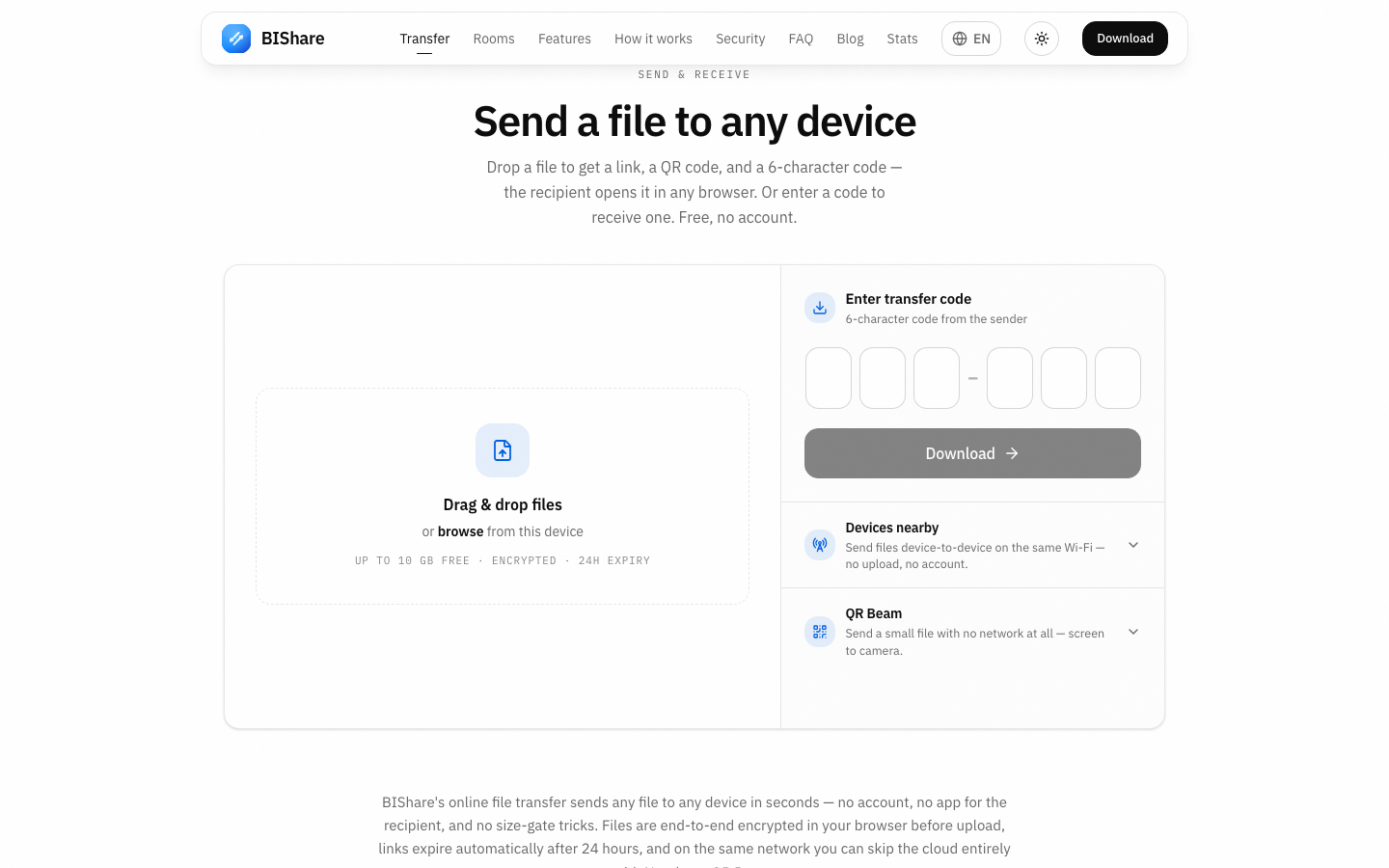
Step two: send the batch, as files. With BIShare on both devices, the sender picks the photos — or the whole folder, structure and sidecars included — and the receiving device shows an accept prompt. Every photo travels as the file it is: HEIC stays HEIC, RAW stays RAW, metadata rides along, and nothing on the path has an opinion about your resolution. On our recurring test bench this runs at router speed, 40–50 MB/s — an entire 4 GB camera roll is a two-minute errand, not an evening of upload progress bars.
Step three: the far-away recipient gets a link instead. No shared network because the recipient is in another city? Use the encrypted transfer link: photos encrypt in your browser before upload, the link carries the key, and the free tier takes 100 GB per transfer with resumable uploads — the 10 GB guide walks the whole path. The chat app then carries only the URL, which is the one thing it can't compress.
Step four: the album comes after the archive. Once originals are delivered and safe, then make the shared album for browsing — it's a great viewing surface the moment it stops being the vault. Albums are furniture; the transfer is the foundation.
Step five: delivered is not the same as safe. A perfect transfer produces two identical copies — which is coincidentally the start of a real backup, and the worst moment to get casual. The classic failure: sender confirms the photos arrived, deletes their side to free space, and the receiving laptop dies a month later, taking the now-only copy with it. Let the transferred copy add to your redundancy rather than replace it: keep both ends alive until the archive side is itself backed up, and only then reclaim the phone's storage. Full-quality photos you courier carefully and then store in one place are just high-resolution hostages to one disk.
The deeper reason we're partial to the local route isn't only speed — it's that end-to-end encryption plus no intermediary means there is no third party in a position to recompress, transcode, scan, or strip your photos even if it wanted to. File-faithful isn't a policy that could change in an app update; it's the shape of the pipe.
Prove it arrived intact
Trust is nice; verification is nicer, and for photos it takes seconds. The quick check is the audit from earlier, pointed at your own delivery: matching pixel dimensions, matching file sizes, capture dates intact on the received copies. Spot-check three photos from a big batch and the batch is almost certainly clean.
For the archival-grade version — migrating the family archive, delivering a paid shoot — compare checksums: shasum -a 256 photo.heic in a Mac's Terminal, certutil -hashfile photo.heic SHA256 in Windows' prompt, and if the two hexadecimal strings match, the copies are mathematically identical — not "looks the same," is the same. When we built our own transfer engine we wired this principle into the machinery itself: every chunk of every file is hashed in a verification tree, and the receiving side checks each piece against it before the transfer may call itself complete. A corrupted or altered photo can't slip through quietly — the transfer either delivers bit-for-bit or fails loudly and re-sends the damaged part. We did it that way because "probably fine" is not a phrase anyone wants near twenty years of family photos.
The one-sentence version of this entire article: your camera already did its job — quality is lost in transit, by channels built for convenience, and every wound is avoidable by moving photos as files. Audit your channels once, send shoots device-to-device when you're near and encrypted links when you're far, save the chat apps for carrying URLs, and the photos your grandchildren inherit will be the ones you actually took — all forty-eight million pixels of them.