
Offline file transfer
Send files without internet
The connection is down, the plane has no Wi-Fi, the data plan ran out, or you simply do not want a 4 GB video to go up to a server and come back down. None of that stops a file from moving between two devices in the same room. Every phone and computer sold in the last decade carries radios that talk to each other directly, and most of the apps people already have can use them. This guide sorts the offline routes by what they need, from a shared Wi-Fi or hotspot to nothing at all but a cable, with the speeds you can expect and the settings that usually break discovery.
We make BIShare, so treat its place in the list with that in mind. It needs a Wi-Fi network or a hotspot to exist, which AirDrop and Quick Share do not; where a built-in tool covers your devices, we say so.
Quick answer
- Two devices on one Wi-Fi, or one phone acting as a hotspot: install BIShare or LocalSend on both and send directly. Nothing goes to the internet, there is no size cap, and a 1 GB video lands in 10 to 30 seconds on a decent router.
- Two Apple devices: AirDrop already works with Wi-Fi and Bluetooth switched on and no network at all, within about 10 metres. Recent Pixel and Galaxy phones can join in through Quick Share.
- Two Android phones, or Android to a Windows PC: Quick Share uses Bluetooth to find the other device and needs no internet between Android phones. The iPhone route through its QR code is the exception: both sides must be online.
- No radios you can trust, or a locked-down laptop: a USB cable or a USB-C flash drive is still the fastest and most private option, and it works on every operating system.
- A tiny file with no network whatsoever: BIShare's QR Beam turns anything up to 100 KB into a stream of QR codes that the other phone's camera reads.
- The other device does not appear: nine times out of ten the router isolates clients, the iPhone has not been given Local Network permission, or Windows treats the Wi-Fi as a Public network. The fixes are further down.
Offline means three different situations
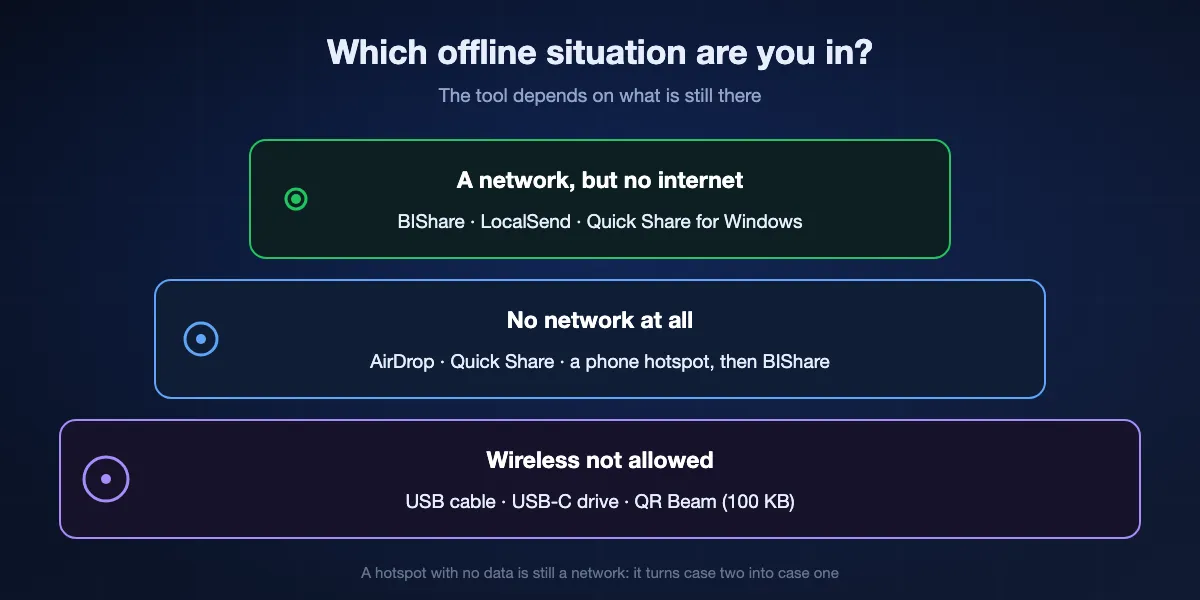
People say offline when they mean one of three things, and the right tool depends on which one you are in. A hotel Wi-Fi with a broken uplink is still a network: devices on it can find each other, even though no page will load. A field with no Wi-Fi at all is different, because now something has to create a link between the two devices. And a computer that forbids wireless entirely leaves only a cable. Work out which case you are in before picking an app.
There is a network, just no internet
Any Wi-Fi network works as a local network even when the line to the outside is dead: a home router during an outage, office Wi-Fi with a failed uplink, a phone's hotspot with mobile data used up. Apps that transfer over the local network, like BIShare and LocalSend, do not care whether the internet is reachable. They look for the other device on the same network and stream the file straight to it.
There is no network at all
Now one of the devices has to make one. AirDrop and Quick Share do this on their own, silently, with Bluetooth for discovery and a peer-to-peer Wi-Fi link for the data. Everything else needs you to create the network by hand: turn on a phone's hotspot, or plug a travel router into a power bank. Once the hotspot exists, you are back in the first situation.
Wireless is not an option
Some work laptops block Bluetooth and unknown networks, and some places ask you to keep radios off. A cable between the two devices, or a flash drive that goes from one to the other, moves files at USB speed with nothing in the air. It is the least elegant route and often the quickest for a folder of large files.
Seven ways to send files with no internet, ranked
BIShare over Wi-Fi or a hotspot
Best when the two devices are different brands, or one of them is a computer
iPhone, Android, Windows, macOS, Linux · open source (MIT) · same Wi-Fi or hotspot · no size limit · X25519 key exchange and AES-256-GCM on every transfer · no account
Open BIShare on both devices while they share a network, and each shows up in the other's nearby list within a second or two. Pick the file, choose the device, accept on the other side, and the bytes go from one to the other over the local network. Nothing is uploaded, so the transfer runs at whatever speed the router gives you and there is no limit on size. The connection is encrypted end to end, which matters on a hotspot you did not set up yourself. If the Wi-Fi drops halfway through a 20 GB folder, the transfer picks up where it stopped once the devices see each other again instead of starting over.
Where it stops: It needs a network to exist, so with no Wi-Fi around you turn on a hotspot first. Links, rooms and the browser version of nearby sharing go through the internet and are not available offline.
AirDrop
Best between Apple devices, and now some Android phones
iPhone, iPad, Mac · Android phones with AirDrop support in Quick Share · Wi-Fi and Bluetooth on, no network needed · within 30 feet, about 10 metres · no size limit
AirDrop is the closest thing to a truly offline transfer: Apple's support page asks only that both devices have Wi-Fi and Bluetooth turned on and sit within about 10 metres of each other. There is no router involved; the devices form their own link. Since late 2025 a growing list of Android phones can AirDrop too, starting with the Pixel 10 series and expanding to recent Galaxy and other flagships, as long as the iPhone is set to receive from Everyone for 10 Minutes. On a Mac the files go to Downloads; on an iPhone photos land in Photos and everything else in Files.
Where it stops: Windows and Linux are outside it entirely, and an Android phone that is not on Google's list cannot take part. Personal Hotspot has to be off on the iPhone, which is annoying if the hotspot is what the rest of the room is using.
Quick Share
Best between Android phones, and from Android to a Windows PC
Android 6 and later, Chromebooks, Windows 10 and 11 through Google's app · Bluetooth on, devices close together · Windows needs the same network and a Bluetooth adapter · 10 GB per 24 hours to iPhone via QR, internet required for that route
Quick Share is built into Android and uses Bluetooth to find the other phone, then the fastest link it can make for the data. Google's troubleshooting steps are telling: turn on Bluetooth on both devices and bring them within 30 cm of each other to connect. No internet is asked for between two Android phones. The Windows app extends the same thing to a PC that shares the phone's network and has Bluetooth, and files arrive in Downloads. Visibility is your choice: your own devices only, contacts, or everyone for ten minutes.
Where it stops: The iPhone route is a web link: the iPhone scans a QR code and downloads through a browser, and Google's page says both devices need internet access for it. Macs and Linux machines have no official client, and a phone without Google services has no Quick Share.
LocalSend
Best when you want an open-source app that never talks to a server
Android, iPhone, Windows, macOS, Linux, Fire OS · open source (Apache 2.0) · same local network only · HTTPS with a certificate each device generates · port 53317
LocalSend does one thing and has no server behind it at all: devices on one network find each other by multicast and send over HTTPS. It installs from the app stores, Winget, Homebrew and Flathub, and there is no account to make. On a hotspot with no data it behaves exactly as it does at home. It is the natural pick if you want the whole app to be readable on GitHub and you never need to reach a device that is somewhere else.
Where it stops: Discovery depends on multicast, which guest networks and many hotel routers block, and there is no fallback route when it fails. Its share-via-link mode opens only on the same network too.
Nearby sharing on Windows
Best between two Windows PCs that both have Bluetooth
Windows 10 version 1803 and later, Windows 11 · Bluetooth, or Wi-Fi on the same private network · saves to Downloads by default · Everyone nearby or My devices only
Windows has its own AirDrop-style feature, and most people have never opened it. Turn on Nearby sharing in Settings, right-click a file, choose Share, and the other PC appears if it has Bluetooth on. Microsoft's page adds that the latest Windows 11 can also send over Wi-Fi when both PCs are on the same private network, which is much faster than Bluetooth for anything over a few megabytes. Received files go to Downloads unless you change the folder.
Where it stops: It is Windows to Windows only; there is no phone side. Choosing Everyone nearby broadcasts the PC's name and Bluetooth address to anyone around, and the Wi-Fi route insists on the network being marked Private.
A USB cable or a USB-C drive
Best for large folders, locked-down computers and anywhere radios are off
Every phone and computer · USB 2.0 at 480 Mb/s on paper, USB 3 far faster · exFAT for files over 4 GB on a shared drive · no radios, no network
A cable between a phone and a computer, or a small USB-C flash drive carried from one device to the other, is the route that always works. Android phones show up as a drive in File Explorer and Finder needs a helper app; iPhones expose their photos to Windows and copy anything through the Files app to a drive plugged into a USB-C iPhone. Format a shared drive as exFAT so that both Windows and macOS can write to it and a single file can be larger than 4 GB. For a 100 GB project folder this is usually the quickest option in the building, and nothing about it depends on a network being healthy.
Where it stops: Phone-to-phone by cable needs the right connector and a phone that supports it, and a drive is one more thing to carry and to lose.
Bluetooth
Best as the fallback when nothing else is installed
Android, Windows, macOS, Linux · classic Bluetooth tops out at 3 Mb/s · pairing needed · iPhone does not send files over Bluetooth
Plain Bluetooth file transfer predates every app on this page and still ships in Android, Windows, macOS and most Linux desktops: pair the two devices, share the file, accept on the other side. It needs no network and no app, which is why it deserves a place here. The catch is speed. Classic Bluetooth moves data at a few megabits per second at best, so a 100 MB video is a coffee-break job and a film is out of the question.
Where it stops: iPhones do not accept files over Bluetooth at all; Apple reserves it for AirDrop's discovery step. Expect minutes per 100 MB and pairing prompts on both ends.
A file with no network, no cable and no pairing: QR Beam
There is one more route for the smallest files. BIShare's QR Beam encodes a file of up to 100 KB into a sequence of QR codes that play on one screen while the other phone's camera reads them back into a file. A Wi-Fi password, a contact card, a public key, a short text or a small PDF fits. Nothing is transmitted over any radio, so it works in a basement, on a plane, or between two phones that refuse to see each other. Windows and Linux can show the codes but have no camera to scan them, so the receiving side is a phone.
At a glance
| Offline route | BIShare | AirDrop | Quick Share | LocalSend | Bluetooth | USB |
|---|---|---|---|---|---|---|
| Works with no internet | ||||||
| Phone to a Windows PC | ||||||
| iPhone to Android | ||||||
| No size limit | ||||||
| Needs no router or hotspot | ||||||
| Encrypted on the way |
As checked in September 2026. AirDrop reaches Android only on phones Google lists as supporting it. Quick Share to an iPhone goes through a QR code and a web download that needs internet on both sides, so that pairing is marked as not offline. Bluetooth is encrypted after pairing but is far too slow for large files. USB moves data over a cable, so encryption does not apply.
Making a network when there is none: hotspot or router
Apps like BIShare and LocalSend need a network to meet on. When there is no Wi-Fi, the quickest one is a phone's hotspot, and a hotspot does not need working internet to act as a local network. The details differ between platforms, and they decide whether the trick works for you.
iPhone as the hotspot
Personal Hotspot lives in Settings, or under Cellular, and Apple's page is clear about two conditions: your carrier has to support Personal Hotspot, and Cellular Data has to be switched on, otherwise the option is dimmed. Data being on does not mean data is used; a transfer between the two devices on the hotspot never leaves it. The Wi-Fi password must be at least eight characters. Note that AirDrop pauses while Personal Hotspot is on, so pick one or the other.
Android as the hotspot
Hold the Hotspot tile in Quick Settings and turn on Wi-Fi hotspot; Google's page says up to ten devices can join. Carriers sometimes limit or charge for tethering, which affects the internet side, not the local network. In practice a computer or a second phone joins the hotspot, both devices open the transfer app, and they see each other exactly as they would on a home router.
A router with nothing plugged into it
Any Wi-Fi router creates a local network the moment it has power, whether or not a cable runs to its WAN port. A pocket travel router on a power bank is the tidiest way to give a group of devices a shared network at a shoot, a market stall or a classroom without internet. Laptops can host a network too, but Windows' Mobile hotspot expects an internet connection to share, so a phone or a router is more reliable.
When you are not allowed to make one
Some corporate laptops block joining unknown hotspots. Then the order of preference is a cable, a USB drive, or Bluetooth if the file is small. If both devices can reach the internet later, a BIShare link from the phone catches the file up when the laptop is back on a permitted network.
How fast is offline transfer?
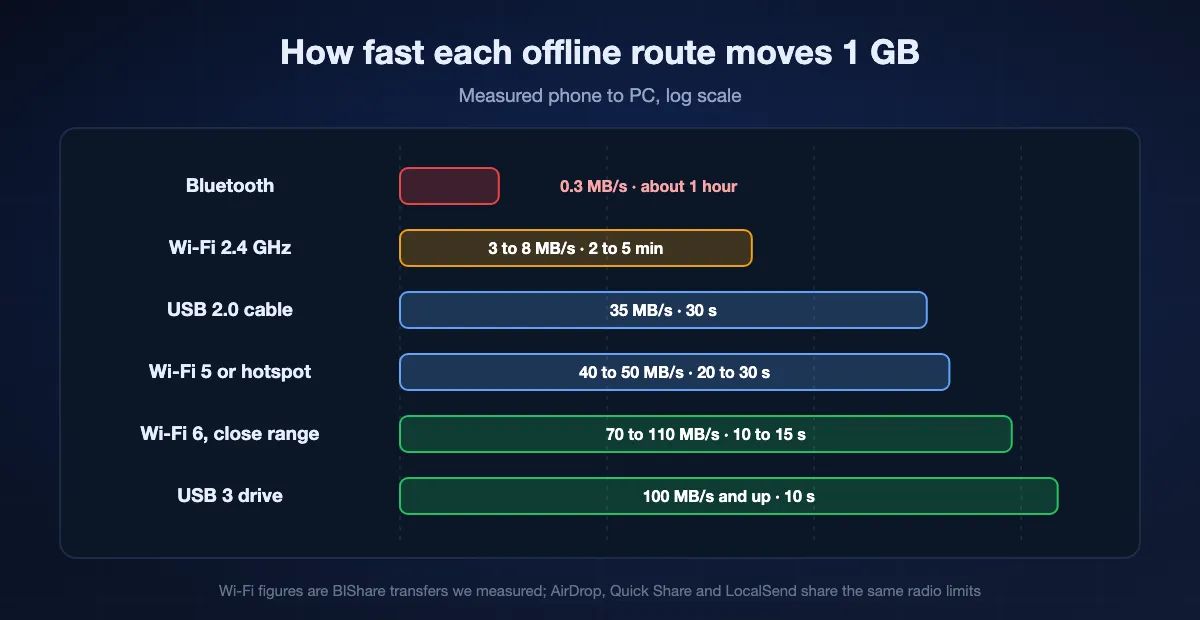
Faster than most people expect, because nothing is being uploaded. The link between the two devices sets the pace. These are the figures we measure between a phone and a PC with BIShare; AirDrop, Quick Share and LocalSend sit in the same ranges on the same hardware, since the radio is the limit, not the app.
Wi-Fi and hotspots
On a 2.4 GHz network expect 3 to 8 MB/s, which is 2 to 5 minutes per gigabyte. Wi-Fi 5 on the 5 GHz band gives 40 to 50 MB/s, so a gigabyte takes 20 to 30 seconds, and Wi-Fi 6 at close range reaches 70 to 110 MB/s. A phone's hotspot usually behaves like a mid-range 5 GHz router when the devices are in the same room, and like 2.4 GHz when they are not.
Cables and drives
USB 2.0 is rated at 480 Mb/s, roughly 35 MB/s once overheads are paid, and that is what most phones offer over their charging port. USB 3 ports and drives run several times faster, so a folder that would take an hour over 2.4 GHz Wi-Fi copies in a few minutes. Older iPhones with Lightning are stuck at USB 2 speeds; the Pro models with USB-C go much faster with a rated cable.
Bluetooth
Classic Bluetooth is rated at 3 Mb/s and delivers less, so plan on minutes per 100 MB. It is fine for a document or a handful of photos and hopeless for video. AirDrop and Quick Share use Bluetooth only to find the other device and then switch to Wi-Fi for the bytes, which is why they are so much quicker than a plain Bluetooth send.
Sending offline with BIShare, step by step
Get both devices onto one network
Join the same Wi-Fi, or turn on a hotspot on one phone and connect the other device to it. The network does not need internet; BIShare never checks for it during a nearby transfer.
Open BIShare on both
The app announces itself on the local network and lists every other BIShare it can hear. Give each device a recognisable name in Settings the first time, so a room full of phones is easy to read.
Choose files and the device
Tap Send, pick photos, videos, documents or a whole folder, and choose the other device from the nearby list. It shows an accept prompt with the sender's name and the total size; nothing arrives until someone taps Accept.
Let it run, even if the Wi-Fi hiccups
Large transfers show progress on both ends. If the network drops, the app waits and continues from the last verified chunk when the devices meet again. Every file is checked against its hash before it is marked complete, and it lands in a BIShare folder: inside Downloads on Android, in the app's folder in Files on an iPhone, and in Documents on a computer unless you picked another location in Settings.
When the other device does not show up
Offline transfers fail at the discovery step far more often than at the transfer step. These are the causes we see in support mail, in rough order of frequency.
The router or hotspot isolates its clients
Guest networks, hotel Wi-Fi and many mesh systems switch on AP or client isolation, which stops devices on the same network from seeing one another. Nothing on your device can fix that. Move both devices to a phone's hotspot, where isolation is off, or use a cable.
The iPhone has not allowed Local Network access
iOS asks each app once whether it may find devices on the local network. If the prompt was dismissed, the app hears nothing. Open Settings, Privacy and Security, Local Network, and switch the app on. AirDrop has its own switch under General, AirDrop.
Windows treats the network as Public
On a Public network Windows blocks incoming discovery for apps and for Nearby sharing alike. Open the network's settings and set the profile to Private, then allow the app through Windows Defender Firewall if it asks.
A VPN is still on
VPN apps often route everything, including local traffic, into the tunnel, so nearby devices vanish even though the Wi-Fi is fine. Pause the VPN for the transfer, or turn on its local network exception if it has one.
Two networks that look like one
Some routers put the 2.4 GHz and 5 GHz bands, or wired and wireless clients, on separate subnets that do not pass discovery packets. Join both devices to the same band, or fall back to the hotspot.
Bluetooth is off, or the devices are too far apart
AirDrop and Quick Share both need Bluetooth on to find each other and work best within a few metres; Google suggests bringing phones within 30 cm to connect. Personal Hotspot on the iPhone also disables AirDrop until it is switched off.
Is an offline transfer private?
More private than any upload, because there is no server to trust and nothing stored anywhere but the two devices. What differs between routes is what happens on the way, and that matters on a hotspot or a shared network you do not control.
Encrypted device to device
BIShare negotiates a key with X25519 on every transfer and encrypts the stream with AES-256-GCM, so another device on the same hotspot sees only ciphertext; the details are on our encrypted transfer guide. LocalSend encrypts with HTTPS and a certificate each device makes for itself. AirDrop and Quick Share encrypt their peer-to-peer links as well.
Who can see the device
Discovery is the visible part. Windows' Everyone nearby setting shares the PC's name and Bluetooth address with anyone in range; Quick Share's Everyone mode lasts ten minutes and then reverts; AirDrop's Everyone for 10 Minutes does the same. Leave them on contacts-only or your-devices-only once the transfer is done.
The hotspot's password is the front door
Anyone who joins the hotspot is on the same local network as your devices. Use the eight-character minimum Apple asks for and something longer, share it in person, and turn the hotspot off afterwards. A cable or a USB drive sidesteps the question entirely, which is why they remain the choice for confidential material.
Sending files without internet: FAQ
Can I transfer files without internet?
Yes. Two devices on the same Wi-Fi or on a phone's hotspot can exchange files directly with an app such as BIShare or LocalSend, with no internet involved. AirDrop and Quick Share need no network at all between supported devices, and a USB cable or drive works everywhere.
How do I send files from phone to phone without internet?
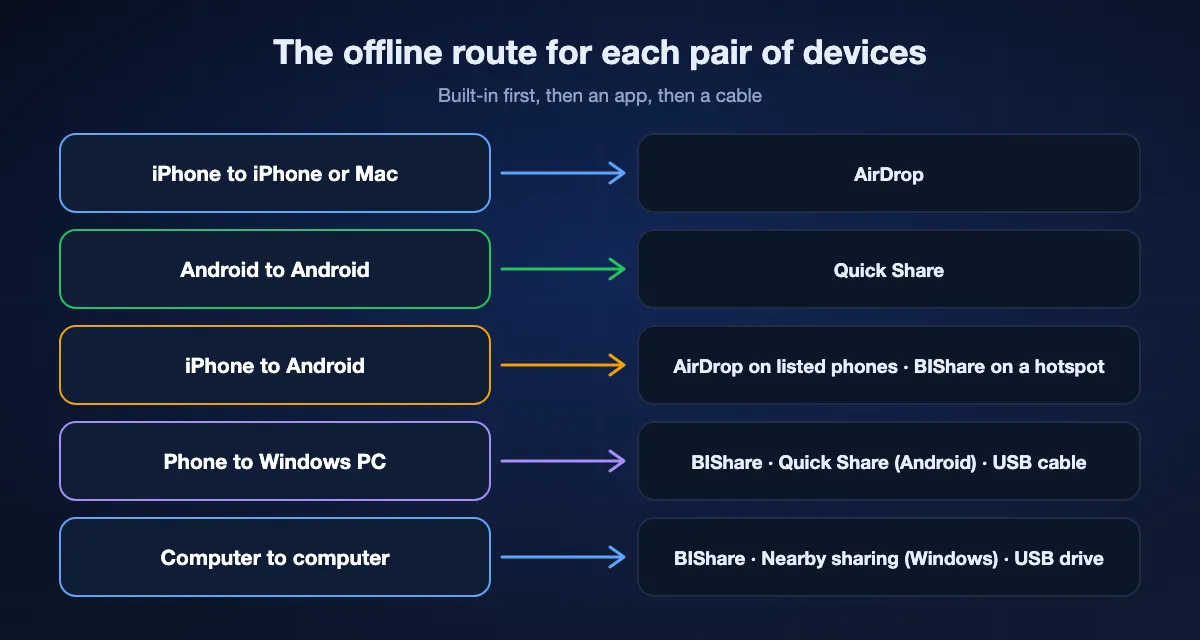
Two iPhones: AirDrop. Two Android phones: Quick Share with Bluetooth on. An iPhone and an Android phone: AirDrop if the Android phone is on Google's supported list, otherwise turn on a hotspot on one phone, connect the other, and send with BIShare or LocalSend.
Does AirDrop need internet?
No. Apple's requirements are Wi-Fi and Bluetooth switched on and the devices within about 10 metres. Since iOS 17.1 a transfer that started nearby can finish over the internet if you walk out of range, but it never needs the internet to begin.
Does Quick Share work without internet?
Between Android phones, yes: Google's steps ask only for Bluetooth and the phones close together. Sharing to an iPhone through the QR code is different, because the iPhone downloads from a web link and Google's page says both devices need internet for that.
Can I use a hotspot to transfer files with no data plan?
On Android the hotspot forms a local network whether or not the phone has internet, so a transfer app on both devices works as usual. On an iPhone, Personal Hotspot only appears when Cellular Data is on and the carrier supports it; the transfer itself still uses no data because it stays between the two devices.
How do I transfer files from a phone to a laptop without internet?
Join both to one Wi-Fi or to the phone's hotspot and use BIShare or LocalSend, or plug in a USB cable. Android to Windows also works with Quick Share for Windows when the PC has Bluetooth and shares the network.
Is there a size limit for offline transfers?
Not with BIShare, LocalSend, AirDrop or a cable; the only limit is free space on the receiving device. Bluetooth has no formal cap but is so slow that anything over a few hundred megabytes is impractical.
How fast is file transfer over a hotspot?
Roughly the same as over a router of the same generation: 3 to 8 MB/s on 2.4 GHz and 40 to 50 MB/s on 5 GHz in the same room, in our measurements. A 1 GB file takes half a minute on 5 GHz and a few minutes on 2.4 GHz.
Is offline file sharing safe on a public hotspot?
Use an app that encrypts between the devices. BIShare and LocalSend do, so other people on the hotspot cannot read the transfer even though they share the network. Keep the app's visibility to your own devices where the setting exists, and turn the hotspot off when you finish.
Which app sends files offline between iPhone and Android?
BIShare and LocalSend both do it over a shared Wi-Fi or hotspot. On a Pixel 10 or another phone on Google's list, AirDrop to the iPhone works with no network. Quick Share's QR code route needs internet on both phones, so it does not count as offline.
Can BIShare send a link when I am offline?
No. Links, rooms and the browser version of nearby sharing go through the internet. Offline, use the app's nearby transfer on a shared network or QR Beam for files up to 100 KB, and share a link later when the connection is back.
Send it now, with or without the internet
Direct, encrypted transfers on any Wi-Fi or hotspot, between any phone and any computer, with no size limit. And when the connection comes back, a link for everyone else.