
iPhone files to a Windows PC
How to transfer files from iPhone to PC
Plug an iPhone into a Windows PC and File Explorer shows one thing: a folder of photos. The PDF you downloaded, the voice memo, the spreadsheet in the Files app and the project inside an editing app are all on the phone, and none of them appear. That is by design, and it is the reason this job takes more thought than moving pictures. This guide starts with what a cable can and cannot see, then ranks eight ways to move any file, from Apple's own Apple Devices app and iCloud Drive to a shared Windows folder, a USB drive and direct Wi-Fi apps, with steps for the trip back from the PC to the iPhone and a fix for each common failure. BIShare is on the list too. It carries any file from the iPhone to the PC across Wi-Fi without shrinking or converting it, and for a PC that is somewhere else it hands over an encrypted link for the browser. It costs nothing, its code is public, and there is no account to create.
BIShare is ours. For files that live in iCloud Drive already, or for one app's documents, Apple's own tools are often the better fit, and the rankings below say so.
How do I transfer files from iPhone to PC? The quick answer
- Any file, no cable: with BIShare on the iPhone and the PC, the file crosses your Wi-Fi network at full size; a link does the same job for a PC that is not nearby.
- Files already in iCloud Drive: install iCloud for Windows and turn on iCloud Drive; the folder appears in File Explorer.
- Documents inside one app: open Apple Devices on the PC, select the iPhone, choose Files, and drag the documents out of the app that holds them.
- Nothing may be installed on the PC: share a folder in Windows, then open it from the iPhone's Files app with Connect to Server.
- Only photos and videos: a cable and the Windows Photos app are enough. The photos guide covers that route in full.
- File Explorer shows an empty phone or only DCIM: that is normal. Unlock the iPhone, tap Trust, and use one of the routes above for everything that is not a photo.
Why does File Explorer show only photos?
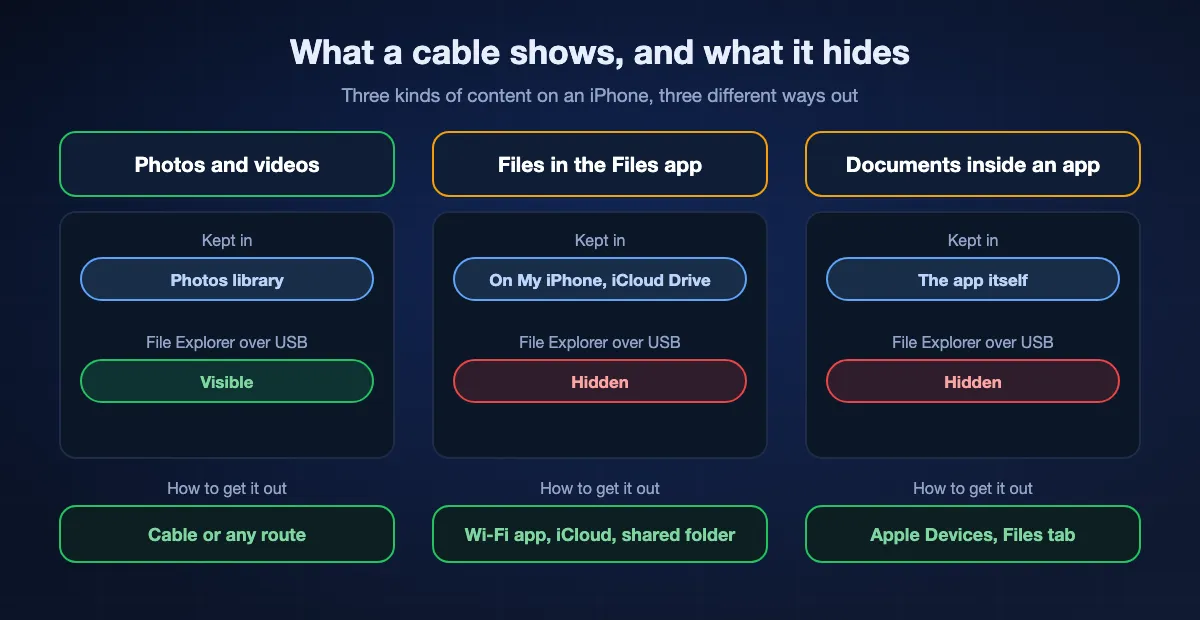
An iPhone keeps three kinds of content in three different places, and a USB cable opens just one of them. Knowing which kind you are holding decides the route before you install anything.
Photos and videos from the camera
These live in the Photos library. Over a cable, Windows treats the iPhone like a camera: Microsoft's guide has you unlock the phone, open the Photos app on the PC and choose Import, and File Explorer shows the same pictures under DCIM. This is the only content a plain cable connection exposes. If iCloud Photos keeps the originals in the cloud, Microsoft notes that those items may not download over the cable at all.
Files in the Files app
Downloads from Safari, PDFs saved from Mail, scans, voice memos you exported and anything under On My iPhone or iCloud Drive sit in the Files app. File Explorer does not list them. They leave the phone through the share sheet, through iCloud Drive, through a server connection made from the Files app, or onto a drive plugged into the phone.
Documents that belong to an app
A video project, a recording inside a music app or a comic library is stored inside that app. Apple's guide is explicit that only files from apps that support file sharing can be transferred with a cable, and they are reached through the Files tab of the Apple Devices app, not through File Explorer. If the app has an Export or Share button, it can also hand the file to any of the wireless routes.
Eight ways to get files from an iPhone to a PC, ranked
BIShare
Best without a cable: any file straight to the PC over Wi-Fi
Apps for iPhone and Windows, and a plain browser when you send a link · MIT-licensed source · no size ceiling between devices on one network · a link takes 100 GB and lives 6, 12 or 24 hours · end-to-end encrypted · nothing to sign up for
In BIShare on the iPhone, select what you want to send, whether that is a document from the Files app, a photo or a video, then tap the PC in the list of devices nearby. Windows asks you to accept and writes the result to BIShare's download folder. Every byte arrives unchanged, whatever the file type, and as long as the two devices are on one Wi-Fi network, or the PC has joined the iPhone's hotspot, nothing is uploaded anywhere. Inside another app, Share followed by BIShare sends whatever is open. For a PC in another place, switch to a link: encryption happens on the phone, and the PC fetches the file in a browser with nothing installed.
Watch out for: The direct route needs the Windows app installed, so it does not suit a locked-down work PC; use a link there. It moves what you select and does not keep two folders in sync.
Apple Devices app
Best for documents stored inside one app
Windows 10 or later · free from the Microsoft Store · USB or USB-C cable, or Wi-Fi once set up · Files tab lists apps that support file sharing
Apple Devices is the tool Apple's own guide names for Windows 10 and later. Connect the unlocked iPhone, select it in the sidebar and choose Files: a list of apps that support file sharing appears, and you drag documents between an app and a Windows folder. Transfers happen at once, with no sync step. It is the dependable way to pull a project out of an editing app or load a batch of documents into a reader.
Watch out for: It shows only apps whose developers switched file sharing on. Files in the Files app, and anything in an app that has not opted in, are not listed. Older setups use iTunes for the same job.
iCloud Drive with iCloud for Windows
Best when the files should stay in step on both devices
iCloud for Windows · iCloud Drive appears in File Explorer · same Apple Account on both · 5 GB of iCloud storage free · needs internet at both ends
Save or move the file to iCloud Drive in the iPhone's Files app. On the PC, install iCloud for Windows, turn on iCloud Drive, and the same folder appears in the navigation pane of File Explorer, stored under your user folder by default. Edits made on either side show up on the other. On a PC where nothing can be installed, the same files are at iCloud.com.
Watch out for: Everything travels through Apple's servers, so a large video waits on your upload speed and counts against the storage plan. The free tier is 5 GB across backups, photos and files.
A shared Windows folder, opened from the Files app
Best when nothing may be installed on the PC
Built into Windows and iOS · same local network · Files › Browse › Connect to Server · sign in as a registered user of the PC · no internet needed
Windows can share a folder on the local network, and the iPhone's Files app can open it. In Files, tap Browse, the More button, then Connect to Server, enter the PC's name or address, and sign in as a registered user. The shared folder then sits under Shared in the Browse sidebar, and you copy files into it like any other location. Nothing leaves the network, and there is no size limit beyond the PC's free space.
Watch out for: It takes a few minutes to set up the first time, the PC's network profile has to be Private, and you type a Windows user name and password on the phone. The step-by-step section below covers each of those.
A USB cable with the Photos app or File Explorer
Best for photos and videos only
Windows 10 or 11 · cable that carries data · unlocked and trusted iPhone · Photos › Import, or This PC › Apple iPhone › Internal Storage › DCIM
For camera content the cable is still the simplest route. Unlock the iPhone, tap Trust, open the Photos app on the PC and choose Import, or browse the DCIM folders in File Explorer and copy what you need. It needs no account and no network.
Watch out for: It reaches the camera roll and nothing else: no PDFs, no documents, no app data. Microsoft also warns that not every USB cable can transfer files.
A USB drive or SD card
Best with no network and no shared software
Files app · USB-C iPhones plug in directly, Lightning iPhones may need an adapter · exFAT and FAT drives are readable on both · no account, no internet
Plug a drive into the iPhone, open the Files app, and copy the files onto it; then move the drive to the PC. Apple's guide describes exactly this route and notes that connecting to an iPhone might need a cable adapter. On an iPhone with a USB-C port, Files can also reformat a drive as exFAT or MS-DOS (FAT), both of which Windows reads.
Watch out for: It is two trips, and the drive has to be in a format both sides understand. A drive formatted as APFS on the phone will not open on Windows.
Phone Link and Link to Windows
Promising, but not on every PC yet
Windows 10 or 11 · iPhone on iOS 16 or later · Link to Windows app on the iPhone · Bluetooth pairing · file sharing still rolling out through the Windows Insider Program
Phone Link pairs an iPhone with Windows over Bluetooth for calls, messages and notifications. Microsoft began rolling out file sharing for iPhone in December 2024: on the iPhone you tap Share, then Link to Windows, then the PC; on the PC you right-click a file, choose Share, then My Phone. Where it is available it is the most built-in wireless option on Windows.
Watch out for: Microsoft's own help page for sharing files through Phone Link still lists Android devices only, and the community article for iPhone says the feature is on gradual rollout to Windows Insiders. If Link to Windows is missing from the share sheet, your PC does not have it yet.
Mail Drop, email and other cloud drives
Best for one file to a PC you do not control
Mail Drop: attachments up to 5 GB, kept 30 days · OneDrive, Google Drive and Dropbox apps save from the share sheet · needs internet · account required
Apple's guide lists Mail and Messages as the other wireless options. In the Mail app, Mail Drop sends an attachment of up to 5 GB as a download link that lasts 30 days, which the PC opens from any mailbox. A cloud drive app works the same way from the share sheet: save to the drive on the phone, open it in a browser on the PC.
Watch out for: Each one uploads first and downloads second, so a large file is slow on a home connection, and every route needs an account. Ordinary email attachments stop at around 25 MB.
At a glance
| Feature | BIShare | Apple Devices | File Explorer + cable | iCloud Drive | Shared folder | USB drive |
|---|---|---|---|---|---|---|
| Nothing to plug in | ||||||
| Moves any file type, not only photos | ||||||
| Works with no internet connection | ||||||
| No account or password to enter | ||||||
| Nothing to install on the PC |
As of October 2026. BIShare puts no ceiling on size while both devices are on one network; its links take 100 GB, live for 6, 12 or 24 hours and open in a browser with nothing installed, whereas the direct route runs through the Windows app. Apple Devices lists only apps that support file sharing and can connect over Wi-Fi after it has been set up with a cable. File Explorer reads the camera roll only. iCloud Drive needs the same Apple Account on both sides, 5 GB free, and can be opened at iCloud.com without installing anything. A shared folder asks for a Windows user name and password. A USB drive has to be formatted as exFAT or FAT.
Which way should you use?
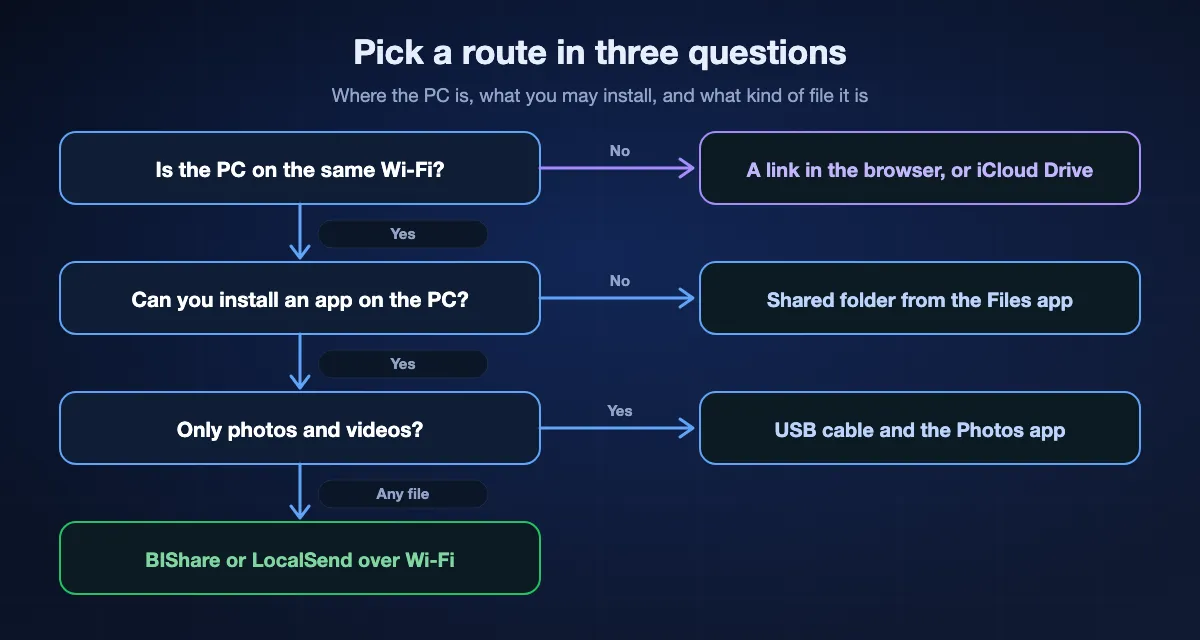
Three questions settle it: whether the PC is on the same network as the phone, whether you may install software on it, and whether the files are photos or something else.
One PDF or a handful of documents
On the same Wi-Fi, send it with BIShare or LocalSend; both go straight from the phone to the PC. If the PC is not yours, email the file to yourself or use a link, which needs only a browser.
A long video or a folder of several gigabytes
Avoid anything that uploads first. A direct Wi-Fi transfer, a shared folder or a USB drive moves the file at local speed, while a cloud route waits on your upload. Sending large files explains why the number on a plan page is rarely the limit that matters.
A work PC where you cannot install anything
Open a link in the browser, sign in at iCloud.com, or carry a USB drive. If the IT department allows shared folders, the Files app can reach one without any software on the PC.
Files you keep changing on both devices
That is syncing, not transferring. Put the folder in iCloud Drive or OneDrive so edits follow you, and use a transfer tool for the one-off files that do not belong in a synced folder.
How to use the Files app with a shared Windows folder
This is the route most guides leave out, and it needs nothing beyond Windows and iOS. The iPhone becomes a client of the PC, the same way another computer on the network would be.
Share a folder on the PC
Create a folder, open its Properties, and on the Sharing tab give your Windows account access. The network the PC is on should be set to Private in Settings, so that Windows allows file sharing on it.
Find the PC's name or address
The name is under Settings, System, About. The address is shown in the properties of the Wi-Fi or Ethernet connection. Either one works, as long as the phone is on the same network.
Connect from the iPhone
Open Files, tap Browse, tap the More button and choose Connect to Server. Enter the name or address and tap Connect. Choose Registered User and type the Windows user name and password; Guest works only if the PC permits guest access.
Copy the files across
The shared folder appears under Shared in the Browse sidebar. Touch and hold a file anywhere in Files, choose Copy or Move, and paste it into the shared folder. It is on the PC the moment the copy finishes.
Reconnect next time
Apple notes that a server you have connected to appears in the Recent Servers list on the Connect to Server screen, so the second visit is two taps. Disconnect with the eject button next to the server when you are done.
From PC to iPhone: the same routes in reverse
Every route above runs both ways, but where the file lands on the iPhone differs, and that is what people lose track of.
With BIShare
Drop the file on the Windows app and choose the iPhone. BIShare keeps incoming files in its own inbox until you move them: media to the photo library, the rest to Files or another app. The PC to phone guide covers this direction for Android as well.
With Apple Devices
Drag a file from Windows onto an app in the Files tab. Apple's guide says it is transferred immediately and is then available inside that app, which is where you will find it on the phone.
With iCloud Drive or a shared folder
Put the file in the iCloud Drive folder in File Explorer, or in the shared folder, and open the Files app on the iPhone. iCloud Drive and the server both show under Browse. Touch and hold a file and choose Keep Downloaded if you need it offline.
With a link
Create a link in a browser at bishare.app/transfer on the PC and open it in Safari on the iPhone. Safari saves to the Downloads folder in the Files app.
Sending a file from iPhone to PC with BIShare
Install on both devices
Get BIShare from the App Store for the iPhone and from the Microsoft Store for the PC. Connect both to one Wi-Fi network, or let the PC join the iPhone's Personal Hotspot, and tap Allow when iOS asks about local network access.
Choose the files
In the iPhone app, pick files from the Files app, or photos and videos from the library. From any other app, tap Share and choose BIShare. Files are sent as they are, with no conversion and no cable.
Pick the PC, or make a link
Tap the PC in the list of devices nearby and confirm on Windows. The files are written to BIShare's download folder, which is Downloads until you pick another. When the PC sits on a different network, make a link and open it in that PC's browser before the link runs out.
How long does it take?
How long it takes is set by the connection, whatever the method is called. A cloud route means an upload from the phone followed by a download to the PC; a cable, a drive or Wi-Fi needs neither.
USB cable speed by model
A cable is not automatically the fast option. Every Lightning iPhone and most USB-C models run at USB 2 speed, 480 Mb/s at most, and only the Pro models from the iPhone 15 Pro onward reach USB 3, with a cable built for it. The photos guide lists the speed model by model, and a drive plugged into the phone is bound by the same figures.
Wi-Fi between phone and PC
A direct transfer or a shared folder runs at the speed of the local network. In our measurements that is 40 to 50 MB/s on Wi-Fi 5 and 70 to 110 MB/s on Wi-Fi 6, so a 4 GB video takes one to two minutes. The Wi-Fi transfer guide has the full table.
Through the cloud
iCloud Drive, Mail Drop and other cloud drives first need the phone to upload, and home upload speeds are usually a fraction of download speeds. At 40 Mbps up, that same 4 GB video needs about a quarter of an hour before the PC can start downloading.
When the transfer does not work
The iPhone does not show up on the PC
Unlock it; Microsoft's guide says the PC cannot find a locked device. Tap Trust when the phone asks. If nothing appears, try another cable, since some carry power only.
File Explorer shows the iPhone but no documents
That is expected. A cable exposes the camera roll only. Use Apple Devices for app documents, and a wireless route, iCloud Drive or a shared folder for anything in the Files app.
The app is missing from the Files tab in Apple Devices
The list holds only apps that support file sharing. If yours is not there, open the app on the phone and look for Export or Share, then send the exported file by one of the other routes.
Connect to Server cannot find the PC
Check that both are on the same network and that the PC's network profile is Private. Try the PC's address in place of its name. Guest Wi-Fi and some office networks stop devices from seeing each other; a phone hotspot avoids that.
Link to Windows is not in the share sheet
File sharing between an iPhone and Phone Link is still rolling out. Microsoft lists iOS 16 or later, a current Link to Windows app and a current Phone Link as requirements, and for now a PC in the Windows Insider Program.
The file is in iCloud, not on the phone
A file showing a cloud icon in the Files app has not been downloaded. Tap it once to download it, or touch and hold and choose Keep Downloaded, before sending it by a route that does not go through iCloud.
Who can see the file on the way?
The routes differ less in speed than in where a copy of your file ends up.
Cable, drive and shared folder
The file moves between your own devices and is never uploaded. A shared folder stays reachable by anyone who has the PC's account details on that network, so stop sharing it when you are finished.
iCloud, Mail Drop and cloud drives
A copy is stored with the provider under your account. It is protected in transit and at rest, and it stays there until you delete it or, for Mail Drop, until the 30 days are over.
BIShare
While both devices are on one network, the file travels straight from the phone to the PC under end-to-end encryption and never reaches a server. The iPhone encrypts a link's contents before they are uploaded, and the key stays inside the link, which leaves the server holding ciphertext that it removes once the link expires.
Frequently asked questions
How do I transfer files from iPhone to PC?
For any file without a cable, use a Wi-Fi app such as BIShare on both devices, or save the file to iCloud Drive and open it with iCloud for Windows. For documents inside an app, use the Files tab of the Apple Devices app. A cable with File Explorer moves only photos and videos.
Can I transfer files from iPhone to PC without iTunes?
Yes. On Windows 10 and later Apple's guide points to the Apple Devices app instead of iTunes, and none of the wireless routes need either one: a Wi-Fi app, iCloud Drive, a shared folder opened from the Files app or a link in a browser all work without it.
Can I transfer files from iPhone to PC wirelessly?
Yes. On the same Wi-Fi, BIShare or LocalSend sends directly from the phone to the PC, and the Files app can open a shared Windows folder. Over the internet, iCloud Drive, Mail Drop or a link do the same job.
Why can I only see photos when I connect my iPhone to my PC?
Over a cable, Windows sees the iPhone as a camera, so File Explorer shows the DCIM folder and nothing else. Files in the Files app and documents inside apps are not exposed that way. Use Apple Devices, iCloud Drive, a shared folder or a Wi-Fi app for them.
Can you AirDrop from iPhone to a Windows PC?
No. Apple describes AirDrop as a way to send items to nearby Apple devices, and there is no AirDrop for Windows. A cross-platform app that works the same way, such as BIShare, is the closest equivalent.
Can I send files from iPhone to PC over Bluetooth?
Not as a file transfer. Apple's guide lists AirDrop, Mail and Messages as the wireless options and a cable for a computer; it names no Bluetooth file transfer to a PC. Phone Link uses Bluetooth to pair, and its file sharing for iPhone is still rolling out.
What is the fastest way to transfer large files from iPhone to PC?
A direct route. On Wi-Fi 6 a transfer between the phone and the PC reaches 70 to 110 MB/s in our measurements, and an iPhone Pro with a USB 3 cable is faster still onto a drive. Anything that uploads to a cloud first is limited by your upload speed.
How do I transfer files from iPhone to PC with a USB cable?
Install Apple Devices from the Microsoft Store, connect the unlocked iPhone and tap Trust. Select the phone, choose Files, and drag documents out of an app that supports file sharing. For photos and videos, use Import in the Windows Photos app instead.
Does Phone Link transfer files from iPhone?
On some PCs. Microsoft started rolling out iPhone file sharing through Phone Link and the Link to Windows app in December 2024, and its community article still describes a gradual rollout to Windows Insiders. Microsoft's main help page for sharing files lists Android only.
Where do transferred files go on the PC?
BIShare saves to its download folder, Downloads by default. iCloud for Windows keeps files in the iCloud Drive folder under your user folder. Apple Devices copies to wherever you drag, and the Photos app asks where to save during an import.
How do I transfer files from a PC to an iPhone?
Use the same route in reverse: send from the BIShare Windows app to the phone, drag a file onto an app in the Files tab of Apple Devices, or drop it in iCloud Drive or a shared folder and open the Files app on the iPhone.
Any file from your iPhone to the PC, no cable needed
Free and open source. Move documents, videos and whole folders across Wi-Fi at full size, or hand over an encrypted link that opens in the PC's browser.