
AirDrop guide
How to AirDrop on iPhone, iPad and Mac
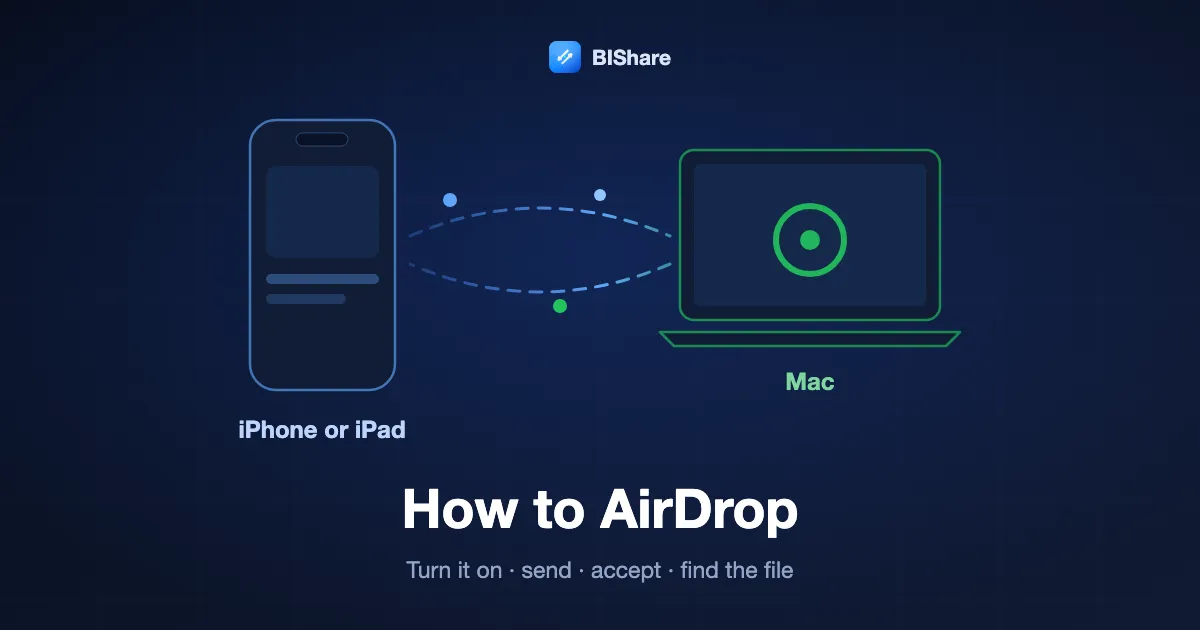
AirDrop sends photos, videos, documents and links between nearby Apple devices without a cable, a sign-in screen or an internet connection. The gesture is simple, yet most of the questions people ask are about the parts around it: where the switch is, why the other person does not appear, where the photo went, and why a code suddenly showed up. This guide follows the whole path on iPhone, iPad and Mac as Apple documents it in October 2026: turning AirDrop on, sending and receiving, sharing with someone who is not in your contacts, the settings worth knowing, and the devices AirDrop still cannot reach. For those, BIShare does the same job between iPhone, Android, Windows, Mac and Linux. It is free and open source, and it asks for no account.
BIShare is our app. Between two Apple devices AirDrop is already installed and is the better choice, so this guide teaches AirDrop first and brings up BIShare only where AirDrop stops.
How to AirDrop: the quick answer
- Turn it on, iPhone or iPad: open Control Center, touch and hold the group of connection controls in the top-left corner, tap AirDrop, and choose Contacts Only or Everyone for 10 Minutes.
- Turn it on, Mac: click Control Center in the menu bar, then AirDrop. A blue icon means it is on, and the arrow beside it lets you pick Contacts Only or Everyone.
- Send: open the photo or file, tap the Share button, tap AirDrop, then tap the person or device. On a Mac, use the Share button in the toolbar or drag the file onto a recipient in the Finder's AirDrop window.
- Receive: tap Accept on the notification. Photos land in the Photos app, other items in the app they came from or in Files, and on a Mac often in the Downloads folder.
- The other person is not in your contacts: they choose Everyone for 10 Minutes. On iOS 26.2 or later they also tap Get AirDrop Code and read out a code that you enter.
- The other device is a Windows PC, a Linux computer or most Android phones: AirDrop cannot reach it. Use a cross-platform app such as BIShare, or send a link.
What AirDrop is and what it needs
AirDrop is Apple's built-in way to hand a file to a device a few steps away. Knowing how it finds that device explains nearly every rule that follows.
What it does
AirDrop moves photos, videos, documents, links, contact cards and more from one Apple device to another nearby. Apple's guide describes it as wireless sending to a nearby iPhone, iPad or Mac, whether that device is your own or someone else's. The person receiving gets a notification and can accept or decline each transfer.
How it works
According to Apple's platform security guide, AirDrop uses Bluetooth Low Energy to notice nearby devices and an Apple-designed peer-to-peer Wi-Fi link to carry the file. The two Wi-Fi radios talk to each other directly, with no internet connection and no router in between, and the connection is encrypted with TLS. That is why AirDrop works on a train or in a field, and also why both radios have to be on.
What both devices need
Wi-Fi and Bluetooth switched on, and no more than 30 feet, or 10 metres, between them. Apple's support article adds that Personal Hotspot should be disconnected on both devices, and its user guide warns that a VPN configured to block local networking can get in the way. Neither device has to join a Wi-Fi network.
Which devices have it
Apple lists iOS 7, iPadOS 13 and OS X 10.10 as the minimum for AirDrop itself. Contacts Only needs iOS 10, iPadOS 13 or macOS 10.12, and Everyone for 10 Minutes needs iOS 16.2 or iPadOS 16.2; on older software the same option is simply called Everyone. In practice, any iPhone, iPad or Mac sold in the last decade has AirDrop.
How to turn on AirDrop
AirDrop has no app of its own. It is a setting that decides who may send to you, and it sits in Control Center on every Apple device.
On an iPhone or iPad
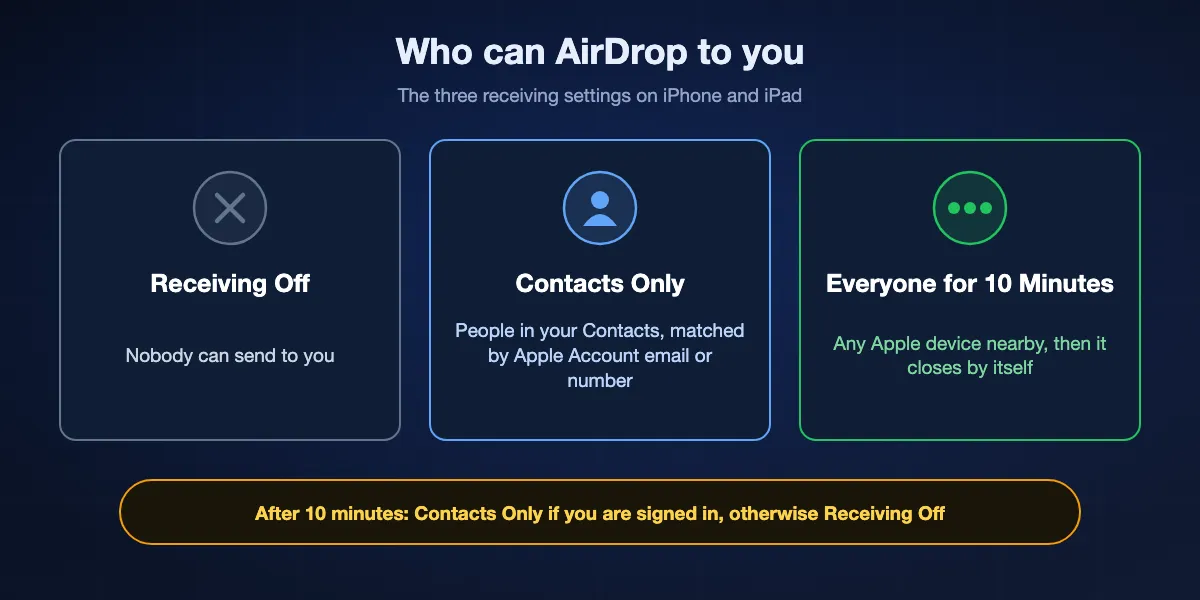
Open Control Center by swiping down from the top-right corner, or up from the bottom edge on an iPhone with a Home button. Touch and hold the group of connection controls in the top-left corner until it expands, then tap AirDrop. Choose Contacts Only or Everyone for 10 Minutes. The same choice is found in Settings under General, AirDrop.
On a Mac
Click the Control Center icon in the menu bar and then click AirDrop. When the AirDrop icon is blue, it is on. Click the arrow next to AirDrop to choose between Contacts Only and Everyone. You can also open a Finder window and click AirDrop in the sidebar, which shows who is nearby at the same time.
Contacts Only or Everyone for 10 Minutes?
Contacts Only is the default and the safer everyday choice, because only people in your Contacts can find your device. Everyone for 10 Minutes opens it to any Apple device nearby and then closes by itself. Apple says that after ten minutes the setting goes back to Contacts Only when you are signed in to an Apple Account, and to Receiving Off when you are not.
When the AirDrop control is missing
If you cannot find AirDrop at all, it has usually been restricted. Look in Settings, Screen Time, Content and Privacy Restrictions, Allowed Apps and Features. An iPhone issued by an employer or a school can also have AirDrop switched off by the organisation that manages it.
How to AirDrop from an iPhone or iPad
Every app with a Share button can send with AirDrop. The steps differ only in how you select what to send.
Photos and videos
Open the Photos app, tap Select, and tap each photo or video you want. Tap the Share button, then AirDrop. People from your contacts who are nearby appear under People; tap the name, and ask the other person to tap Accept.
Files and documents
In the Files app, tap the More button, tap Select and pick the files. Tap Share, then AirDrop, then the recipient. A document that is open in another app travels the same way through that app's own Share button.
Links, contacts and passwords
A web page in Safari or a contact card can be sent from its Share button, and it opens in the matching app on the other device. Apple also lets you share saved passwords and passkeys over AirDrop with people you trust.
Bring the two iPhones together
With iOS 17 or later on both phones, you can skip the list for someone in your contacts. Open the item you want to share and move your iPhone close to theirs, and AirDrop offers to send it. Held together with nothing to share, two iPhones offer NameDrop instead, which swaps contact cards. Both are controlled by Bring Devices Together in Settings, General, AirDrop.
To your own devices
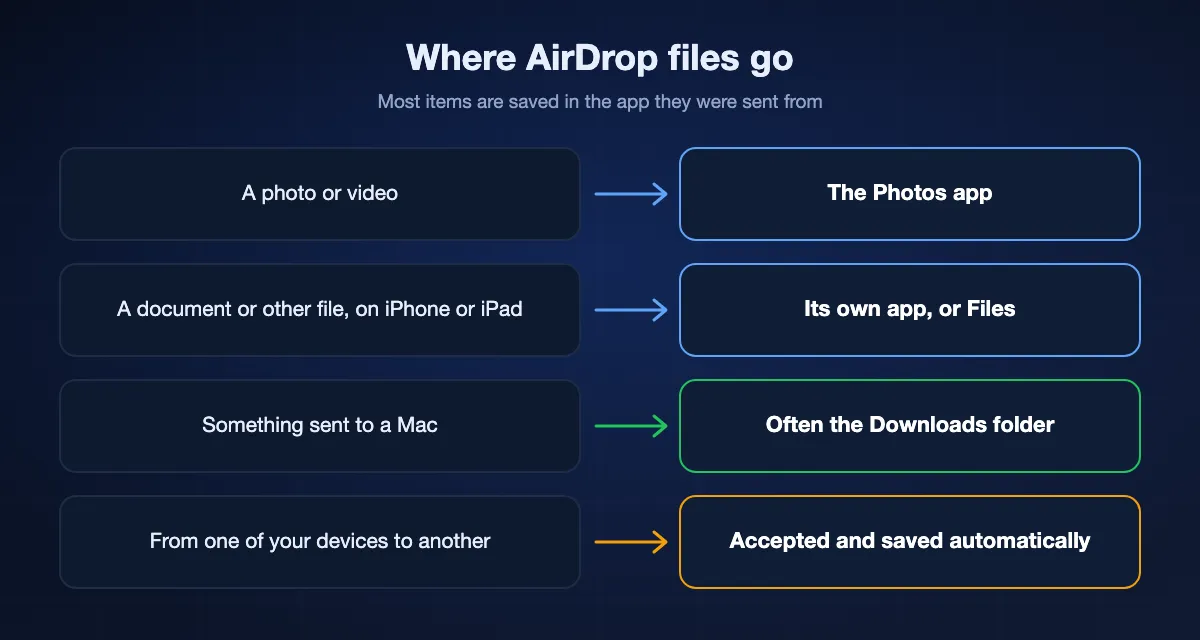
Sending from your iPhone to your own iPad or Mac needs no approval. When both devices are signed in to the same Apple Account, the item is accepted and saved automatically.
How to AirDrop from a Mac, and between a Mac and an iPhone
A Mac can send in two ways, and receiving on one has a detail worth knowing.
With the Share button
Open the item, click the Share button in the app's toolbar and choose AirDrop, then click the recipient. Only devices that are nearby, have Wi-Fi and Bluetooth on and are able to accept files from your Mac are shown.
From the Finder
Open a Finder window and click AirDrop in the sidebar. Nearby devices appear as icons; drag one file or several onto the device you want. This is the quickest route for files that already sit on the desktop or in a folder.
From a Mac to an iPhone
Wake the iPhone and keep it close to the Mac, then send from the Share button or the Finder window. If the iPhone is yours and uses the same Apple Account, the item arrives without a prompt. Photos go to Photos, and other files open in the app that handles them.
From an iPhone to a Mac
Turn AirDrop on at the Mac first, then on the iPhone tap Share, AirDrop and the Mac's name. On the Mac the request arrives as a notification, or inside the Finder's AirDrop window if that window is open. Many files are saved straight to the Downloads folder.
How to receive an AirDrop, and where the files go
Nothing arrives without your consent unless the sender is you. After that, the only puzzle is where the item was saved.
Accept or decline
A notification appears when someone sends you something. Tap or click Accept to take it, or Decline to refuse. If the notification says a code is needed, tap Get AirDrop Code and give that code to the sender.
Photos and videos
Apple's rule is that most items are saved in the app they were sent from. A photo sent from the Photos app is saved in Photos on your device.
Other files on an iPhone or iPad
A document opens in the app that matches it, and some items are saved in the Files app. If a file seems to have vanished, open Files and look under Recents.
On a Mac
Some items are saved automatically in the Downloads folder. For others the Mac offers a choice, for example between saving a photo in Downloads and opening it in Photos.
How to AirDrop to someone who is not in your contacts
This is where most failed attempts happen, because the default setting hides a device from everyone it does not know.
What Contacts Only really checks
Being in each other's address books is not always enough. Apple states that the person receiving must have the sender's Apple Account email address or phone number on the sender's contact card. If a friend saved you under a number that is not tied to your Apple Account, their device stays hidden from you.
Everyone for 10 Minutes
The person receiving opens Control Center, touches and holds the connection controls, taps AirDrop and picks Everyone for 10 Minutes. Their device now appears on yours. Send within the ten minutes, because the setting falls back by itself.
AirDrop codes, new in iOS 26.2
When both devices run iOS 26.2, iPadOS 26.2 or macOS 26.2 or later and the sender is not a contact, AirDrop asks for a code. The receiver taps Get AirDrop Code, the code appears on their screen, and the sender types it in. For the next 30 days the two of you can share without another code. To end that early, open Contacts, find the person in the Other Known list and choose Forget This Person.
Change your AirDrop name, turn AirDrop off, and other settings
A handful of settings shape how AirDrop behaves. All of them take a few seconds to change.
Change your AirDrop name
People who have you in their contacts see the first name and photo they saved for you. Everyone else sees the name of your device. Change it in Settings, General, About, Name on an iPhone or iPad. On a Mac, the computer name is set in System Settings, General, About.
Turn AirDrop off
On an iPhone or iPad, open the AirDrop control in Control Center, or go to Settings, General, AirDrop, and choose Receiving Off. On a Mac, click AirDrop in Control Center so that its icon is no longer blue. To keep a child's device off AirDrop entirely, switch it off under Screen Time, Content and Privacy Restrictions, Allowed Apps and Features.
Bring Devices Together
This switch in Settings, General, AirDrop controls sharing by holding two iPhones close, NameDrop included. Turn it off if you would rather start every transfer from the Share button.
Use Cellular Data
If you walk out of range after a transfer has started, AirDrop finishes it over the internet, and Apple notes that mobile data charges may apply. To keep AirDrop off mobile data, turn off Use Cellular Data in Settings, General, AirDrop.
What AirDrop can and cannot reach
AirDrop was built for Apple devices in the same room. Since late 2025 it has one opening towards Android, and several limits remain.
Android phones on Google's list
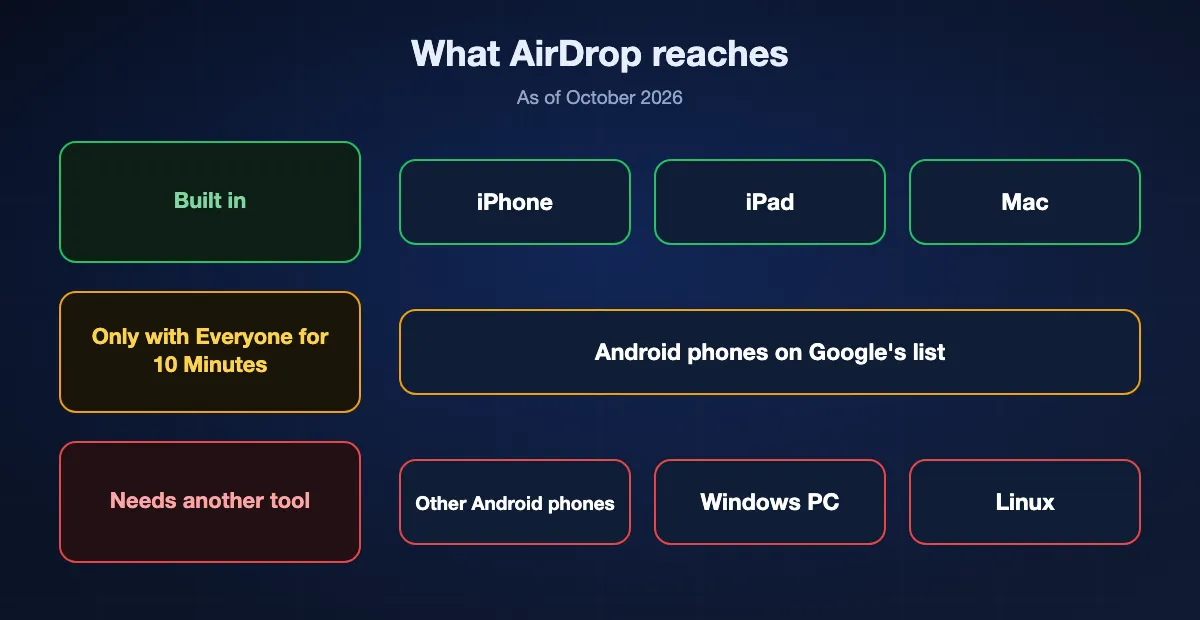
Google's Quick Share can speak AirDrop on the phones Google names: the Pixel 10 and 9 series and the Pixel 8a, recent Galaxy S and Z models, and a few phones from Xiaomi, OnePlus, OPPO, HONOR and vivo. The Apple device has to be on Everyone for 10 Minutes, and a Galaxy needs its Share with Apple devices switch turned on. An Android phone that is not listed never appears in AirDrop.
Windows PCs, Chromebooks and Linux
Apple has never released AirDrop for Windows, and nothing on a Chromebook or a Linux computer answers an AirDrop request. Files for those machines need a cable, a cloud link or an app that runs on both sides.
Someone in another place
AirDrop only starts between devices about 10 metres apart or less. The internet is used solely to finish a transfer that began in range. To send to another city, use a link instead.
A large batch of files
Apple itself describes AirDrop as best for a small selection of files and points to other methods for moving many. For hundreds of photos or a very long video, a cable import or a route made for volume is the more dependable choice.
AirDrop and BIShare at a glance
| What you need | AirDrop | BIShare |
|---|---|---|
| Already on the device, nothing to install | ||
| iPhone, iPad and Mac to each other | ||
| Android phones on Google's Quick Share list | ||
| Every other Android phone | ||
| Windows PCs | ||
| Linux computers | ||
| Works with no internet connection | ||
| Reaches someone in another city |
As of October 2026. AirDrop reaches the listed Android phones only while the Apple device is set to Everyone for 10 Minutes. BIShare needs its app on both devices for a nearby transfer, which runs over a shared Wi-Fi network or a phone's hotspot and needs no internet. For someone far away it makes a link that opens in any browser, holds up to 100 GB, lasts up to 24 hours and needs internet at both ends.
How to send to a device AirDrop cannot reach
Install BIShare on both devices
It is free on the App Store, Google Play, the Microsoft Store and the Mac App Store, with a download for Linux. No account is created and nothing has to be paired.
Join the same network
Put both devices on one Wi-Fi network. With no router around, turn on a phone's hotspot and connect the other device to it; no internet is needed for that.
Pick the device and send
Choose the files, tap the other device in the nearby list and accept on the receiving side. For a person who is somewhere else, create a link instead: the files are encrypted on your device before they upload, and the link opens in any browser.
If AirDrop does not work
Three checks settle most cases. A longer walk through every symptom is in our AirDrop troubleshooting guide.
The other device does not appear
Ask its owner to choose Everyone for 10 Minutes again, wake the screen and move closer. A device on Contacts Only stays hidden unless your Apple Account email address or number is on your card in its owner's contacts.
It appears, but nothing arrives
The request is waiting for an answer on the other screen. Check that the notification was not missed, and disconnect Personal Hotspot on both devices, as Apple advises.
Still stuck
Confirm in Settings that Wi-Fi and Bluetooth are on for both devices, then restart them. Apple's own last step is the same: restart and try again.
Using AirDrop safely
AirDrop is encrypted and asks before it saves anything, which covers most of the risk. The rest comes down to who can find your device.
Stay on Contacts Only
It is the default for a reason. Open the device to Everyone for 10 Minutes only when you are about to receive something, and let the timer close it again.
Decline what you did not expect
In a crowded place, anyone nearby can send a request to a device that is open to everyone. Decline requests from people you do not know. With iOS 26.2 or later, a stranger also needs the code that only your screen shows.
Children's devices
Apple's Communication Safety can warn a child and blur the content when sensitive images arrive, or are about to be sent, over AirDrop. Screen Time can also remove AirDrop from a child's device altogether.
How to AirDrop: FAQ
What is AirDrop?
AirDrop is the wireless sharing feature built into iPhone, iPad and Mac. It sends photos, videos, documents and links to a nearby Apple device over Bluetooth and a direct Wi-Fi link, with no internet connection needed, and the recipient chooses whether to accept.
How do I turn on AirDrop?
On an iPhone or iPad, open Control Center, touch and hold the connection controls in the top-left corner, tap AirDrop and choose Contacts Only or Everyone for 10 Minutes. On a Mac, click Control Center in the menu bar and click AirDrop so that its icon turns blue.
Where is AirDrop on my iPhone?
In two places: in Control Center, inside the group of connection controls that expands when you touch and hold it, and in Settings under General, AirDrop. To send, look for AirDrop after tapping the Share button in any app.
How do I AirDrop photos?
Open Photos, tap Select and choose the photos, tap the Share button and then AirDrop, and tap the person or device. They tap Accept, and the photos are saved in their Photos app.
How do I AirDrop from a Mac to an iPhone?
Wake the iPhone and keep it near the Mac. On the Mac, click the Share button and choose AirDrop, or open AirDrop in the Finder sidebar and drag the file onto the iPhone. If both use the same Apple Account, the item is accepted automatically.
How do I AirDrop from an iPhone to a Mac?
Turn AirDrop on at the Mac from Control Center, then on the iPhone tap Share, AirDrop and the Mac. Accept the notification on the Mac; many files are saved in its Downloads folder.
Where do AirDrop files go?
Most items are saved in the app they were sent from, so photos go to Photos. On an iPhone or iPad some items are saved in the Files app, and on a Mac some are saved automatically in the Downloads folder.
How do I change my AirDrop name?
On an iPhone or iPad, go to Settings, General, About, Name and type a new name. On a Mac, change the computer name in System Settings, General, About. People who have you in their contacts see the name they saved for you instead.
How do I turn off AirDrop?
On an iPhone or iPad, choose Receiving Off in the AirDrop control in Control Center, or in Settings, General, AirDrop. On a Mac, click AirDrop in Control Center so its icon is no longer blue.
Does AirDrop use Wi-Fi or mobile data?
It needs Wi-Fi and Bluetooth switched on, but a transfer between devices that stay in range uses neither a Wi-Fi network nor the internet. If you move out of range partway through, it can finish over the internet unless Use Cellular Data is turned off in Settings, General, AirDrop.
Can I AirDrop to Android or Windows?
To Android only when the phone is on Google's Quick Share list and the Apple device is set to Everyone for 10 Minutes. Windows PCs, Chromebooks, Linux computers and other Android phones cannot receive AirDrop; a cross-platform app such as BIShare covers those.
Can I cancel an AirDrop after sending it?
The recipient can decline the request when it appears. Apple's guides describe no way to take an item back once it has been accepted, so the other person would have to delete it.
AirDrop for Apple devices. BIShare for the rest.
Keep AirDrop for your iPhone, iPad and Mac. When the other device is a Windows PC, an Android phone or a Linux laptop, BIShare sends the same files directly, free and without an account.