
Files onto an iPad
How to transfer files to iPad
Moving a file to an iPad is two questions, not one. The first is the usual one, how to get it across from a Windows PC, a Mac or a phone. The second is the one that trips people up: where it should land once it arrives. A PDF you want to read belongs in the Files app, a film for a video player belongs inside that player, and a photo belongs in the Photos library, and each destination has its own best route in. This guide answers the second question first, then ranks eight routes with the limits Apple and Microsoft publish, shows how to use a USB drive on any iPad with the port speed of each current model, and covers the trip back from the iPad to a computer. BIShare is on the list too; of the eight it alone behaves the same from Windows, Mac, Android and Linux to an iPad over Wi-Fi, with an encrypted browser link for a computer in another room or another city. No charge, open source, no sign-up.
BIShare is ours. Between Apple devices, AirDrop and the Finder are often the simpler choice, and the ranking says when.
How do I transfer files to an iPad? The quick answer
- From a Mac or an iPhone: use AirDrop. Pick the file, tap Share, then AirDrop, and choose the iPad.
- From a Windows PC, without a cable: BIShare on the PC and the iPad sends any file over the same Wi-Fi; a link opened in Safari works when they are apart.
- Into a particular app, such as a video player: connect the iPad, open Finder on a Mac or Apple Devices on Windows, choose Files and drop the file on that app.
- Offline: put the files on a USB drive or SD card and open it in the Files app on the iPad.
- From an Android phone: a cross-platform app such as BIShare or LocalSend, or Quick Share on phones Google lists as able to AirDrop.
- The file arrived but will not open: it landed in the Files app; tap Share there and send it to the app that reads that format.
Where should the file end up on the iPad?
An iPad has no single Downloads folder that every app reads. Where a file has to live depends on what you will do with it, and that settles the route before you pick up a cable.
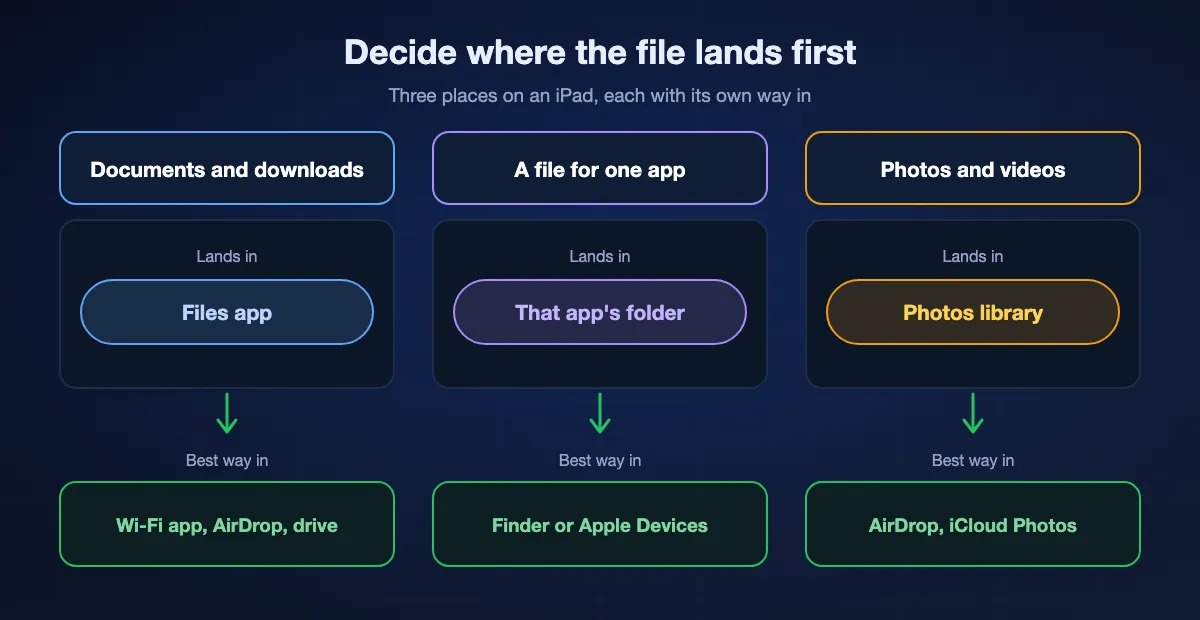
Documents and downloads: the Files app
PDFs, spreadsheets, ZIP archives and anything you want to keep as a file go into Files, either On My iPad or iCloud Drive. Most routes deliver here by default: AirDrop asks which app to open a document with, Safari saves to Downloads in Files, and a USB drive or a shared folder is browsed and copied from inside Files. From there, the Share button passes a file to whichever app should open it.
A file for one app: that app's own folder
A video player, a drawing app or a music workstation keeps its library inside the app. Apple's iPad guide limits cable copies to apps that offer file sharing, and the Finder support article adds that you should copy only files that work with the app. On a Mac that is the Files tab in the Finder; on Windows, the Files tab in Apple Devices. Many of these apps also show their folder in the Files app, which lets any wireless route drop the file straight in.
Photos and videos for the Photos library
Pictures you want in the camera roll belong in Photos, not in Files. AirDrop from a Mac or iPhone puts them there directly, iCloud Photos keeps the libraries in step, and photos that arrive in Files from any other route can be added with Share, then Save Image or Save Video. A camera card in a reader can also be imported straight into Photos.
Eight ways to put files on an iPad, ranked
BIShare
Best from Windows, Android or Linux: any file to the iPad over Wi-Fi
iPad and iPhone app, Windows, macOS and Linux apps, Android app, or any browser for a link · MIT-licensed · no size ceiling on one network · links hold 100 GB for 6, 12 or 24 hours · encrypted end to end · no account
Install BIShare on the iPad and on the computer or phone you are sending from, put both on one Wi-Fi network, then pick the files on the sender and tap the iPad in the nearby list. Files reach the iPad at their original size and in their original format, with nothing uploaded, and they work over the iPad's own hotspot on cellular models or any router without internet. When the sender is somewhere else, a link does the job instead: the file is sealed on the sending device and the iPad downloads it in Safari, with nothing installed on either end of that route.
Watch out for: Received files wait in the app's inbox until you move them to Files, Photos or another app. The direct route needs the app on both devices.
AirDrop from a Mac or iPhone
Best between Apple devices
Mac, iPhone or another iPad · built in · Bluetooth and Wi-Fi turned on · within close range · no size limit stated · no internet needed
Apple's own iPad guide names AirDrop as the way to share a file with a nearby Apple device. On a Mac, Control-click the file, choose Share, then AirDrop and the iPad; on an iPhone, tap Share, then AirDrop. Photos and videos land in the Photos app, and for documents the iPad asks which app to open them in. It is the fastest route between Apple devices because there is nothing to set up. The AirDrop guide covers the receiving settings.
Watch out for: It works only between Apple devices: no Windows PC, no Android phone, no Linux. The iPad has to be set to receive from Contacts Only or Everyone for 10 Minutes.
The Finder on a Mac
Best for files that belong inside one app, from a Mac
macOS Catalina or later · USB cable, or Wi-Fi after the first connection · iPad on the latest iPadOS · works only with apps that support File Sharing
Connect the iPad, select it in the Finder sidebar and click the Files tab. Apple's support article says the list shows the apps that can share files; drag a file onto one of them and the Finder copies it to the iPad. That is how a film goes into a video player or a project into an editing app without a detour through the Files app. If the Files section is missing, none of the installed apps shares files.
Watch out for: Only apps whose developers turned on File Sharing appear, and only files those apps can read should be copied. macOS Mojave and earlier use iTunes instead.
Apple Devices on Windows
Best for app files from a Windows PC
Windows 10 and newer · a free app in the Microsoft Store · cable first, then Wi-Fi if you turn it on · the Files tab shows only apps with file sharing
Apple's iPad guide points Windows 10 and later users to Apple Devices. Select the iPad in the sidebar, choose Files and drag documents from a Windows folder onto an app in the list; the copy is immediate and needs no sync. It is the Windows counterpart of the Finder route and suits the same jobs: a season of video for an offline player, a folder of sheet music for a score reader.
Watch out for: The same limit applies: apps without file sharing do not appear, and nothing goes into the Files app's own folders this way. Windows 7 and earlier use iTunes.
iCloud Drive
Best when the files should stay current on every device
Mac, iPhone and iPad built in · Windows through iCloud for Windows · any browser at iCloud.com · 5 GB free · same Apple Account everywhere · internet required
Put the file in iCloud Drive on the computer, and it appears in the Files app on the iPad under iCloud Drive. On a Mac that is a Finder location; on Windows, iCloud for Windows adds the folder to File Explorer; on a borrowed computer, upload at iCloud.com. Edits sync in both directions, so it suits a folder you keep working on from both devices.
Watch out for: Files go up to Apple's servers and back down, which is slow for a large video on a home upload, and the free 5 GB is shared with backups and photos.
A USB drive or SD card
Best with no network and no software
Files app · plugs into the USB-C port on every current iPad · Lightning models need an adapter · APFS, HFS+, exFAT, FAT32 or FAT · one data partition
Copy the files to a drive on any computer, plug it into the iPad, and open Files: the drive appears under Locations, and you copy or open files from there. Apple's guide lists the formats an iPad reads and says the drive must have a single data partition. The section on drives below covers formats, power and the port speed of each model.
Watch out for: Two trips, and a hard drive may need its own power. A drive with several partitions, or in NTFS, the Windows default for internal disks, will not appear.
A shared folder through Connect to Server
Best for a computer you cannot install anything on
Built into Windows, macOS and iPadOS · same local network · Files › Connect to Server · user name and password of the computer · no internet needed
Share a folder on the computer, then on the iPad open Files, tap the More button at the top of the sidebar, choose Connect to Server, type the computer's network name or IP address, and log in with that computer's account. The folder appears under Shared, and you copy files out of it like any other location. A Mac shares through File Sharing in System Settings; Windows through a folder's Sharing tab. The iPhone to PC guide walks through the Windows side.
Watch out for: It takes a few minutes the first time, and the computer has to be awake and on the same network whenever you want a file.
Email, Mail Drop and cloud drives
Best for one file from a computer you do not own
Mail Drop: up to 5 GB, link kept 30 days · Google Drive, OneDrive and Dropbox apps appear in Files · account required · internet required
Mail a file to yourself and save the attachment on the iPad with Share, then Save to Files. For anything over an ordinary attachment limit, Mail Drop on a Mac sends up to 5 GB as a link that lasts 30 days. Cloud drive apps go further: once installed on the iPad, Google Drive, OneDrive and Dropbox show up as locations in Files.
Watch out for: Everything travels through someone's servers, so it waits on upload speed and needs an account. Ordinary attachments stop at about 25 MB.
At a glance
| Feature | BIShare | AirDrop | Finder or Apple Devices | iCloud Drive | Shared folder | USB drive |
|---|---|---|---|---|---|---|
| Works from a Windows PC | ||||||
| Works from an Android phone | ||||||
| Any file, not only one app's files | ||||||
| Works with no internet | ||||||
| No account or password needed |
As of October 2026. BIShare runs on Windows, macOS, Linux, Android, iPhone and iPad and needs the app on both ends for a direct transfer; a link opens in Safari and holds up to 100 GB, kept 6, 12 or 24 hours. AirDrop works only between Apple devices. The Finder (macOS Catalina or later) and Apple Devices (Windows 10 or later) copy only to apps that support File Sharing. iCloud Drive wants one Apple Account signed in on both, with 5 GB free. A shared folder asks for the computer's user name and password. A USB drive must have one data partition formatted as APFS, HFS+, exFAT, FAT32 or FAT. From an Android phone, iCloud Drive works through iCloud.com in a browser, and phones on Google's Quick Share list can reach AirDrop.
Which way should you use?
Start from the device the files are on, then from where they should end up on the iPad.
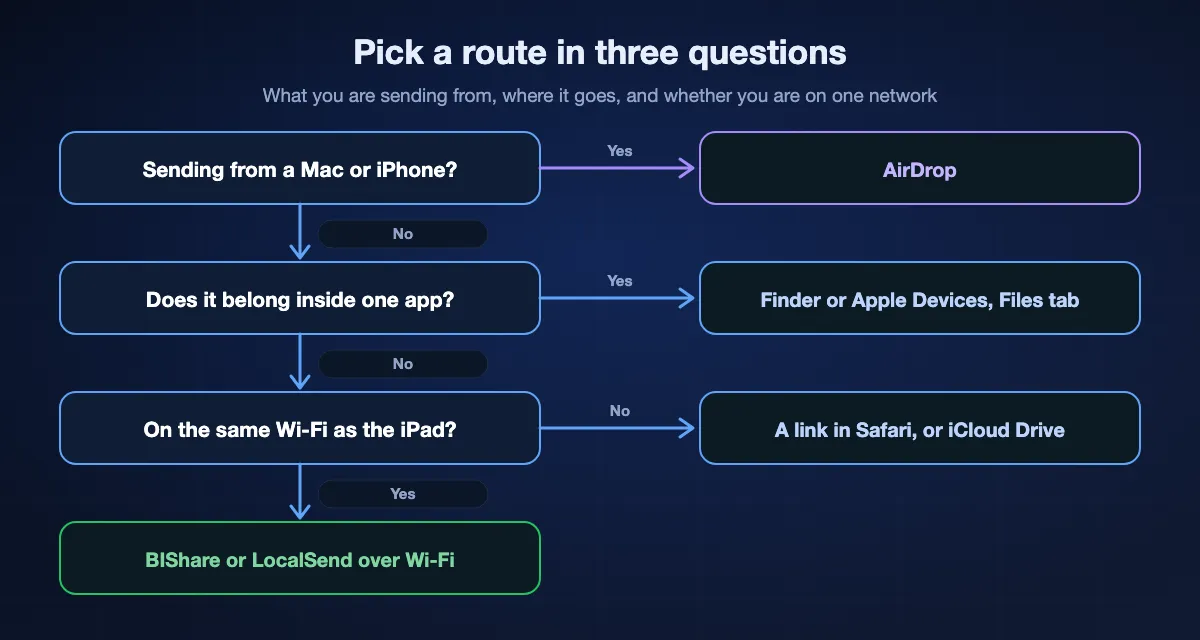
From a Windows PC
Use BIShare or LocalSend on one Wi-Fi network for any file, Apple Devices with a cable for files that belong inside an app, and iCloud Drive for folders you keep editing on both. A USB drive covers a PC that is offline.
From a Mac
AirDrop for a few files, the Finder's Files tab for an app's library, iCloud Drive for anything you want on both. Mac to iPad needs nothing else installed.
From an Android phone
AirDrop is not available, so use a cross-platform app on both devices. Phones on Google's list can also send to an iPad through Quick Share when the iPad is open to Everyone for 10 Minutes; the AirDrop for Android guide has the current list.
A large video or a whole folder
Pick a direct route. A Wi-Fi transfer, a cable into an app, or a fast USB-C drive moves gigabytes in minutes; a cloud route waits on the upload first. Sending large files compares the limits.
How to use a USB drive or SD card on iPad
Every iPad that runs iPadOS 27 except the iPad (9th generation) has a USB-C port, so a modern USB-C stick plugs straight in. What decides whether it shows up is the format and the power, and what decides how fast it copies is the port.
Plug it in and open Files
Attach the drive or card reader to the charging port; a Lightning iPad needs a Lightning to USB Camera Adapter or similar. In Files, tap Browse and look under Locations for the drive's name. Copy files onto the iPad by touching and holding them, then choosing Copy or Move, or drag them across in a second window.
Use a format the iPad reads
Apple's guide lists APFS, encrypted APFS, macOS Extended (HFS+), exFAT, FAT32 and FAT, on a drive with a single data partition. For a drive shared with Windows, exFAT is the safe choice. An iPad with USB-C can reformat a drive itself: touch and hold its name under Locations and tap Erase, which deletes everything on it.
Give a hard drive power
Apple notes that external hard drives often need their own power with an iPad. A spinning disk that does not appear will usually work through a powered USB hub; a USB-C stick or SSD normally runs from the iPad alone.
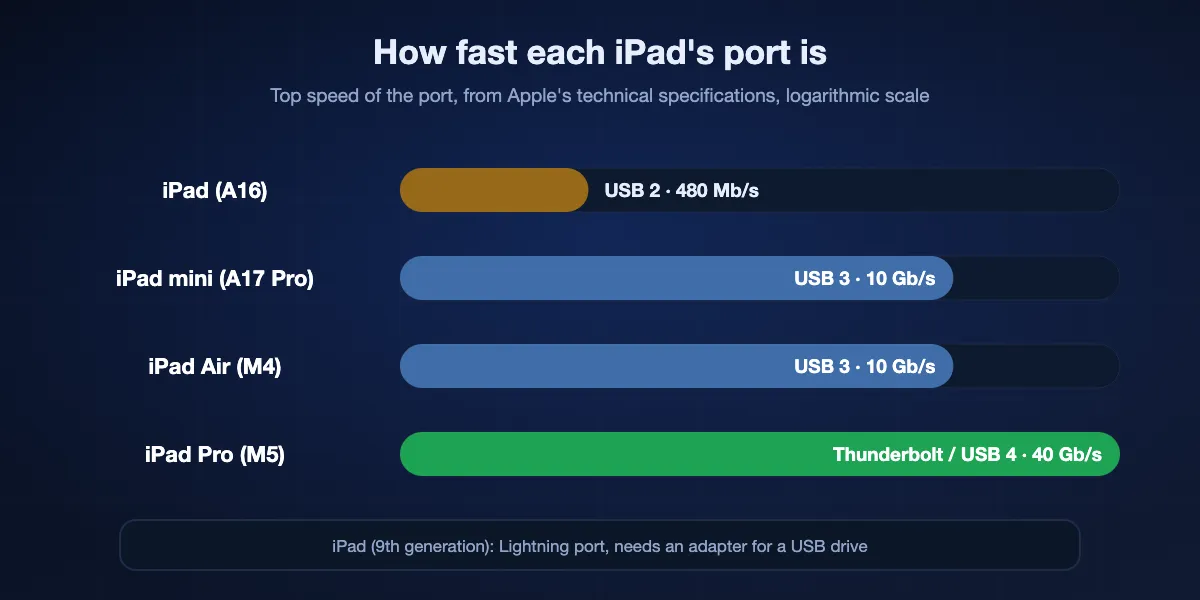
Know the port on your model
From Apple's specifications: the iPad (A16) runs its USB-C port at USB 2, up to 480 Mb/s; the iPad mini (A17 Pro) and iPad Air (M4) at USB 3, up to 10 Gb/s; the iPad Pro (M5) through Thunderbolt / USB 4 at up to 40 Gb/s. A fast drive on the entry iPad still copies at USB 2 speed.
The other direction: iPad to computer
Getting files off an iPad uses the same routes, and the file usually starts in Files or in an app's folder.
To a Windows PC
Send it with BIShare from the iPad to the PC on the same Wi-Fi, or connect a cable, open Apple Devices, and drag it from an app's list under Files to a folder. Photos come off with a cable and the Photos app's Import on Windows; the photos guide covers that in detail.
To a Mac
AirDrop from the Share button sends to a nearby Mac. The Finder's Files tab copies an app's documents the other way when you drag them from the app to a folder.
To any computer, with no app
Copy the files to a USB drive in Files, or into a shared folder on the computer through Connect to Server. Both leave the network and the cloud out of it.
To someone else
Make a BIShare link on the iPad: the recipient opens it in any browser, on any computer, with nothing to install, up to 100 GB.
Sending files to an iPad with BIShare
Install it on both devices
Get BIShare on the iPad from the App Store, and on the sending device from its own store: Microsoft Store, Mac App Store or Google Play, or the Linux download. Join both to one Wi-Fi network and, on the iPad, allow local network access when iPadOS asks.
Choose files on the sending device
Pick documents, videos or whole folders on the computer or phone and choose the iPad from the devices nearby. Accept on the iPad, and the files arrive as they were sent, full size and in their original format.
Move them where they belong
Open the received files on the iPad and save them to Files, add photos to the Photos library, or tap Share to hand a file to the app that will use it. For a sender in another place, make a link and open it in Safari on the iPad before it expires.
How long does it take?
Three things set the time: the slowest link between the two devices, whether the file goes through a server, and, for a cable or drive, which port the iPad has.
By cable or drive
The iPad's port is the ceiling. At USB 2 on the iPad (A16), a 4 GB film takes about a minute and a half in the best case; at 10 Gb/s on an iPad Air or mini the drive itself usually becomes the limit.
Over Wi-Fi between devices
A direct transfer runs at local network speed. In our tests Wi-Fi 5 gives 40 to 50 MB/s between devices and Wi-Fi 6 gives 70 to 110, so the same 4 GB film is on the iPad within a couple of minutes. Our Wi-Fi transfer guide breaks the numbers down.
Through a cloud
iCloud Drive, Mail Drop and cloud drives need a full upload before the iPad can download anything. On a 40 Mbps upload the 4 GB film takes around a quarter of an hour to go up, before the download even starts.
When the file does not arrive
The iPad does not appear in the Finder or Apple Devices
Unlock the iPad and tap Trust when it asks about the computer. Try another cable, since some carry only power, and update the iPad to the latest iPadOS, which Apple's Finder article lists as a requirement.
There is no Files tab, or the app is missing from it
Only apps that support File Sharing are listed, and the tab is missing when none of the installed apps does. Send the file to the Files app instead, then use Share inside Files to pass it to the app.
The USB drive does not show under Locations
Check that it has one data partition and a supported format; NTFS, the format most Windows drives use, is not on Apple's list. Reformat it as exFAT on a computer, or give a hard drive power through a hub.
The iPad does not appear in AirDrop
Wake the iPad, turn on Wi-Fi and Bluetooth, and set AirDrop to Everyone for 10 Minutes in Control Center or in Settings, General, AirDrop. The AirDrop troubleshooting guide covers the rest.
The file arrived but nothing opens it
The iPad has no app for that format yet. Install one that reads it, then open Files, touch and hold the file and choose Share to send it there.
There is not enough space
Check Settings, General, iPad Storage. A film can stay on a USB drive and play from there in Files, so it never has to be copied onto the iPad at all.
Who holds a copy along the way?
Speed is not where these routes really differ. What changes is which companies, if any, hold your file while it travels.
AirDrop, cable, drive and shared folder
The file stays between your own devices. Apple encrypts AirDrop transfers, and a cable or drive never touches a network. A shared folder is open to anyone on that network with the computer's password, so stop sharing it when you are done.
iCloud Drive, Mail Drop and cloud drives
A copy sits with the provider under your account, protected in transit and at rest, until you remove it; a Mail Drop link expires by itself after 30 days.
BIShare
On one network, files go straight from the sender to the iPad with end-to-end encryption and no server in between. A link is sealed on the sending device before upload, and the key travels inside the link, so the server keeps only ciphertext and deletes it at expiry.
Frequently asked questions
How do I transfer files to an iPad?
From a Mac or iPhone, use AirDrop. From a Windows PC, BIShare over Wi-Fi sends any file, Apple Devices with a cable for app files, or iCloud Drive. With no network, copy the files to a USB drive and open it in the Files app.
How do I put files on an iPad from a PC without iTunes?
On Windows 10 and later, Apple Devices replaces iTunes for this: connect the iPad, choose Files, and drag documents onto an app. Wireless routes such as BIShare, iCloud Drive or a shared folder need neither.
How do I send files from a Mac to an iPad?
AirDrop is quickest: Control-click the file, choose Share, then AirDrop and the iPad. For files that belong in an app, connect the iPad, select it in the Finder and use the Files tab.
Can I transfer files to an iPad wirelessly?
Yes. AirDrop works from Apple devices, and BIShare or LocalSend work from Windows, Android and Linux on the same Wi-Fi. iCloud Drive and a link in Safari cover devices that are not nearby.
How do I use a USB drive on an iPad?
Plug it into the USB-C port, or use an adapter on a Lightning iPad, then open Files and look under Locations. The drive needs one data partition formatted as APFS, HFS+, exFAT, FAT32 or FAT.
Where do files go when I transfer them to an iPad?
Documents usually land in the Files app, under On My iPad, iCloud Drive or Downloads. Files sent through the Finder or Apple Devices go inside the app you chose, and photos sent by AirDrop go to the Photos library.
How do I put movies on an iPad to watch offline?
Install a video player that supports file sharing, connect the iPad, and drop the film onto that app in the Finder or Apple Devices. A Wi-Fi transfer to Files also works, or keep the film on a USB drive and play it from there.
How do I transfer files from Android to an iPad?
Use a cross-platform app on both devices, such as BIShare or LocalSend, on the same Wi-Fi. Phones on Google's Quick Share list can also send to an iPad set to Everyone for 10 Minutes.
What is the quickest way to get big files onto an iPad?
Keep it local: device-to-device Wi-Fi ran at 70 to 110 MB/s on Wi-Fi 6 when we measured, and a fast drive on an iPad Pro's Thunderbolt port beats that. A route through a cloud is held back by your home upload speed.
How do I transfer files from an iPad to a PC?
Send them with BIShare over Wi-Fi, drag them out of an app in Apple Devices with a cable, or copy them to a USB drive in Files. For photos, the Windows Photos app imports them over a cable.
Why can't my iPad see my USB drive?
Most often the format: NTFS is not supported, so reformat as exFAT. A drive with more than one partition will not show either, and a hard drive may need a powered hub.
Send anything to your iPad, from any computer
Free and open source. Wi-Fi transfers at full size from Windows, Mac, Linux or Android, or an encrypted link that opens in Safari.