
Mac ↔ Windows
Mac और Windows के बीच फ़ाइलें शेयर करें
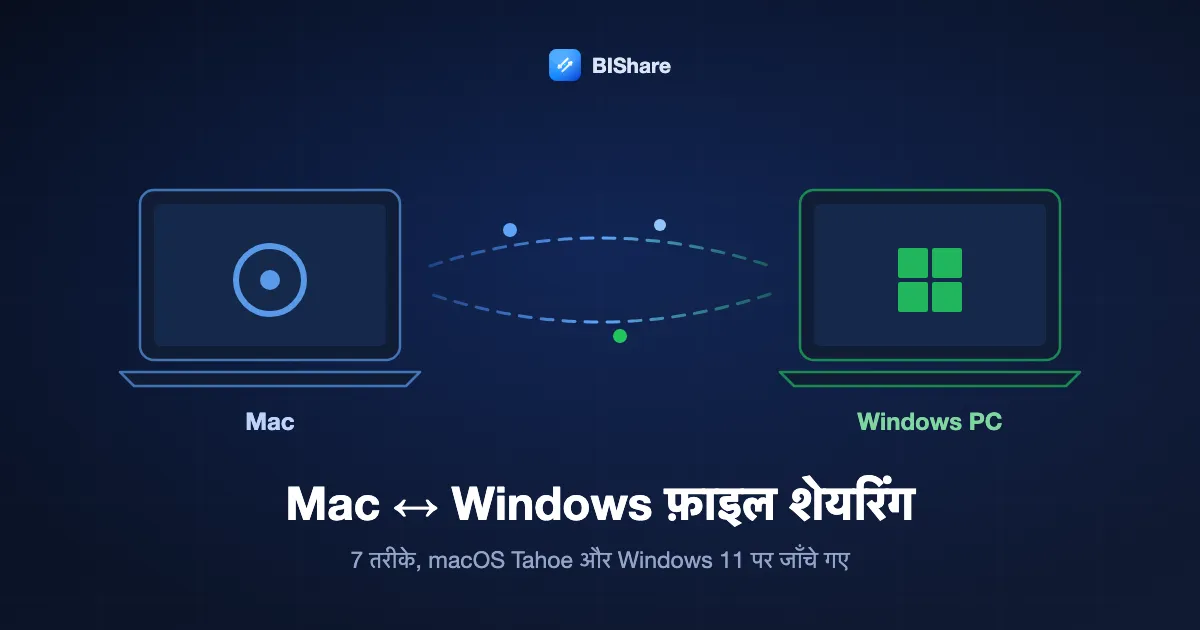
AirDrop Apple की दुनिया की सीमा पर रुक जाता है, और Windows के पास ऐसा कुछ नहीं जो उससे बात कर सके। फिर भी Mac से PC और वापस फ़ाइल ले जाने के सात असली तरीके बचते हैं, और उनमें फ़र्क़ ज़्यादातर गाइड की सोच से बड़ा है: एक में दोनों कंप्यूटर की सेटिंग खंगालनी पड़ती है, एक चुपचाप 4 GB से बड़ी फ़ाइलें ठुकरा देता है, एक किसी और के सर्वर से होकर जाता है। यह पेज सभी को कवर करता है, जिसमें बिल्ट-इन तरीका macOS Tahoe और Windows 11 के लिए पूरा लिखा है, और BIShare तब के लिए जब आप चाहते हैं कि बस काम हो जाए। मुफ़्त, ओपन सोर्स, बिना अकाउंट।
BIShare हमारा प्रोडक्ट है। नीचे बताई बिल्ट-इन Windows फ़ाइल शेयरिंग का कोई ख़र्च नहीं और किसी का ऐप भी नहीं चाहिए, और जिस डेस्क पर दोनों मशीनें टिकी रहती हैं वहाँ यह पूरी तरह ठीक जवाब है; हम बताते हैं कि किन हालात में यही बेहतर है।
छोटा जवाब
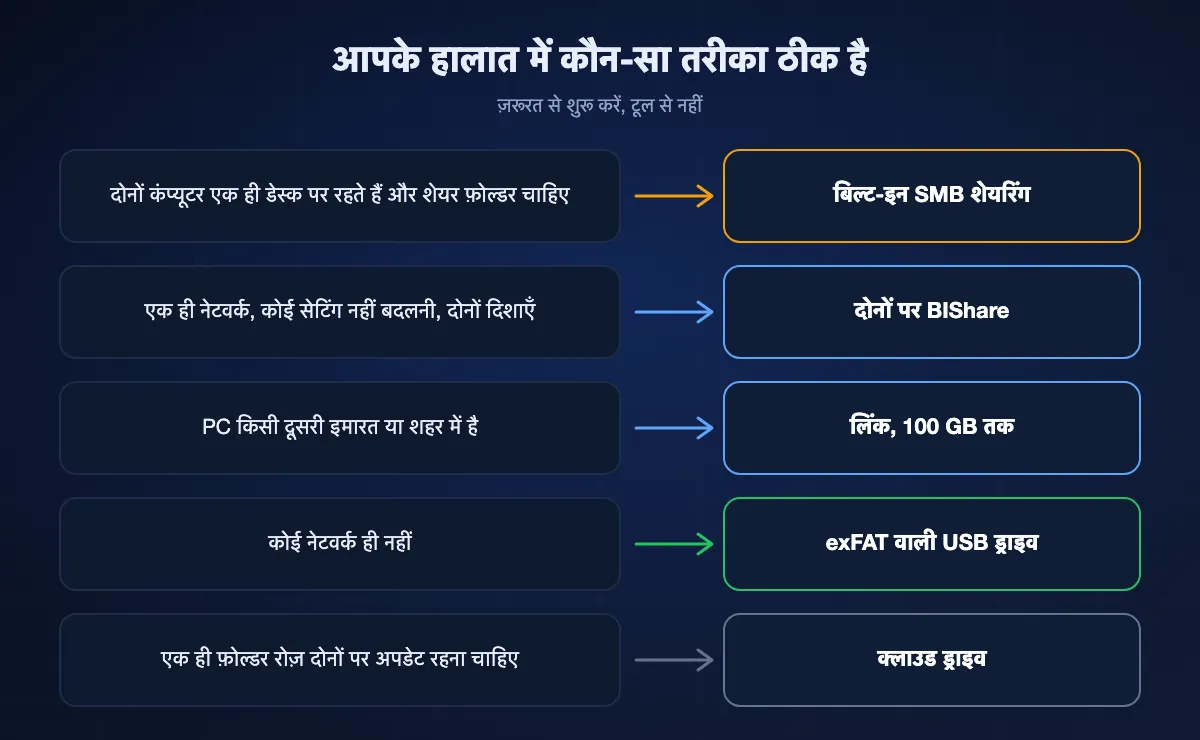
- सेटअप में सबसे तेज़, दोनों दिशाओं में: Mac और PC पर BIShare इंस्टॉल करें, दोनों को एक Wi-Fi पर रखें, दूसरी मशीन चुनें और भेजें। सीधा और एन्क्रिप्टेड, साइज़ की कोई सीमा नहीं, कुछ भी अपलोड नहीं होता।
- कुछ इंस्टॉल किए बिना: Mac पर SMB के साथ फ़ाइल शेयरिंग चालू करें, फिर PC के File Explorer में दो बैकस्लैश और उसके बाद Mac का पता टाइप करें। यह बिल्ट-इन है, पर दोनों तरफ़ कुछ मिनट की सेटिंग लगती है।
- PC कहीं और है: लिंक भेजें। BIShare 100 GB तक एन्क्रिप्टेड ले जाता है; Windows की तरफ़ यह Edge या Chrome में खुलता है, कोई ऐप नहीं चाहिए।
- USB स्टिक से: उसे exFAT में फ़ॉर्मैट करें। FAT32 4 GB से बड़ी हर फ़ाइल ठुकराता है, Windows Mac-फ़ॉर्मैट ड्राइव नहीं पढ़ सकता, और macOS NTFS को सिर्फ़ पढ़ सकता है, उस पर लिख नहीं सकता।
- जो फ़ाइलें दोनों मशीनों पर रहनी चाहिए: OneDrive, Google Drive या Windows के लिए iCloud जैसी क्लाउड ड्राइव। यह सिंक है, ट्रांसफ़र नहीं, और आपके स्टोरेज प्लान पर टिका है।
- इससे बचें: फ़ाइलें ख़ुद को ईमेल करना। अटैचमेंट लगभग 20–25 MB पर रुक जाते हैं और फ़ोटो अक्सर कंप्रेस होकर पहुँचती हैं।
सातों तरीके, क्रम से
BIShare
कुल मिलाकर सबसे अच्छा: Mac और PC के बीच AirDrop जैसी सहूलियत
macOS, Windows, साथ में iPhone, Android, Linux · मुफ़्त, ओपन सोर्स (Apache 2.0) · एक ही Wi-Fi पर कोई सीमा नहीं, लिंक से 100 GB · एंड-टू-एंड एन्क्रिप्टेड · बिना अकाउंट
दोनों मशीनों पर इंस्टॉल करें और जैसे ही वे एक नेटवर्क पर आती हैं, हर एक दूसरी की डिवाइस लिस्ट में दिख जाती है। फ़ाइलें चुनें, PC चुनें, दूसरी तरफ़ स्वीकार करें, और ट्रांसफ़र मशीन से मशीन उतनी रफ़्तार से जाता है जितनी आपका Wi-Fi या Ethernet दे, पूरे रास्ते एन्क्रिप्टेड और किसी सर्वर को छुए बिना। यह दोनों दिशाओं में किसी भी कंप्यूटर की एक भी सेटिंग बदले बिना चलता है, और तब भी चलता रहता है जब नेटवर्क बिना इंटरनेट वाला फ़ोन हॉटस्पॉट हो। PC पास न हो तो वही ऐप एक लिंक, QR कोड और छोटा कोड बनाता है; Windows उसे किसी भी ब्राउज़र में खोलकर बिना कुछ इंस्टॉल किए 100 GB तक डाउनलोड करता है। लिंक 6, 12 या 24 घंटे बाद या एक डाउनलोड के बाद ख़त्म हो जाते हैं।
कहाँ कमी है: सीधे रास्ते के लिए दोनों मशीनों पर ऐप चाहिए। यह फ़ाइलें भेजता है, पर PC को Mac का ऐसा फ़ोल्डर नहीं देता जिसे वह SMB की तरह ब्राउज़ कर सके।
Windows फ़ाइल शेयरिंग (SMB), बिल्ट-इन
सबसे अच्छा जब दोनों मशीनें एक ही डेस्क पर रहें
macOS और Windows में बिल्ट-इन · मुफ़्त · सिर्फ़ एक ही नेटवर्क पर · शेयर करने वाली तरफ़ अकाउंट पासवर्ड · साइज़ की कोई सीमा नहीं
दोनों ऑपरेटिंग सिस्टम SMB समझते हैं, जो Windows फ़ाइल शेयर के पीछे का प्रोटोकॉल है, इसलिए Mac ऐसे फ़ोल्डर शेयर कर सकता है जिन्हें PC File Explorer में खोले, और PC ऐसे फ़ोल्डर शेयर कर सकता है जिन्हें Mac Finder में माउंट करे। सेट हो जाने पर आप फ़ाइलें किसी भी दिशा में ऐसे खींचते हैं मानो दूसरा कंप्यूटर एक्सटर्नल ड्राइव हो, और यही चीज़ ट्रांसफ़र ऐप नहीं देता। मुश्किल सेटअप में है: Mac पर फ़ाइल शेयरिंग और SMB, हर अकाउंट के लिए Windows शेयरिंग, PC पर नेटवर्क डिस्कवरी और Private नेटवर्क प्रोफ़ाइल, और कभी-कभी बार-बार पासवर्ड माँगने का चक्कर। पूरे चरण नीचे हैं।
कहाँ कमी है: दोनों मशीनों पर कई सेटिंग, सिर्फ़ एक नेटवर्क, और Apple चेतावनी देता है कि Windows शेयरिंग वाले अकाउंट के पासवर्ड कम सुरक्षित तरीके से सहेजे जा सकते हैं, इसलिए इस्तेमाल न होने पर इसे बंद रखना चाहिए।
LocalSend
एक ही नेटवर्क पर ट्रांसफ़र के लिए ओपन सोर्स ऐप
macOS, Windows, iPhone, Android, Linux · मुफ़्त, ओपन सोर्स · सिर्फ़ एक ही नेटवर्क पर · एन्क्रिप्टेड · बिना अकाउंट
LocalSend एक अच्छी साख वाला ओपन सोर्स ऐप है जो BIShare का एक ही नेटवर्क वाला आधा काम करता है: Mac और PC पर इंस्टॉल करें, दोनों एक-दूसरे को देखें, भेजें। कोई सिस्टम सेटिंग नहीं बदलनी पड़ती और यह तेज़ है। एक ही घर के दो कंप्यूटर जो सिर्फ़ आपस में फ़ाइलें बदलते हैं, उनके लिए यह साफ़ विकल्प है।
कहाँ कमी है: दूसरे नेटवर्क पर मौजूद PC तक कोई रास्ता नहीं, और उस प्राप्तकर्ता के लिए कुछ नहीं जो ऐप इंस्टॉल नहीं कर सकता।
क्लाउड ड्राइव: OneDrive, Google Drive, Windows के लिए iCloud, Dropbox
सबसे अच्छा जब फ़ाइल दोनों मशीनों पर रहनी चाहिए
macOS और Windows के ऐप · मुफ़्त प्लान: OneDrive 5 GB, Google Drive 15 GB तक, iCloud 5 GB, Dropbox 2 GB · अकाउंट ज़रूरी · डिफ़ॉल्ट रूप से एंड-टू-एंड एन्क्रिप्टेड नहीं
अगर एक ही फ़ोल्डर को रोज़ Mac और PC दोनों पर ताज़ा रहना है, तो सिंक होने वाला क्लाउड फ़ोल्डर सही औज़ार है, और Microsoft Store से मिलने वाला Windows के लिए iCloud तो iCloud Drive और Photos भी PC पर ले आता है। एक बड़ी फ़ाइल एक बार भेजने के लिए यह घुमावदार रास्ता है: फ़ाइल Mac से आपकी अपलोड स्पीड पर चढ़ती है, फिर PC पर उतरती है, और पूरे समय स्टोरेज कोटा घेरती है।
कहाँ कमी है: रफ़्तार अपलोड से बँधी, कोटा, दोनों मशीनों पर अकाउंट, और जब तक आप ख़ुद एन्क्रिप्ट न करें, प्रोवाइडर आपकी रखी चीज़ें पढ़ सकता है।
USB स्टिक या एक्सटर्नल ड्राइव
बिना नेटवर्क चलता है, बशर्ते फ़ॉर्मैट सही हो
कोई भी exFAT-फ़ॉर्मैट ड्राइव · नेटवर्क की ज़रूरत नहीं · रफ़्तार ड्राइव और पोर्ट पर निर्भर · हाथ से सौंपना
ड्राइव को एक कंप्यूटर में, फिर दूसरे में लगाना आज भी बिना किसी नेटवर्क वाली मशीन पर सबसे आगे है, और तेज़ USB 3 SSD वीडियो का फ़ोल्डर जल्दी पहुँचा देता है। फँसाव फ़ॉर्मैट में है। exFAT दोनों सिस्टम पर पढ़ता-लिखता है और फ़ाइल साइज़ की कोई व्यावहारिक सीमा नहीं। FAT32 भी दोनों पर चलता है पर 4 GB से बड़ी कोई भी अकेली फ़ाइल ठुकरा देता है। NTFS, जो Windows का डिफ़ॉल्ट है, Mac पर सिर्फ़ पढ़ने के लिए माउंट होता है, और Mac पर फ़ॉर्मैट की गई APFS या Mac OS Extended ड्राइव Windows में दिखती ही नहीं।
कहाँ कमी है: एक ही जगह होना पड़ता है, ड्राइव इधर-उधर ले जानी पड़ती है, और अगर वह NTFS या APFS में आई है तो पहले दोबारा फ़ॉर्मैट करनी पड़ती है, जिससे सब मिट जाता है।
ब्राउज़र लिंक सर्विस: Wormhole, WeTransfer
बिना इंस्टॉल, जब PC कहीं और हो
कोई भी ब्राउज़र · Wormhole 10 GB, एंड-टू-एंड एन्क्रिप्टेड · WeTransfer मुफ़्त 3 GB, 3 दिन, एंड-टू-एंड एन्क्रिप्टेड नहीं
Mac पर अपलोड करें, लिंक भेजें, PC पर डाउनलोड करें। किसी मशीन पर कुछ इंस्टॉल नहीं और कोई नेटवर्क सेटअप नहीं, इसलिए किसी सहकर्मी के Windows लैपटॉप पर एक बार भेजने के लिए यह आसान विकल्प है। Wormhole अपलोड से पहले ब्राउज़र में एन्क्रिप्ट करता है; WeTransfer का मुफ़्त प्लान जाना-पहचाना है पर 3 GB पर रुकता है और फ़ाइलें तीन दिन रखता है।
कहाँ कमी है: सब कुछ इंटरनेट स्पीड पर ऊपर जाता है और वापस नीचे आता है, साइज़ की सीमा के साथ, भले दोनों कंप्यूटर एक ही डेस्क पर हों।
ईमेल या चैट ऐप
एक डॉक्यूमेंट के लिए ठीक, बड़ी चीज़ के लिए ग़लत
कोई भी डिवाइस · अटैचमेंट लगभग 20–25 MB तक सीमित · तस्वीरें अक्सर दोबारा कंप्रेस · कॉपी प्रोवाइडर के सर्वर पर रहती है
ख़ुद को PDF ईमेल करना चलता है, और ज़्यादातर लोग पहले यही आज़माते हैं। जैसे ही फ़ाइल अटैचमेंट सीमा पार करती है, यह जवाब नहीं रहता, और चैट ऐप रास्ते में अक्सर फ़ोटो और वीडियो छोटे कर देते हैं।
कहाँ कमी है: छोटी साइज़ सीमा, घटी क्वालिटी वाला मीडिया, और किसी के इनबॉक्स में स्थायी कॉपी।
एक नज़र में
| सुविधा | BIShare | SMB शेयरिंग | LocalSend | क्लाउड ड्राइव | USB ड्राइव | लिंक सर्विस |
|---|---|---|---|---|---|---|
| किसी भी कंप्यूटर पर कुछ इंस्टॉल नहीं करना | ||||||
| कोई सिस्टम सेटिंग नहीं बदलनी | ||||||
| Mac से Windows और Windows से Mac चलता है | ||||||
| दूसरे नेटवर्क पर PC तक पहुँचता है | ||||||
| बिना इंटरनेट चलता है | ||||||
| किसी भी तरफ़ अकाउंट नहीं | ||||||
| फ़ाइल साइज़ की कोई ऊपरी सीमा नहीं | ||||||
| एंड-टू-एंड एन्क्रिप्टेड |
सितंबर 2026 में जाँचा गया। BIShare के बिना-इंस्टॉल और साइज़ वाले आँकड़े दो रास्तों के हैं: ब्राउज़र लिंक में कुछ इंस्टॉल नहीं करना पड़ता और वह 100 GB ले जाता है, एक नेटवर्क पर ऐप से ऐप वाले रास्ते में साइज़ की कोई सीमा नहीं। SMB शेयरिंग सिर्फ़ एक ही नेटवर्क पर चलती है और शेयर करने वाली मशीन पर यूज़र अकाउंट का पासवर्ड चाहिए। क्लाउड ड्राइव में अकाउंट चाहिए और प्लान का स्टोरेज सीमा तय करता है (OneDrive 5 GB, Google Drive 15 GB तक, iCloud 5 GB, Dropbox 2 GB मुफ़्त)। USB में exFAT माना गया है; FAT32 हर फ़ाइल को 4 GB तक सीमित करता है। लिंक सर्विस में WeTransfer मुफ़्त (3 GB, एंड-टू-एंड एन्क्रिप्टेड नहीं) और Wormhole (10 GB, एन्क्रिप्टेड) शामिल हैं।
बिल्ट-इन तरीका: Windows फ़ाइल शेयरिंग, चरण दर चरण
इसमें सिर्फ़ ऑपरेटिंग सिस्टम का इस्तेमाल होता है। नीचे के पाथ macOS Tahoe (26) और Windows 11 के हैं; पुराने वर्ज़न में वही स्विच मिलती-जुलती जगहों पर हैं। पहले उस तरफ़ का काम करें जहाँ फ़ाइलें हैं।
Mac से फ़ोल्डर शेयर करें ताकि PC उसे खोल सके
- 1
फ़ाइल शेयरिंग चालू करें
Apple मेन्यू → System Settings → General → Sharing। File Sharing के बगल वाले जानकारी बटन पर क्लिक करें और इसे चालू करें। Shared Folders में वह फ़ोल्डर जोड़ें जो PC को दिखना चाहिए।
- 2
SMB और अकाउंट चालू करें
उसी पैनल में Options पर क्लिक करें और "Share files and folders using SMB" चालू करें। Windows File Sharing सूची में Mac का वह यूज़र अकाउंट टिक करें जिससे PC साइन इन करेगा, उसका पासवर्ड टाइप करें, फिर Done पर क्लिक करें।
- 3
पता नोट करें
File Sharing पैनल Mac का नेटवर्क पता दिखाता है, जैसे smb://192.168.1.20 या कंप्यूटर का नाम। PC पर आप smb:// के बाद वाला हिस्सा टाइप करेंगे।
- 4
Windows से खोलें
PC पर File Explorer खोलें, एड्रेस बार पर क्लिक करें और दो बैकस्लैश के बाद वह पता टाइप करें, जैसे \\192.168.1.20, फिर Enter दबाएँ। जिस Mac अकाउंट को टिक किया था, उसके नाम और पासवर्ड से साइन इन करें।
PC से फ़ोल्डर शेयर करें ताकि Mac उसे खोल सके
- 1
नेटवर्क को Private बनाएँ
Settings → Network & internet → आपका Wi-Fi या Ethernet कनेक्शन → Network profile type को Private करें। Public प्रोफ़ाइल पर Windows PC को दूसरे डिवाइस से छिपा देता है।
- 2
डिस्कवरी और शेयरिंग चालू करें
Settings में "Advanced sharing settings" खोजें। Private networks के नीचे Network discovery और File and printer sharing चालू करें।
- 3
फ़ोल्डर शेयर करें
फ़ोल्डर पर राइट-क्लिक करें, Show more options → Give access to → Specific people चुनें, या Properties → Sharing → Advanced Sharing खोलकर Share this folder टिक करें।
- 4
Mac से कनेक्ट करें
Finder में Command-K दबाएँ (Go → Connect to Server), smb:// के बाद PC का नाम या IP पता टाइप करें और Windows अकाउंट से साइन इन करें। Microsoft अकाउंट हो तो उसका ईमेल पता और पासवर्ड इस्तेमाल करें।
Apple की अपनी चेतावनी: Windows शेयरिंग में इस्तेमाल होने वाले अकाउंट के पासवर्ड कम सुरक्षित तरीके से सहेजे जा सकते हैं, इसलिए इस्तेमाल न होने पर उन अकाउंट को Windows File Sharing सूची में बंद कर दें।
USB ड्राइव: सब कुछ फ़ॉर्मैट तय करता है
जो ड्राइव एक कंप्यूटर पर चले और दूसरे पर फ़ेल हो, उसमें लगभग हमेशा फ़ॉर्मैट की दिक़्क़त होती है, ख़राबी नहीं। हर सिस्टम पर हर फ़ॉर्मैट ऐसा बर्ताव करता है।
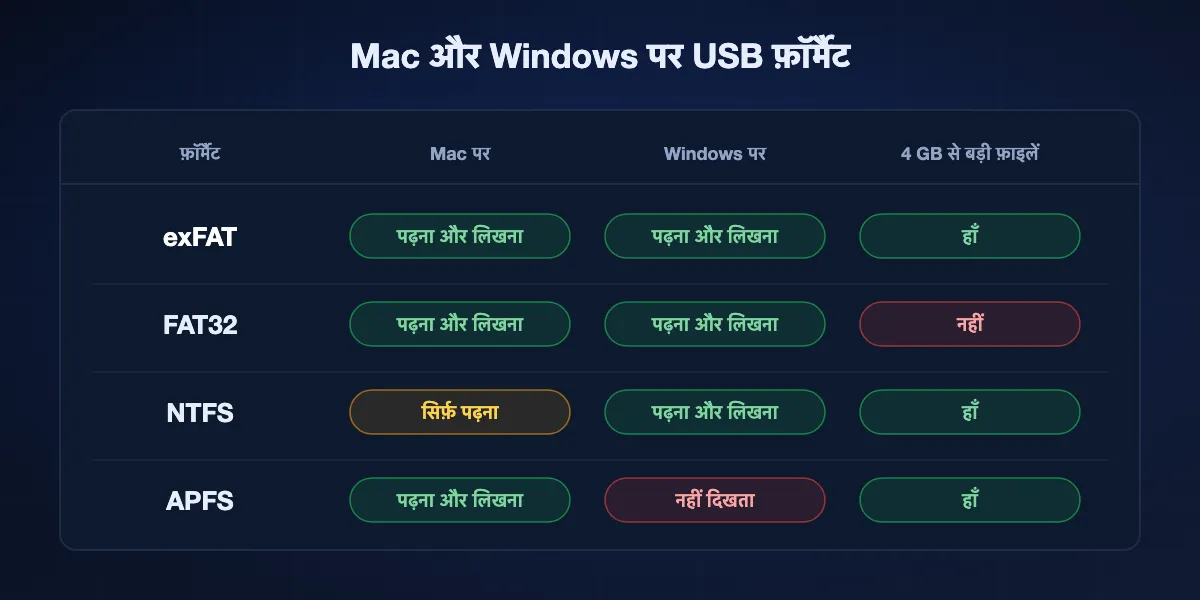
exFAT: यही लें
macOS और Windows दोनों पर पढ़ता-लिखता है, और अकेली फ़ाइलें आपकी किसी भी ड्राइव से कहीं बड़ी संभाल लेता है। Mac पर Disk Utility में (exFAT चुनें) या PC के File Explorer में (ड्राइव पर राइट-क्लिक → Format → exFAT) फ़ॉर्मैट करें। फ़ॉर्मैट करने से ड्राइव मिट जाती है।
FAT32: चलता है, जब तक कोई फ़ाइल 4 GB पार न करे
यह भी दोनों पर पढ़ा-लिखा जा सकता है, इसीलिए सस्ती स्टिक इसी के साथ आती हैं। यह 4 GB या उससे बड़ी कोई भी अकेली फ़ाइल नहीं रख सकता, इसलिए लंबा वीडियो या डिस्क इमेज एक अस्पष्ट एरर के साथ कॉपी होने में फ़ेल हो जाती है।
NTFS: Mac पर सिर्फ़ पढ़ने के लिए
Windows का डिफ़ॉल्ट। macOS इसे माउंट करके फ़ाइलें इससे कॉपी करने देता है, पर इसमें नहीं। लिखने के लिए थर्ड-पार्टी ड्राइवर चाहिए, या बस ड्राइव को exFAT में दोबारा फ़ॉर्मैट कर दें।
APFS और Mac OS Extended: Windows को दिखते ही नहीं
Mac पर उसके अपने फ़ॉर्मैट में फ़ॉर्मैट की गई ड्राइव File Explorer में बिल्कुल नहीं दिखतीं। Windows उन्हें फ़ॉर्मैट करने की पेशकश भी कर सकता है, जिससे सारा डेटा मिट जाएगा।
BIShare से Mac से Windows, चरण दर चरण
दोनों कंप्यूटर एक ही नेटवर्क पर
Mac पर App Store या साइट से और PC पर Microsoft Store से BIShare इंस्टॉल करें, फिर दोनों को एक ही Wi-Fi या Ethernet पर रखें। एक-दो सेकंड में हर एक दूसरे की लिस्ट में दिख जाता है, किसी भी मशीन की शेयरिंग सेटिंग छुए बिना।
किसी भी दिशा में भेजें
Mac ऐप में फ़ाइलें खींचें, या उन्हें चुनकर PC चुनें, फिर Windows पर स्वीकार करें। PC से उल्टी दिशा में भी यही तरीका है। फ़ोल्डर अपनी बनावट के साथ एक zip के रूप में जाता है, और ट्रांसफ़र सीधा और एंड-टू-एंड एन्क्रिप्टेड चलता है।
PC पास नहीं है
Mac पर bishare.app/transfer खोलें, फ़ाइल डालें, और लिंक या 6 अक्षरों वाला कोड भेजें। PC पर यह Edge, Chrome या Firefox में खुलकर 100 GB तक डाउनलोड होता है, और फ़ाइल Mac छोड़ने से पहले ही एन्क्रिप्ट हो चुकी होती है। लिंक 6, 12 या 24 घंटे बाद काम करना बंद कर देता है।
हर तरीका कितना तेज़ है
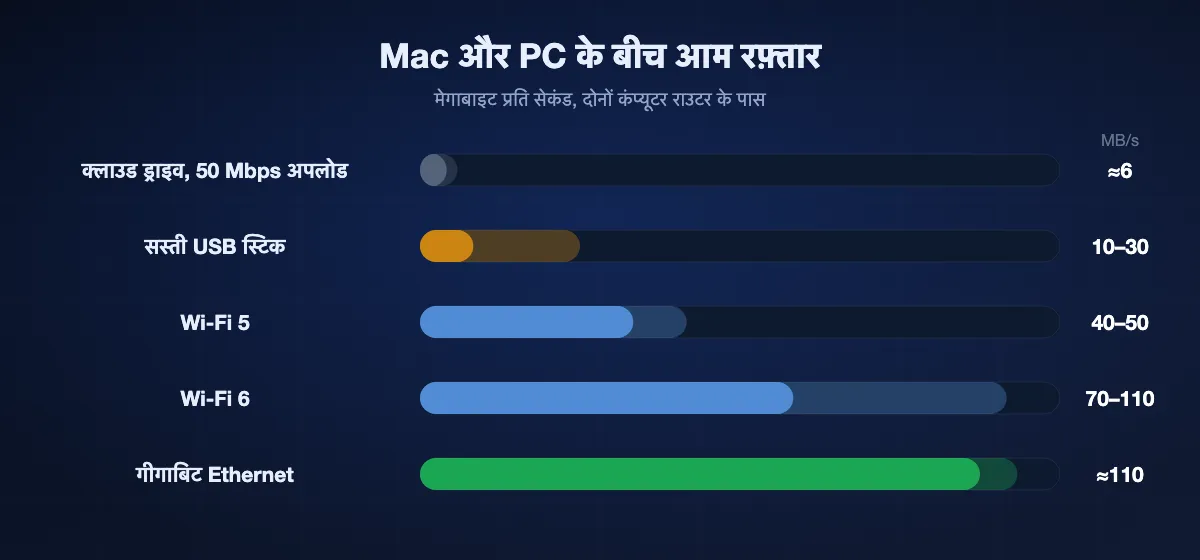
एक ही कमरे के दो कंप्यूटर के बीच रफ़्तार नेटवर्क या ड्राइव तय करती है, सॉफ़्टवेयर नहीं। योजना बनाने के लिए ये आँकड़े हैं।
Wi-Fi
सीधे ट्रांसफ़र, चाहे BIShare हो, LocalSend या SMB शेयर, दोनों मशीनें राउटर के पास हों तो Wi-Fi 5 पर लगभग 40–50 MB/s और Wi-Fi 6 पर 70–110 MB/s तक पहुँचते हैं। 10 GB का फ़ोल्डर मोटे तौर पर दो से चार मिनट लेता है।
Ethernet
दोनों को केबल से एक ही राउटर में लगाएँ तो गीगाबिट Ethernet लगभग 110 MB/s स्थिर रखता है, अक्सर Wi-Fi से तेज़ और घंटों चलने वाली कॉपी में कहीं ज़्यादा एक-सा। बिना पोर्ट वाले Mac को USB-C से Ethernet अडैप्टर चाहिए।
USB ड्राइव और क्लाउड
USB 3 SSD दोनों को पीछे छोड़ सकता है, पर सस्ती फ़्लैश स्टिक कैश भरने के बाद अक्सर 10–30 MB/s पर ही लिखती है। हर क्लाउड या लिंक सर्विस आपकी अपलोड स्पीड से बँधी है: 50 Mbps पर 1 GB में लगभग तीन मिनट लगते हैं, उसके बाद ही PC डाउनलोड शुरू कर सकता है।
जब PC और Mac एक-दूसरे को न देख पाएँ
File Explorer में Network के नीचे Mac नहीं दिखता
ब्राउज़ करने पर भरोसा न करें। दो बैकस्लैश और Mac का IP पता सीधे एड्रेस बार में टाइप करें। अलग-अलग प्लैटफ़ॉर्म के बीच Windows का नेटवर्क ब्राउज़िंग भरोसेमंद नहीं, भले शेयर ख़ुद बिल्कुल ठीक चल रहा हो।
Windows बार-बार क्रेडेंशियल माँगता है
Mac अकाउंट का छोटा नाम और पासवर्ड इस्तेमाल करें, और पक्का करें कि वह अकाउंट Mac पर Windows File Sharing में टिक है। अगर Windows ने ग़लत पासवर्ड सहेज लिया है, तो Credential Manager से वह एंट्री हटाकर फिर कोशिश करें।
Mac PC से कनेक्ट नहीं हो पाता
जाँचें कि PC का नेटवर्क Private है, Public नहीं, और File and printer sharing चालू है। Windows अकाउंट से साइन इन करें; Microsoft अकाउंट हो तो डिस्प्ले नाम की जगह उसका ईमेल पता डालें।
होटल, ऑफ़िस या कैफ़े के नेटवर्क पर कुछ नहीं चलता
ऐसे कई नेटवर्क डिवाइस को एक-दूसरे से अलग रखते हैं, इसलिए कोई लोकल तरीका कनेक्ट नहीं हो पाता। ऐसा फ़ोन हॉटस्पॉट इस्तेमाल करें जिससे दोनों मशीनें जुड़ें, Ethernet केबल, या इंटरनेट से जाने वाला लिंक।
बड़ी फ़ाइल पर USB कॉपी फ़ेल होती है
ड्राइव लगभग तय है कि FAT32 है, जो 4 GB या उससे बड़ी फ़ाइलें नहीं रख सकता। ज़रूरी चीज़ें निकालने के बाद उसे exFAT में दोबारा फ़ॉर्मैट करें।
ट्रांसफ़र को निजी रखना
अपनी ही दो मशीनों के बीच फ़ाइलें ले जाने से किसी और के हाथ कॉपी नहीं लगनी चाहिए। हर रास्ता इस पर ऐसे खरा उतरता है।
आपके नेटवर्क पर ही रहता है
SMB शेयरिंग, LocalSend और BIShare का सीधा रास्ता कभी आपके लोकल नेटवर्क से बाहर नहीं जाते। BIShare और LocalSend ट्रांसफ़र को भी एन्क्रिप्ट करते हैं, इसलिए उसी Wi-Fi पर कोई और उसे पढ़ नहीं सकता।
नेटवर्क से बाहर जाता है, पर सील होकर
BIShare लिंक और Wormhole फ़ाइल को अपलोड से पहले Mac पर ही एन्क्रिप्ट करते हैं और चाबी लिंक में रखते हैं, इसलिए बीच की सर्विस के पास ऐसा डेटा होता है जिसे वह खोल नहीं सकती।
नेटवर्क से बाहर जाता है, प्रोवाइडर पढ़ सकता है
OneDrive, Google Drive, Dropbox, WeTransfer और ईमेल फ़ाइल को रास्ते में सुरक्षित रखते हैं, पर रखे जाने पर उसे पढ़ सकते हैं। रोज़मर्रा की फ़ाइलों के लिए यह अक्सर ठीक है, कॉन्ट्रैक्ट या पहचान पत्र के स्कैन के लिए उतना नहीं।
Mac और Windows फ़ाइल शेयरिंग: अक्सर पूछे जाने वाले सवाल
क्या Mac से Windows PC पर AirDrop कर सकते हैं?
नहीं। AirDrop सिर्फ़ Apple डिवाइस पर है और Windows उसे रिसीव नहीं कर सकता। सबसे क़रीबी विकल्प BIShare जैसा क्रॉस-प्लैटफ़ॉर्म ऐप है, जो Wi-Fi पर दोनों के बीच सीधे भेजता है और दूर होने पर लिंक देता है।
Mac और Windows के बीच फ़ाइलें शेयर करने का सबसे आसान तरीका क्या है?
ज़्यादातर लोगों के लिए दोनों पर BIShare इंस्टॉल करके साझा Wi-Fi से भेजना, क्योंकि किसी कंप्यूटर पर सेटिंग नहीं बदलनी पड़ती और यह दोनों दिशाओं में चलता है। अगर कुछ इंस्टॉल नहीं करना चाहते, तो बिल्ट-इन SMB फ़ाइल शेयरिंग भी चलती है, कुछ मिनट के सेटअप के साथ।
बिना सॉफ़्टवेयर Mac और Windows के बीच फ़ाइलें कैसे शेयर करें?
SMB फ़ाइल शेयरिंग इस्तेमाल करें। Mac पर File Sharing चालू करें, "Share files and folders using SMB" चालू करें और Windows File Sharing में अकाउंट टिक करें। PC पर File Explorer में दो बैकस्लैश और Mac का IP पता टाइप करें और उसी Mac अकाउंट से साइन इन करें।
Wi-Fi पर Windows से Mac में फ़ाइलें कैसे भेजें?
PC पर नेटवर्क डिस्कवरी और फ़ाइल शेयरिंग चालू रखकर और नेटवर्क Private करके फ़ोल्डर शेयर करें, फिर Mac के Finder में Command-K दबाकर smb:// और PC का पता डालें। या PC से BIShare के ज़रिए भेजें, जिसमें यह सेटअप नहीं करना पड़ता।
कौन-सा USB फ़ॉर्मैट Mac और Windows दोनों पर चलता है?
exFAT। यह दोनों पर पढ़ता-लिखता है और फ़ाइल साइज़ की कोई व्यावहारिक सीमा नहीं। FAT32 भी दोनों पर चलता है पर 4 GB या बड़ी फ़ाइलें ठुकराता है; NTFS Mac पर सिर्फ़ पढ़ने के लिए है; APFS और Mac OS Extended Windows पर पढ़े नहीं जाते।
मेरा Mac मेरी Windows एक्सटर्नल ड्राइव पर क्यों नहीं लिख पाता?
ड्राइव NTFS में फ़ॉर्मैट है, जिसे macOS सिर्फ़ पढ़ने के लिए माउंट करता है। फ़ाइलें कॉपी कर लें, ड्राइव को exFAT में दोबारा फ़ॉर्मैट करें, फिर वह दोनों कंप्यूटर पर पढ़ी और लिखी जाएगी।
क्या Mac और Windows के बीच बड़ी फ़ाइलें मुफ़्त भेज सकते हैं?
हाँ। अपने नेटवर्क पर BIShare, LocalSend और SMB शेयरिंग में साइज़ की कोई सीमा नहीं। लिंक से BIShare 100 GB तक मुफ़्त ले जाता है। exFAT में फ़ॉर्मैट की गई USB ड्राइव की भी कोई व्यावहारिक सीमा नहीं।
क्या Mac और PC के बीच फ़ाइलें ले जाने के लिए OneDrive या iCloud चाहिए?
नहीं। क्लाउड ड्राइव तब काम की है जब एक ही फ़ाइलें दोनों मशीनों पर सिंक रहनी हों, पर एक बार के ट्रांसफ़र में यह धीमी है, क्योंकि फ़ाइल अपलोड होकर फिर डाउनलोड होती है, और आपका स्टोरेज कोटा खाती है।
क्या एक ही Wi-Fi के बिना Mac और Windows के बीच फ़ाइलें शेयर कर सकते हैं?
हाँ, तीन तरीकों से: PC के ब्राउज़र में खुलने वाला लिंक, ऐसा फ़ोन हॉटस्पॉट जिससे दोनों कंप्यूटर जुड़ें, या Ethernet केबल। SMB शेयरिंग और LocalSend के लिए दोनों मशीनें एक ही नेटवर्क पर चाहिए।
क्या Mac से Windows फ़ाइल शेयरिंग सुरक्षित है?
फ़ाइलें आपके नेटवर्क पर रहती हैं, पर Apple बताता है कि Windows शेयरिंग के लिए चालू अकाउंट के पासवर्ड कम सुरक्षित तरीके से सहेजे जा सकते हैं, इसलिए काम ख़त्म होने पर उन अकाउंट को बंद कर दें। जो टूल ट्रांसफ़र को ही एन्क्रिप्ट करते हैं, उनमें यह समझौता नहीं होता।
Mac से Windows, सेटिंग खंगाले बिना
मुफ़्त, ओपन सोर्स, बिना अकाउंट। दोनों कंप्यूटर पर BIShare इंस्टॉल करें और किसी भी दिशा में भेजें, या ऐसा लिंक शेयर करें जिसे PC किसी भी ब्राउज़र में खोल ले।