
Plattformübergreifende Übertragung
AirDrop für Windows
AirDrop funktioniert nur zwischen Apple-Geräten; Windows hatte es nie. BIShare ist die kostenlose Open-Source-App, die dieselbe Aufgabe zwischen iPhone oder Mac und einem Windows-PC erledigt — plus Android und Linux — über dein eigenes WLAN oder per Link, den die Gegenseite in jedem Browser öffnet. Kostenlos, ohne Konto, und beim Empfänger muss nichts installiert werden.
Kurze Antwort
- AirDrop existiert unter Windows nicht. Es läuft auf Apple-eigenen Protokollen — ein Download namens „AirDrop für Windows“ ist nie echt; eine .exe mit diesem Namen gilt als unsicher.
- Was heute am nächsten kommt: BIShare — kostenlos im Microsoft Store für Windows 10 und 11, mit passenden Apps für iPhone, Mac, Android und Linux. Sendet in beide Richtungen über WLAN, ohne Konto.
- Nichts installieren? Öffne bishare.app/transfer in einem beliebigen Browser auf dem PC und ziehe die Datei vom Handy hinein — im selben WLAN oder per Link, verschlüsselt bevor sie das Gerät verlässt.
- Microsofts eigene Option: Phone Link kann auf Windows-Insider-Builds Dateien mit einem iPhone teilen (iOS 16+, Bluetooth-Kopplung, Microsoft-Konto). Einen Mac deckt es nicht ab, und auf dem stabilen Windows ist es noch nicht für alle da.
Warum AirDrop Windows nicht erreicht
AirDrop läuft auf Apple-eigenen Protokollen und funktioniert daher zwischen iPhones, iPads und Macs — nie mit einem Windows-PC; Apple hat das Protokoll nie für andere veröffentlicht. Die Umgebungsfreigabe von Windows 11 spricht nur mit anderen Windows-PCs. Microsofts Phone Link hat im Dezember 2024 die Dateifreigabe fürs iPhone bekommen, aber nur auf Windows-Insider-Builds und nur fürs Handy — ein Mac hat weiterhin keinen Weg zum PC. Genau diesen Alltagsfall, ein Foto oder Dokument vom iPhone oder Mac auf ein Windows-Notebook zu holen, deckt BIShare ab.
Und Phone Link? Microsofts Antwort, ehrlich betrachtet
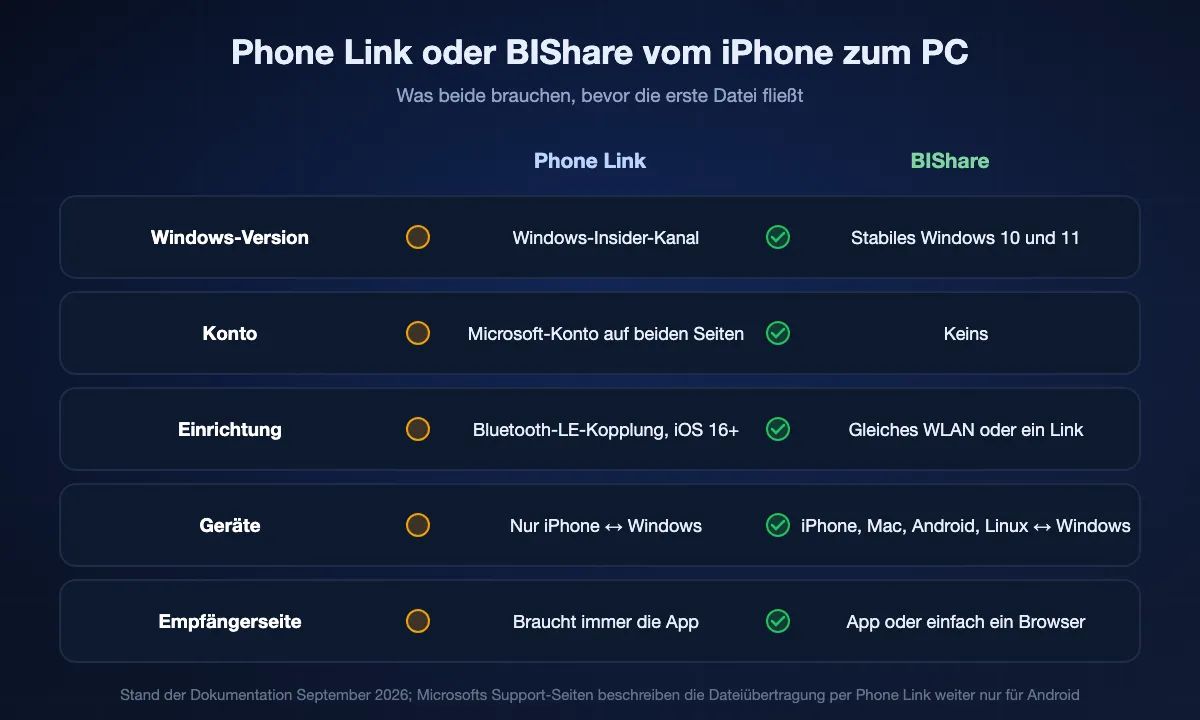
Seit Dezember 2024 kann Phone Link Dateien zwischen einem iPhone und einem Windows-11- oder Windows-10-PC senden. Es ist das, was Microsoft einem eingebauten AirDrop am nächsten bietet, und als Insider lohnt sich ein Versuch. Was es braucht, und wo es endet:
- Mitgliedschaft im Windows-Insider-Programm — Microsofts eigene Support-Seiten dokumentieren die Dateiübertragung weiterhin nur für Android.
- iPhone mit iOS 16 oder neuer, die App „Link zu Windows“ aus dem App Store und Phone Link 1.24112.89.0 oder neuer auf dem PC.
- Eine Bluetooth-Kopplung zwischen Handy und einem PC mit Bluetooth Low Energy, plus ein Microsoft-Konto auf beiden Seiten.
- Nur iPhone ↔ Windows. Es kann nicht vom Mac zum PC, vom PC zum Mac oder zu Linux senden, und die Empfängerseite braucht immer die App.
BIShare läuft heute auf dem stabilen Windows, braucht weder Konto noch Bluetooth-Kopplung und deckt auch den Mac ab. Wer nur Dateien vom iPhone bewegt und im Insider-Kanal ist, fährt mit Phone Link als eingebauter Lösung gut; für alles andere: weiterlesen.
AirDrop für Windows kostenlos herunterladen — der echte Download
Die Suche nach einem „AirDrop für Windows Download“ liefert Installer, die entweder kostenpflichtige Transfer-Suiten sind oder mit AirDrop nichts zu tun haben. Die App unten ist kostenlos, Open Source (Apache 2.0), signiert und von uns im Microsoft Store veröffentlicht.
Windows 10 und Windows 11, 64-Bit. Kein Konto und kein Bezahltarif zum Senden, keine Werbung.
Oder aus dem Terminal:
winget install BIShareProject.BISharePaket BIShareProject.BIShare bei winget; ein Scoop-Manifest liegt ebenfalls im Repository.
Auf iPhone oder Mac aus dem App Store installieren, auf Android aus Google Play. Kann die andere Person nichts installieren, braucht der Browser-Weg unten auf ihrer Seite nichts.


So sendet BIShare iPhone / Mac ↔ Windows
Im selben WLAN
Dateien gehen direkt von Gerät zu Gerät, Ende-zu-Ende verschlüsselt — nichts wird auf einem Server gespeichert. Das ist schnell und funktioniert sogar über den Hotspot des Telefons ganz ohne Internet.
Wenn ihr getrennt seid
Du erhältst einen Link, einen QR-Code und einen 6-stelligen Code. Auf dem Windows-PC öffnest du den Link in jedem Browser und lädst herunter — keine App, keine Anmeldung. Der Link läuft automatisch nach 6, 12 oder 24 Stunden ab.
Jede Plattform
iPhone, Mac, Windows, Android und Linux — eine App, in jede Richtung. Sende vom Telefon an den PC oder vom PC an jeden. Dieselbe App schickt Dateien auch vom iPhone an ein Android-Handy, praktisch, weil AirDrop bisher nur einige Android-Modelle erreicht.
Welcher Weg für welche Aufgabe
Fotos und Videos vom iPhone auf einen Windows-PC
BIShare auf beiden installieren, Fotos auf dem Handy wählen, PC antippen. Sie kommen in Originalqualität an — HEIC, ProRAW und 4K-Video unangetastet, keine Neukomprimierung, keine 25-MB-Grenze wie bei E-Mail. Derselbe Weg zurück, wenn sie wieder aufs Handy sollen.
Ein großes Video vom Mac auf den PC
Der Fall, den AirDrop und Phone Link beide auslassen. Im selben Netz läuft die Übertragung mit lokaler WLAN-Geschwindigkeit, die einzige Grenze ist der freie Speicher auf dem PC; ein 20-GB-Export ist eine normale Übertragung, kein Sonderfall.
An den Windows-PC von jemand anderem senden
Die andere Person installiert nichts: bishare.app/transfer auf ihrem PC öffnen, du sendest vom Handy. Im selben WLAN erscheint ihr PC von selbst; in anderen Netzen gibst du ihr einen Link, einen QR-Code oder einen 6-stelligen Code. Die Datei wird verschlüsselt, bevor sie dein Gerät verlässt, und der Link läuft nach 6, 12 oder 24 Stunden ab.
Gar kein WLAN — Auto, Baustelle, Flugzeug
Hotspot am Handy einschalten und den PC damit verbinden. Der lokale Weg braucht kein Internet, es geht also auch mit ausgeschalteten mobilen Daten. Die Geschwindigkeit ist die des Hotspots, bei einem aktuellen Handy typisch 10–30 MB/s.
Hotel-, Café- oder Büro-WLAN
Solche Netze trennen Geräte oft voneinander, sodass kein lokales Tool den PC sieht — das liegt am Netz, nicht an der App. Nimm den Link-Weg (läuft übers Internet) oder einen Hotspot, der beide Geräte in ein Netz bringt, das du kontrollierst.
Zwei Wege: sofort, oder einmal einrichten
Die erste Zeile braucht keine Installation und funktioniert jetzt sofort — die nimmst du, wenn nur diese eine Datei rüber soll. Der Rest ist die Fünf-Minuten-Einrichtung, die sich lohnt, wenn du oft Dateien zwischen diesen Geräten bewegst.
- 01
Sofort, ganz ohne Installation
Öffne auf dem PC bishare.app/transfer in einem beliebigen Browser. Leg die Datei vom Handy ab — im selben WLAN erscheint der PC von selbst; in getrennten Netzen bekommst du einen Link plus einen 6-stelligen Code. Auf keiner Seite ist etwas zu installieren, kein Konto nötig, und die Datei wird verschlüsselt, bevor sie das Gerät verlässt.
- 02
Installiere BIShare auf dem PC
Installiere es aus dem Microsoft Store (oder als portable .zip). Es gibt kein Konto anzulegen und nichts zu konfigurieren — die App öffnet mit einer Geräteliste und wartet sofort auf Übertragungen.
- 03
Installiere sie auf Handy oder Mac
Aus dem App Store oder von Google Play. Für den direkten Weg brauchen beide Geräte die App; kann die andere Person nichts installieren, nimm die Browser-Methode weiter unten — auf ihrer Seite ist dann nichts nötig.
- 04
Bring beide ins selbe WLAN
Jedes Netz geht, auch ein Gästenetz, solange beide im selben sind. Eine Internetverbindung ist nicht nötig — ein Handy-Hotspot mit ausgeschalteten mobilen Daten ist ein vollwertiges Netzwerk.
- 05
Erlaube den Zugriff aufs lokale Netzwerk
Beim ersten Start fragt iOS nach lokalem Netzwerkzugriff und Windows danach, die App durch die Firewall zu lassen. Sag bei beidem ja. Ablehnen ist der häufigste Grund, warum sich zwei Geräte später nicht sehen.
- 06
Datei wählen, Gerät antippen
Dein PC erscheint binnen ein bis zwei Sekunden in der Liste auf dem Handy. Wähle aus, tippe auf den PC und bestätige die Abfrage unter Windows. Die Datei kommt in voller Originalqualität an, ohne Größenlimit.
In beide Richtungen, nicht nur in eine
iPhone oder Mac → Windows-PC
Der übliche Fall: Fotos, Videos und Dokumente vom Handy auf den Rechner mit lokaler WLAN-Geschwindigkeit, Originaldatei unangetastet — ohne Neukompression, ohne 25-MB-Mailgrenze und ohne dass unterwegs etwas auf einem Server landet.
Windows-PC → iPhone oder Mac
Derselbe Weg rückwärts — etwas, das AirDrop nie angeboten hat. Zieh Dateien in die PC-App und schick sie ans Handy; große Videos und Ordner verhalten sich wie kleine Dateien, denn die Grenze ist der Speicherplatz, nicht ein Upload-Kontingent.
Wenn PC und Handy sich nicht sehen
Prüfe, ob sie im selben Netz sind, nicht nur im selben Raum
Ein Gästenetz ist ein eigenes Netz, und manche Router trennen 2,4-GHz- und 5-GHz-Band voneinander. Stelle sicher, dass beide Geräte exakt denselben Netzwerknamen zeigen, und versuch es erneut.
Lass die App durch die Windows-Firewall
Wurde die Abfrage beim ersten Mal weggeklickt: Windows-Sicherheit → Firewall- und Netzwerkschutz → App durch Firewall zulassen, dann BIShare für private Netzwerke ankreuzen.
Öffentliches WLAN blockiert oft Geräte-zu-Geräte-Verkehr
Cafés und Hotels aktivieren häufig Client-Isolation, die verhindert, dass sich Geräte am selben Access Point erreichen. Keine Einstellung auf deiner Seite hilft — wechsle auf den Handy-Hotspot, dann sind beide Geräte in deinem eigenen Netz.
Andere Wege, die Leute probieren — und wo jeder endet
Phone Link (Microsoft)
Echte Dateifreigabe iPhone ↔ Windows, aber nur auf Windows-Insider-Builds, mit iOS 16+, Bluetooth-Kopplung und Microsoft-Konto. Nichts für den Mac. Details im Abschnitt oben.
Umgebungsfreigabe (Windows 11/10)
Eingebaut und gut zwischen zwei Windows-PCs. Ein iPhone, einen Mac oder ein Android-Handy sieht sie überhaupt nicht.
LocalSend
Kostenlos, Open Source und gut im gemeinsamen WLAN — jedes Gerät braucht die App, und es gibt keinen Link-Weg, wenn die andere Person in einem anderen Netz ist oder nichts installieren kann.
Snapdrop / PairDrop
Nur Browser, nur dasselbe Netz. Praktisch für ein einmaliges Senden zwischen zwei Notebooks; in Netzen mit Client-Isolation oder übers Internet finden sich die Geräte nie.
SHAREit, Xender und Ähnliche
Auf dem Papier schnell, aber werbefinanziert, berechtigungshungrig und wiederholt wegen Sicherheitsproblemen aufgefallen. Nichts für einen Arbeits-PC.
iCloud, Google Drive, Dropbox
Funktioniert, aber jede Datei geht auf einen Server und wieder herunter, belegt dein Kontingent und braucht auf beiden Seiten ein Konto. Ein 10-GB-Video dauert so lange, wie dein Upload erlaubt. WeTransfer und ähnliche Upload-Dienste arbeiten genauso, mit einer Größengrenze im Gratis-Tarif.
Kabel, iTunes oder die Windows-Fotos-App
Zuverlässig für Fotos vom iPhone, mit Kabel und Treiberinstallation. Nichts für Mac zu PC, nichts für die Gegenrichtung, nichts fürs Senden an eine andere Person.
E-Mail oder Chat-App
Komprimiert Fotos, deckelt Dateien bei etwa 25 MB und legt eine Kopie auf einem fremden Server ab. Gut für ein Dokument, falsch für alles, dessen Qualität dir wichtig ist. Alle Optionen nebeneinander zeigt unser Test der besten Apps zum Teilen von Dateien.
Wie schnell ist es wirklich
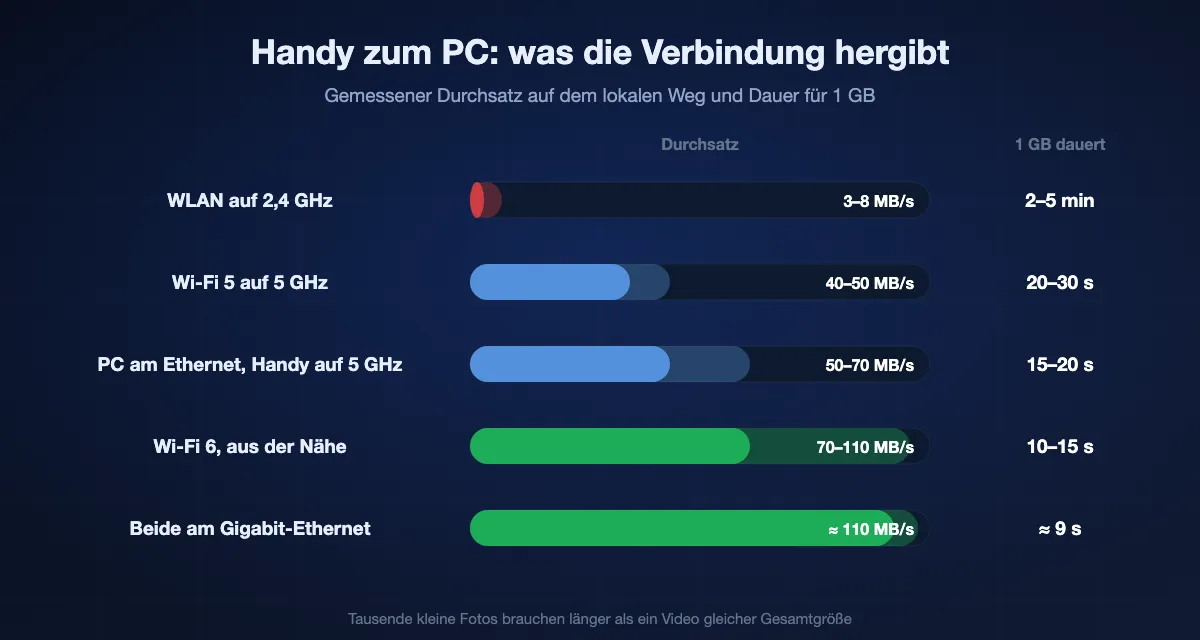
Auf dem lokalen Weg ist die Funkverbindung der Engpass, nicht die App. Werte, die wir zwischen Handy und Windows-PC messen, und wie lange 1 GB dauert:
| Verbindung zwischen den Geräten | Realistischer Durchsatz | 1 GB dauert etwa |
|---|---|---|
| WLAN auf 2,4 GHz | 3–8 MB/s | 2–5 Minuten |
| Wi-Fi 5 auf 5 GHz | 40–50 MB/s | 20–30 Sekunden |
| Wi-Fi 6 auf 5/6 GHz, nah | 70–110 MB/s | 10–15 Sekunden |
| PC per Gigabit-Ethernet, Handy auf 5 GHz | 50–70 MB/s | 15–20 Sekunden |
| Beide per Gigabit-Ethernet | 110 MB/s | etwa 9 Sekunden |
Tausende kleine Fotos sind langsamer als ein großes Video derselben Gesamtgröße: jede Datei kostet fix Metadaten, einen Schreibvorgang und eine Windows-Virenprüfung. Der Link-Weg hängt stattdessen von deiner Upload-Geschwindigkeit ab. Warum die Werte darunter bleiben und was jeweils hilft, steht in unserem Leitfaden zu AirDrop-für-Windows-Geschwindigkeiten.
Was dein Gerät verlässt — und was nicht
- Im selben Netz geht die Datei direkt von Gerät zu Gerät, für diese Übertragung verschlüsselt. Kein Server sieht sie, und gespeichert wird sie nur auf dem empfangenden PC.
- Auf dem Link-Weg wird die Datei vor dem Upload im Browser oder in der App verschlüsselt. Der Schlüssel steckt im Link hinter dem #-Zeichen, das Browser nie an einen Server senden — unser Speicher hält also Chiffretext, den er nicht öffnen kann. Links laufen nach 6, 12 oder 24 Stunden ab; auf Wunsch zerstört sich einer nach dem ersten Download selbst.
- Kein Konto, kein Kontakte-Upload, kein Werbe-SDK. Die Windows-App ist signiert und von uns im Microsoft Store veröffentlicht; der Quellcode für jede Plattform ist öffentlich.
AirDrop vs. Phone Link vs. Umgebungsfreigabe vs. LocalSend vs. BIShare
Geprüft im September 2026. Die Phone-Link-Angaben gelten für Windows-Insider-Builds — auf dem stabilen Windows spricht es noch nicht mit einem iPhone.
| AirDrop | Phone Link* | Umgebungsfreigabe (Windows) | LocalSend | BIShare | |
|---|---|---|---|---|---|
| iPhone → Windows | |||||
| Mac → Windows | |||||
| Windows → iPhone | |||||
| Auch mit Android | |||||
| Beim Empfänger nichts zu installieren | |||||
| Kein Konto nötig | |||||
| Läuft heute auf stabilem Windows 11/10 | |||||
| Ohne Internet (Hotspot) | |||||
| Ende-zu-Ende verschlüsselt |
* Phone Link: nur Windows-Insider-Builds, iOS 16+, Bluetooth-Kopplung und Microsoft-Konto. Umgebungsfreigabe: nur Windows-zu-Windows.
iPhone & Mac zu Windows: FAQ
Funktioniert AirDrop unter Windows?
Nein. AirDrop ist eine reine Apple-Funktion, und es gibt keine AirDrop-App für Windows. Um zwischen einem iPhone oder Mac und einem Windows-PC zu senden, brauchst du ein plattformübergreifendes Tool wie BIShare, das in jede Richtung funktioniert.
Wie schicke ich per AirDrop vom iPhone an einen Windows-PC?
AirDrop selbst geht nicht, aber BIShare erledigt genau dieselbe Aufgabe. Im selben WLAN sendet es direkt, von Gerät zu Gerät; wenn ihr getrennt seid, gibt es dir einen Link, den der Windows-PC in jedem Browser öffnet, um die Datei herunterzuladen — ohne App auf dem PC.
Was ist die beste AirDrop-Alternative für Windows?
BIShare. Anders als AirDrop (nur Apple) oder Nearby Share (das das iPhone auslässt) deckt es iPhone, Mac, Windows, Android und Linux ab — es meistert also den Fall iPhone/Mac zu Windows, den keine eingebaute Option abdeckt.
Wie sende ich Dateien von einem Mac an einen Windows-PC?
Installiere BIShare auf dem Mac. Im selben Netzwerk wählst du den Windows-PC aus und sendest — Ende-zu-Ende verschlüsselt, direkt. Nicht in der Nähe? Teile den Link, den QR-Code oder den 6-stelligen Code und lade die Datei im Browser des PCs herunter.
Ist BIShare kostenlos?
Ja — kostenlos, ohne Konto. Übertragungen in der Nähe über dein eigenes Netzwerk haben keine Größenbeschränkung, und Freigabelinks funktionieren für jeden, auf jeder Plattform.
Kann ich AirDrop unter Windows 11 nativ nutzen?
Nein. AirDrop basiert auf Apple-eigenen Protokollen und wurde nie für Windows 11 oder eine andere Version veröffentlicht. Die Umgebungsfreigabe von Windows 11 erreicht nur andere Windows-PCs. Die nächste eingebaute Option ist Microsofts Phone Link, das auf Windows-Insider-Builds Dateien mit einem iPhone teilen kann — mit iOS 16+, der App „Link zu Windows“, Bluetooth-Kopplung und Microsoft-Konto. Für einen Mac oder für stabiles Windows ohne Konto nimmst du eine plattformübergreifende App wie BIShare.
Funktioniert das ohne Internetverbindung?
Ja. Die Übertragung läuft über dein lokales Netz, der Router allein genügt — und gibt es keinen Router, funktioniert ein Handy-Hotspot auch mit abgeschalteten mobilen Daten. Nichts am lokalen Weg braucht DNS, einen Server oder eine Zeitsynchronisation.
Gibt es ein Größenlimit vom iPhone zum PC?
Auf dem lokalen Weg nicht: die Grenze ist der freie Speicher des empfangenden PCs, also laufen Videos mit mehreren Gigabyte und ganze Ordner normal durch. Nur der Weg über den Internet-Link hat ein Limit pro Übertragung, im kostenlosen Tarif 100 GB.
Gibt es ein AirDrop online für den PC?
Ja — BIShare läuft online in jedem Browser, ohne Installation. Öffne bishare.app/transfer auf dem PC, zieh die Datei hinein, und du bekommst einen Link, einen QR-Code und einen sechsstelligen Code. Die andere Person öffnet ihn im eigenen Browser und lädt herunter. Näher als das kommt man einem AirDrop online zwischen iPhone oder Mac und Windows-PC nicht — kostenlos und ohne Konto auf beiden Seiten.
Kann ein Windows-PC AirDrop von einem iPhone empfangen?
Nicht AirDrop selbst — der PC taucht im AirDrop-Blatt des iPhones nie auf, weil AirDrop nur Apple-Geräte findet. Was funktioniert: BIShare auf beiden, dann erscheint der PC im selben WLAN binnen ein bis zwei Sekunden in der Geräteliste des Handys. Oder bishare.app/transfer auf dem PC öffnen und aus dem Browser des Handys senden, ohne etwas zu installieren.
Ersetzt Phone Link AirDrop für iPhone-Nutzer unter Windows?
Teilweise. Auf Windows-Insider-Builds kann Phone Link Dateien zwischen einem iPhone (iOS 16 oder neuer) und einem Windows-11- oder -10-PC senden, über eine Bluetooth-Kopplung mit einem auf beiden Seiten angemeldeten Microsoft-Konto. Es deckt weder Mac noch Linux ab, noch jemanden, der die App „Link zu Windows“ nicht installieren kann, und auf dem stabilen Windows ist es noch nicht für alle da. BIShare deckt diese Fälle heute ab, ohne Konto.
Ist ein „AirDrop für Windows“-Gratis-Download sicher?
Einen Download mit diesem Namen gibt es nicht echt — AirDrop hat keine Windows-Version, ein so genannter Installer ist bestenfalls ein umbenanntes Drittanbieter-Tool und schlimmstenfalls Malware. Hol dir stattdessen eine plattformübergreifende App aus einem Store: BIShare gibt es im Microsoft Store für Windows, im App Store und bei Google Play für Handys, und der Quellcode ist öffentlich.
Wie sende ich per AirDrop vom iPhone auf ein Windows-Notebook ohne Kabel?
Notebook und Handy ins selbe WLAN oder in einen Handy-Hotspot. Am schnellsten ohne Installation: bishare.app/transfer auf dem Notebook öffnen, die Datei auf dem Handy wählen, das Notebook erscheint von selbst. Für den Dauergebrauch BIShare auf beiden aus dem Microsoft Store und dem App Store installieren: Datei wählen, Notebook antippen, unter Windows annehmen. Fotos und Videos kommen in Originalqualität an, ohne Größenlimit.
Gibt es AirDrop für Windows als App zum Download?
Nicht von Apple: Eine AirDrop-App für den PC gibt es weder für Windows 10 noch für Windows 11. Die kostenlose App, die dieselbe Aufgabe erledigt, ist BIShare: im Microsoft Store für Windows 10 und 11 (64 Bit), als portable .zip auf GitHub oder per winget (Paket BIShareProject.BIShare). Installiere sie auf dem PC und auf dem iPhone, Mac oder Android-Handy, dann wandern Dateien in beide Richtungen über WLAN, ohne Konto.
Dateien zwischen Telefon und PC in Sekunden bewegen
Kostenlos, Open Source, ohne Konto. Für den PC im Microsoft Store, fürs Handy im App Store oder bei Google Play — die Gegenseite braucht die App nicht einmal.