
Two phones, one table. Yours is an iPhone, theirs is an Android — or the other way around, it doesn't matter. Somebody has the photos from tonight, and somebody else wants them. You both hold devices with more computing power than the Apollo program, made by companies that each solved instant wireless sharing a decade ago… for their own side of the fence. AirDrop waves at the Android phone and sees nothing. Quick Share waves back at the iPhone and sees nothing. The two of you end up in a group chat, watching your photos get chewed into thumbnails.
This article is the missing manual for that table. Sharing files between iOS and Android instantly is completely solvable in 2026 — what's needed is a map of which bridge to use in which situation, because there are really only four situations that ever come up.
Quick answer: if both phones can spare two minutes, install a cross-platform transfer app — BIShare is free, no account — and files then move directly between iPhone and Android over Wi-Fi, originals intact, end-to-end encrypted, in either direction. If the other person won't install anything, hand them a browser link or QR code instead; their phone needs nothing but Safari or Chrome. Far apart? Same link works across the internet. No network at all? A personal hotspot (or, for small files, screen-to-camera QR) covers even that.
Now the map in detail — starting with ninety seconds on why this problem exists at all, because the "why" is what stops you from wasting time on paths that can't work.
Ninety seconds on why your phones ignore each other
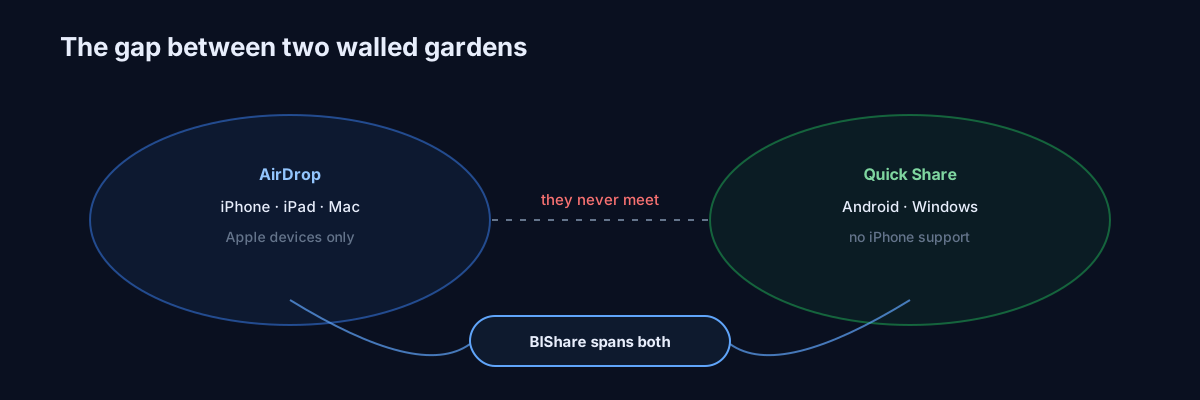
AirDrop runs on AWDL, a peer-to-peer Wi-Fi protocol Apple designed and never licensed out. It's excellent engineering, and it is a walled garden by intent: an Android phone cannot speak AWDL, so AirDrop between iPhone and Android is a dead end at the protocol level, not a settings problem.
Quick Share is Google's mirror image: Android phones, Chromebooks, and — via an official app — Windows PCs. There is no Quick Share for iOS or macOS. Two complete sharing ecosystems, zero overlap.
"But didn't iOS add Wi-Fi Aware?" Sharp question. Recent iOS releases did adopt Wi-Fi Aware, the open standard for phone-to-phone Wi-Fi that Android has shipped for years — on paper, the first common ground. In practice, as of 2026, that shared radio layer hasn't turned into a share button that works between an iPhone and a Galaxy. The plumbing is converging; the tap-to-send experience across the divide still comes from apps, not the platforms. (We watch this space closely — it's our job — and we'd love to be made obsolete here. No sign of it yet.)
And the Bluetooth question, retired for good: every week someone tries to "just Bluetooth it." Save yourself: iOS has never supported generic Bluetooth file push to non-Apple devices — the profile simply isn't there — so iPhone↔Android over raw Bluetooth is a non-starter regardless of apps. Even where Bluetooth file transfer exists (Android↔Android), it crawls at a few hundred kilobytes per second; a single modern photo takes the better part of a minute. Bluetooth's proper job in 2026 is introducing devices that then talk over Wi-Fi. As the pipe itself, it retired years ago.
So: every real solution is an app or a browser standing on both sides of the wall. Here's which one, by situation.
Situation 1: Same room, and you'll both be here a while
The move: one app on both phones, then it's AirDrop-grade forever.
This is for the recurring pairs — partners, families, coworkers, the friend you see weekly. Two minutes of setup buys you permanent instant sharing:
- Both phones install BIShare — App Store on one side, Play Store on the other. Free on both, and the two builds are the same app in the deepest sense (more on that below).
- Join the same Wi-Fi (home, office, café — any shared network).
- Open the app: each phone sees the other by name within a couple of seconds. No pairing ritual, no accounts.
- Pick photos, videos, PDFs — anything — tap the other phone's name, and the receiver taps accept. Done. Files arrive in the inbox; photos can save straight to the gallery.
A detail we're genuinely proud of, and the reason this works so smoothly across the divide: both apps compile the exact same cryptography and protocol code — one core, written in Rust, built into the iPhone app and the Android app alike. A byte encrypted on iOS decrypts on Android not because two teams carefully matched specs, but because it is literally the same code on both ends. That's the engineering answer to a question people rarely think to ask: how do you trust that a cross-platform transfer is exact? Answer: don't reimplement — share the implementation.
What arrives is the original file, bit for bit. An iPhone's HEIC photo lands on Android as HEIC (which Android has opened natively for years); a 4K video lands at its full bitrate. Speeds ride your router — on ordinary hardware, tens of megabytes per second, which turns an evening's photo dump into a coffee-length wait. And because the path is end-to-end encrypted device-to-device, tonight's photos never visit a server on their way across the table.
Where files actually land (both platforms, no surprises)
Cross-platform sharing has a second half nobody documents: the arrival. On Android, received photos and videos can register straight into the system gallery, and everything else sits in an inbox you can re-share or move with any file manager — Android's open file system makes the receiving side pleasantly boring. On iPhone, iOS routes by type: images and videos save to the Photos library (after a one-time permission grant), while documents live in the app's inbox, from which the share sheet exports to the Files app, Mail, or any other app. Neither platform loses anything; they just shelve it differently, and knowing the shelf in advance saves the "where did it go?" minute.
Which leads to an asymmetry worth knowing: Android is the easier receiver, iPhone the fussier one. If a transfer between the two platforms ever feels lopsided, it's not your imagination — iOS's sandbox means receiving apps must hand files onward through Apple's routing, while Android lets them land directly. In practice this costs one extra tap on the iPhone side, not quality or completeness. Plan the demo accordingly when you're convincing an iPhone-owning relative.
Situation 2: Same room, but they won't install anything
The move: your app, their browser.
Perfectly reasonable position — nobody owes you an app install to receive a photo. The bridge still works with software on only one side:
- Sending to them: share from your BIShare app to a link. Their phone gets a QR code to scan or a short link to tap, and the download opens in Safari or Chrome — no app, no account, and the link expires on its own. Reading a 6-character code aloud across the table works too, and is exactly as low-tech as it sounds.
- Receiving from them: point their browser at bishare.app/transfer. They drop the files in the browser — encrypted client-side before anything uploads — and you open the resulting code or link on your phone. Still no install on their side.
- Bonus, if you're both on the same Wi-Fi: the transfer page's Nearby tab discovers phones running the app. Their browser and your app find each other directly, and the bytes go phone-to-phone through the browser — the closest thing to AirDrop that requires exactly one install between two people.
The one honest trade-off of link-based sharing: whoever holds the link holds the file until it expires. Between friends at a table, irrelevant; for anything sensitive, prefer the direct app-to-app path from Situation 1, where nothing ever leaves the room.
Situation 3: Different cities
The move: an encrypted transfer link — or a shared album, if you read the fine print.
With an ocean or a time zone between the phones, local Wi-Fi tricks are out, and the internet does the carrying:
Transfer link. Upload from either phone at bishare.app/transfer (or the app), send the link by any channel you like — the file itself is encrypted before upload, so the messaging app is only ever carrying a URL, not recompressing your media. Free tier: 100 GB per file, auto-expiry at 24 hours, optional one-time download so the file evaporates after it's fetched. This is the "big batch of wedding photos to family abroad" tool, and for anything larger our big-file guide covers the edge cases.
Shared albums — with eyes open. The platform-native options work across the divide but quietly negotiate your quality down. Apple's iCloud Shared Albums are viewable by Android users via web link, but Apple's own documentation states the downscaling plainly: photos are reduced to at most 2048 pixels on the long edge, and video tops out at 720p. Lovely for casual browsing; a quiet catastrophe if Grandma's shared album is the only place the baby photos live. Google Photos' shared links preserve quality according to your upload setting — which drags in the Storage-saver compression question we dissected in the Android-to-Mac guide. The rule that never fails: albums are for viewing together, transfers are for owning the original.
The WhatsApp-only relative, solved. Some people will only ever open WhatsApp — fighting that is a losing game, so route around it: send the link through WhatsApp instead of the file. The messaging app happily carries a URL without touching it; the media behind the link downloads at full quality in the browser. Same chat thread they already live in, none of the compression. This one trick upgrades every "family group" photo exchange without asking anyone to change apps.
Not the same thing: phone-migration tools. A quick scope note, because search results blur them together — Google's Switch to Android and Apple's Move to iOS are one-time migration apps for the day you change phones. They copy an old life onto a new device, in one direction, once, and they're genuinely fine at that job. What they are not is a way to share Tuesday's photos with a friend; they don't do ad-hoc, per-file, both-directions sharing at all. If you're switching platforms: use them, then come back here for everything after day one.
Situation 4: No internet at all
The move: make your own network — or skip networks entirely.
Field work, flights, festivals, dead zones, countries where your SIM doesn't roam — the divide can be crossed with zero infrastructure. This scenario sounds exotic until the day it isn't: a hike where someone's drone footage needs to reach the editor's phone tonight, a venue basement with three hundred people and no signal, a border crossing where roaming is a luxury. Two ways through:
The hotspot bridge. One phone opens Personal Hotspot (iPhone: Settings → Personal Hotspot; Android: Settings → Network → Hotspot). The other phone joins that hotspot like any Wi-Fi network. That's it — you've built a private two-phone network with no internet, no SIM, no router. A local transfer app now works exactly as in Situation 1, at full speed, because the bytes go phone-to-phone over the hotspot radio. Neither phone needs a data plan; the hotspot phone won't consume any data. This one technique has rescued more offline file handoffs than everything else combined, and it's the backbone of internet-free transfer generally.
Screen-to-camera, for the truly minimal. For small payloads — a document, a contact bundle, keys, notes — BIShare includes QR Beam: the sending phone plays the file as a stream of animated QR codes, and the receiving phone's camera reads them off the screen. No Wi-Fi, no Bluetooth, no hotspot, no radio at all; the "network" is photons between a screen and a lens. We built it for the edge cases where even a hotspot is too much ceremony (or policy forbids radios), and it's oddly delightful to watch. Honest constraint: it's for kilobytes-to-a-few-megabytes, not videos — physics gets a vote on optical bandwidth.
When the two phones can't find each other
Cross-platform discovery has two failure modes that are pure platform quirks — different animals from router problems, and fixable in seconds once named:
- iOS's Local Network permission. The first time any transfer app tries to discover devices, iOS asks "allow this app to find devices on local networks?" Decline it — or miss the prompt — and the iPhone goes deaf: it sees nothing and nothing sees it, on every network, forever. The fix is buried where nobody looks: Settings → Privacy & Security → Local Network, toggle the app on. This single switch resolves the most-reported iPhone discovery mystery we see.
- Hotspot "Maximize Compatibility." When the iPhone hosts the Situation-4 hotspot, its default 5 GHz mode occasionally confuses older Android clients. Flipping Maximize Compatibility on (in the Personal Hotspot screen) drops the hotspot to 2.4 GHz — slower, but universally joinable. Transfer first, optimize never; you can toggle it back after.
- Android abandoning "internet-less" Wi-Fi. Some Android builds treat a network without internet — like a friend's hotspot with no data plan — as broken, and silently hop back to cellular mid-transfer. When Android shows the "this network has no internet access — stay connected?" dialog, the answer for a local transfer is yes, stay. If it already hopped, forget-and-rejoin with that dialog answered correctly.
- The screen-lock stall. Both platforms throttle backgrounded apps, and iOS is ruthless about it. For a multi-gigabyte batch between phones, keep both screens on until the progress bar finishes — thirty seconds of thumb-discipline beats diagnosing a "stuck" transfer that was actually a sleeping app.
Genuinely network-level problems — guest-network isolation, VPNs eating local traffic, band splits — behave the same here as everywhere; our iPhone-to-Windows guide walks that checklist. The four above are the ones unique to a pair of phones.
The quality question, settled once
Half of iPhone↔Android sharing advice ends with someone's photos looking worse, so let's put numbers on the villain. Messaging apps recompress hard: a 12-megapixel, ~3 MB photo typically leaves WhatsApp at a few hundred kilobytes, visibly softened; videos fare worse. Old-school MMS between iPhone and Android was legendarily awful, and while the RCS era has improved messaging between the platforms, message-borne media still gets processed — messaging pipelines optimize for delivery, not fidelity. None of this is a bug you can toggle off; it's what those channels are for.
The habit that makes quality loss impossible to miss takes ten seconds: compare byte counts. Original says 3.2 MB, received file says 3.2 MB — clean transfer. Received says 280 KB — something in the middle "helped." Direct transfers and encrypted links pass this test by construction, because no server in the path ever decodes your media, and a file that's never decoded can't be recompressed.
There's a metadata angle too: messaging pipelines commonly strip or rewrite EXIF — capture time, location, lens data — which photographers and anyone organizing a library by date will miss the moment it's gone. Direct transfers carry the file untouched, EXIF and all, which is why a properly transferred photo slots into the receiving phone's timeline at the moment it was taken, not the moment it was sent.
One platform note for the iPhone→Android direction: HEIC photos open fine on any recent Android, but if a specific old app on the receiving side balks, have the iPhone shoot compatible formats (Settings → Camera → Formats → Most Compatible) — the fix belongs on the camera, not in a lossy converter after the fact.
What "instantly" actually means, in numbers
Set expectations once and no situation ever feels broken. Same-room app-to-app: tens of megabytes per second on ordinary Wi-Fi — an evening's 300 photos in a minute or two, a full-length 4K video in a few. Browser Nearby (one install): the same neighborhood; the bytes ride a direct WebRTC channel between the phones. Internet links: governed entirely by the sender's upload speed — the 100 GB ceiling is generous, but a 2 GB batch on hotel Wi-Fi is a coffee break, not an instant. Hotspot mode: counter-intuitively fast — with only two devices on a private radio link and zero internet contention, it often beats the café Wi-Fi you were fighting over. If a transfer is dramatically slower than these shapes suggest, something on the path is throttling — usually a 2.4 GHz band, a backgrounded app, or a VPN — and the fix lives in the troubleshooting list above.
When it's five phones, not two
The table scenario scales: end of the trip, everyone wants everyone's photos, and pairwise sharing is quadratic misery. For groups, BIShare's rooms give the table a shared space — one person opens a room, others join with a 4-character code from either platform (or a browser), and anything dropped in reaches the whole room at once. It's the difference between a round of handshakes and putting the photos on the table itself. The same-network room flavor keeps bytes local; the cloud flavor works when the group has already scattered.
The bottom line
The iPhone–Android wall is real at the platform level and thoroughly fake at the practical level. Learn four moves and the divide stops existing: app-to-app for the people you share with often, your-app-their-browser for one-sided installs, encrypted links across distance, and hotspot (or QR Beam) when there's no network to borrow. Every move delivers originals — no thumbnails, no "optimized" videos, no green-bubble tax.
Set up the first move before you need it: BIShare is free on both stores, takes two minutes on two phones, and turns the next "can you send me those?" into the shortest conversation of the evening. Or start even smaller — send one file through the browser right now and watch the wall not be there. The photos from tonight deserve to arrive looking like tonight.