
Every guide about moving files wirelessly picks one lane: one pair of devices, one app, one trick. This one doesn't. This is the reference we wish had existed when we started building transfer software — the whole territory of wireless file transfer between PC and mobile, mapped once: every pairing of iPhone and Android with Windows, Mac, and Linux; every species of tool and when each wins; the physics that decide your speed; the security layers that actually differ; and the recipes we'd set up in our own homes (because we have).
Read it straight through, or jump to your chapter — each stands alone, and where a topic deserves a deep dive we've written one and link it. Bookmark accordingly; the goal is that you never need to search this topic again.
Chapter 1: The only mental model you need
Strip away every brand name and there are exactly two ways a file moves from a phone to a computer without a cable:
The local route. Both devices sit on the same network — your router, an office LAN, or a hotspot one of them created. The file travels phone → router → PC in a single hop. Nothing touches the internet; your broadband could be down and it would work identically. Speed is set by your Wi-Fi hardware, which for a decade has meant tens of megabytes per second — faster than most people's internet by a wide margin.
The internet route. The file leaves your network, lands somewhere (a cloud drive, a relay, a mail server), and comes back down to the destination. Two full journeys, each capped by the slowest broadband leg — typically the sender's upload. In exchange, distance stops mattering: the destination can be in the next room or the next hemisphere.
That's the entire theory. Every product in this guide is one of these two routes wearing a costume, and every decision reduces to one question: are both devices on (or can they share) the same network? Yes → go local: faster, private, no size anxieties. No → go internet: universal, slower, mind the caps. People who internalize this stop googling "best transfer app" and start recognizing which route a situation calls for. That's the upgrade.
Chapter 2: Know your pair
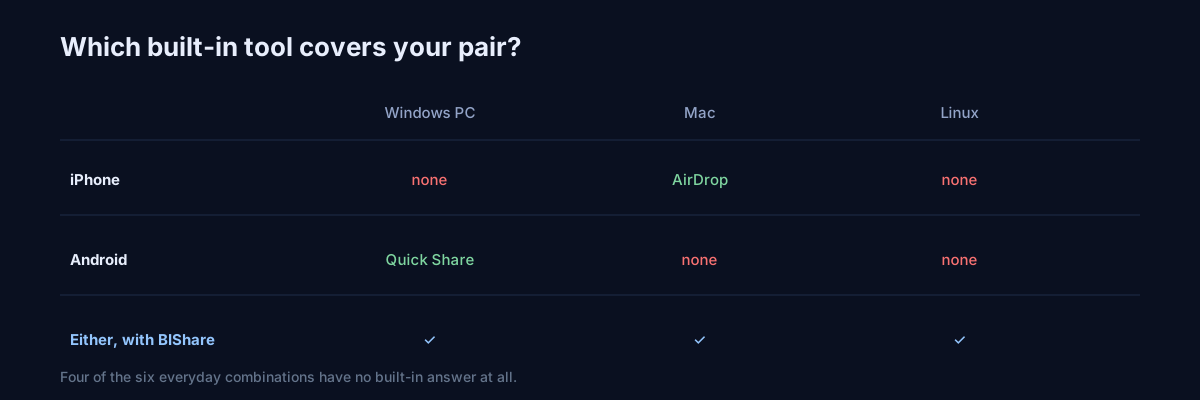
Six pairings cover the PC↔mobile world. Honest recommendations for each — including the two where you shouldn't use our app or anyone else's, because the platform already solved it:
iPhone ↔ Mac. Use AirDrop. It's built in, it's excellent inside Apple's garden, and no third-party tool beats a native protocol on its home turf. Third-party transfer earns its place here only for what AirDrop won't do — sending to the other four pairings below, or handing someone a link.
Android ↔ Windows. Google ships Quick Share for Windows, and when both sides cooperate it's a fine native-ish path. Its honest limits: the Windows app must be installed and running, discovery between brands can be moody, and there's no Mac or Linux story at all. Worth trying first; keep a cross-platform fallback for the days it shrugs.
iPhone ↔ Windows. No native path exists in either direction — Apple and Microsoft never built the bridge. This is prime cross-platform-app territory, and it's the pairing we dissected end to end in the iPhone-to-Windows guide: direct Wi-Fi first, browser links for machines you can't touch, iCloud for background photo sync.
Android ↔ Mac. The famous orphan — Google discontinued Android File Transfer and never shipped Quick Share for macOS, a saga (and its five fixes) we covered in the Android-to-Mac video guide. Direct Wi-Fi transfer or a good MTP replacement; nothing native is coming.
Anything ↔ Linux. The forgotten pairing. Neither Apple nor Google acknowledges the Linux desktop, which is exactly why cross-platform apps matter here — BIShare ships a native Linux build, and the open-source KDE Connect (kdeconnect.kde.org) pairs Android with Linux desktops beautifully for notifications, remote input, and file handoff. Linux users are also the natural audience for Syncthing (syncthing.net) — more on both in the toolbox.
Phone ↔ phone. Technically outside this guide's title, constantly asked anyway: the iPhone↔Android table has its own complete manual, four situations and all.
The pattern across all six: use the native tool when your pairing has one; bring a cross-platform tool for the pairings that don't — which, counting honestly, is most of them. For the wall of your mental workshop:
| Pairing | Native option | The gap | Fill it with |
|---|---|---|---|
| iPhone ↔ Mac | AirDrop ✓ | None worth naming | — |
| Android ↔ Windows | Quick Share ✓ | Moody discovery; Windows-app dependency | Cross-platform app as fallback |
| iPhone ↔ Windows | None | The whole pairing | Cross-platform app / browser link |
| Android ↔ Mac | None (AFT discontinued) | The whole pairing | Cross-platform app / OpenMTP wired |
| Any ↔ Linux | None | The whole pairing | Cross-platform app / KDE Connect / Syncthing |
| iPhone ↔ Android | None | The whole pairing | Four moves, mapped |
Chapter 3: The toolbox, by species
Forget individual app names for a moment; tools come in five species, and each has a natural habitat.
Native ecosystem tools (AirDrop, Quick Share). Unbeatable inside their walls, useless outside them. Zero setup, zero reach. If your life is single-ecosystem, close this tab with our blessing.
Cross-platform transfer apps (BIShare; LocalSend as the open-source pick — compared honestly here). The local route with the walls removed: every platform, automatic discovery, device-to-device encryption, no accounts. The strongest of these also carry an internet mode — in BIShare's case, encrypted links — so one tool rides both routes. This species is the default answer for mixed-device households, which is to say, most households. Our side-by-side of the whole field names names.
The browser itself. The most underrated tool on the list. A transfer page in a browser needs nothing installed on one side (sometimes either side): drop a file, get a link, QR, or code. It's the answer for locked-down work machines, borrowed laptops, and relatives who will not install one more app. The ceiling: browser transfers lean on the internet route (or WebRTC for nearby peers), so they inherit its speed profile.
Cloud drives (iCloud, OneDrive, Google Drive, Dropbox). Not transfer tools — sync tools, and the distinction bites. Sync excels at "my documents exist on all my devices, eventually" and is the wrong shape for "move this 8 GB file now" (double journey, quota mathematics, and deletion mirroring — remove a synced file anywhere, lose it everywhere). Use them for the standing library, not the handoff.
Power tools (Syncthing, KDE Connect, SMB shares, WebDAV). For people who enjoy infrastructure: Syncthing does serverless continuous folder replication across every OS and is superb for the "working folder that exists on my phone and both computers" pattern; KDE Connect turns an Android phone and a Linux/desktop pair into one organism; classic network shares still work when everything lives on one LAN forever. The honest tax is setup and care — these are pets, not appliances. We say this fondly, as people who keep such pets.
Chapter 4: The physics of speed
Why does the same phone transfer at 50 MB/s one day and 3 MB/s the next? Almost always one of four levers:
Route. One hop (local) versus two journeys (internet). Nothing else on this list survives contact with a slow upload leg — a 20 Mbit/s uplink caps the internet route at ~2.5 MB/s no matter how glorious your Wi-Fi is. The local route ignores your broadband entirely. Concretely: a 4 GB video at 2.5 MB/s is a 27-minute upload before the download even begins; the same file on the local route at our recurring bench figure of 40–50 MB/s is a 90-second errand. Same file, same phone, same room — a 30× difference decided purely by which route the bytes took.
Band and generation. The 2.4 GHz band is the compatibility band, not the speed band — real-world throughput can be a fifth of 5 GHz on the same router. A device that silently associated with 2.4 (or a "smart" router that steered it there) is the single most common cause of mysteriously slow local transfers. Wi-Fi 5 hardware comfortably carries the tens-of-MB/s that make big transfers boring; Wi-Fi 6/7 raise the ceiling further, mostly visible on multi-device networks.
Distance and walls. Radio is physics: every wall costs signal, and signal is speed. The difference between transferring in the same room as the router and three rooms away is routinely 2–3×. For an archive-scale session, sit near the router; it's the cheapest upgrade in networking.
The encryption myth, retired. People still ask whether encrypted transfer is slower. Modern phone and laptop chips encrypt faster than any Wi-Fi can deliver bytes — hardware AES pushes gigabytes per second. We keep repeating this with a straight face because we once shipped the counterexample: a build with the chip's crypto engine accidentally bypassed crawled at low single-digit MB/s until we caught it. Encryption done right is free; only encryption done wrong is slow.
And one property worth demanding from any tool at large-file scale: resume. Networks hiccup — someone microwaves a burrito, a phone roams between access points — and a transfer that restarts from zero at 94% of a 20 GB file is a small tragedy. We stress-test this deliberately: in one of our on-device tests we cut Wi-Fi partway through a large transfer, and the receiving side kept the 143 MB it already held and continued from there once the network returned, instead of discarding it. That behavior — durable progress, not optimistic progress — is the difference between a transfer tool and a transfer toy. Whatever you use, try killing the network mid-file once; you'll learn more than any review will tell you. (Full detail on moving huge payloads lives in the large-files guide.)
Chapter 5: Security in three layers, plainly
"Encrypted" appears on every product page and means three different things. From weakest to strongest:
Transport encryption (TLS). The pipe is encrypted, the servers at each end read everything. This is the cloud-drive model: fine against café snoopers, and a matter of trusting the provider's policies for everything else.
End-to-end encryption. Only the two devices hold the keys; anything in between relays ciphertext it cannot open. This is how BIShare's device-to-device transfers work — and on the local route there's a bonus property people miss: the file never leaves your network at all, so there is no in-between to worry about.
Zero-knowledge links. The internet route's E2E equivalent: the file is encrypted in your browser before upload, and the decryption key travels inside the link fragment, which browsers never send to servers — the relay stores bytes it cannot read. The fine print worth respecting: the link is the key, so share it like the file. The full encryption explainer unpacks all three layers.
Choosing is simple once named: public material → any layer; personal material → end-to-end or zero-knowledge; material with someone else's name on it (clients, patients, employees) → end-to-end, ideally on the local route, full stop. And a habit that costs nothing: before sending anything you'd mind explaining at dinner, spend one second naming which layer is carrying it. The second is free; the retroactive version is not.
Chapter 6: Three recipes we actually recommend
The permanent setup (fifteen minutes, once). Put one cross-platform app on every device you own — phones, laptops, the Linux media box. From that day, any-to-any transfer is: open app, tap device, done. This is our own household configuration, and it's why "how do I get this file to…" stopped being a sentence anyone finishes saying in it. Two touches worth adding while you're there: name each device something a human recognizes ("Nina's laptop" beats "DESKTOP-K3R7F2"), and grant the permission prompts on first run — Local Network on iOS, the firewall allowance on Windows — so the day-one friction never returns. Fifteen minutes, honestly counted, including the coffee.
The zero-install day (for machines you don't control). Memorize one URL: bishare.app/transfer. Sending from your phone to a locked-down work PC, receiving from a client's laptop, rescuing a file onto a hotel business-center machine — the browser does all of it with nothing installed and links that expire on their own. The QR variant deserves special mention for in-person moments: your phone shows the code, their machine's camera or phone scans it, and nobody spells out a URL across a desk. For sensitive material on shared machines, prefer the one-time-download option and pull the file straight into its destination folder rather than Downloads.
The offline field kit. Phone hotspot + local transfer app = a private network anywhere on earth: planes, basements, mountains, blackouts. No data plan is consumed; the hotspot is just a radio. For the truly minimal — a document to a colleague with all radios off — screen-to-camera QR transfer moves small files with nothing but light. Practice the hotspot trick once at home; in the field is a bad time for a first rehearsal. The rehearsal script: enable hotspot on phone A, join it from device B like any Wi-Fi network, open the transfer app on both, send one photo. Ninety seconds, and you'll never fumble it under pressure — which, in our experience of demos, is precisely when networks choose to be humbling.
Chapter 7: Five myths, retired in a paragraph each
"Just Bluetooth it." Bluetooth hasn't been a file pipe for years — iOS never offered generic Bluetooth file push at all, and where it exists it moves a single photo in the better part of a minute. Its modern job is waking up faster radios, not carrying your data; the phone-pair guide holds the full obituary.
"USB is always faster than wireless." On paper, yes. In practice, phone-side wired transfers ride MTP — a serialized mid-2000s protocol — and real throughput frequently lands right where a good 5 GHz direct transfer already lives. The cable earns its keep at archive scale; for the daily file it mostly earns tangles.
"It's in the cloud, so it's backed up." Sync is not backup. A synced folder mirrors deletions with perfect obedience: remove the file on one device and the cloud removes it everywhere, promptly. Backup means an independent copy that survives your own mistakes; a cloud drive is a very available single copy.
"Public Wi-Fi means no local transfer." Half true — café networks usually isolate clients, so devices can't see each other on that network. But the hotspot maneuver builds a private network in your pocket in fifteen seconds, and the transfer proceeds as if the café didn't exist. Isolation is an obstacle, not a wall.
"Wireless transfer melts your battery." A sustained transfer uses the radio, and the radio costs something — but the arithmetic is mild: minutes of Wi-Fi at full tilt, a session that ends. The battery villains are screens and cellular searching, not a two-minute local transfer. Ship the file; your battery will not notice by dinner.
Chapter 8: When it breaks — the routed index
Wireless troubleshooting is 90% network, 10% platform, and we've written the specific checklists where they belong rather than repeating them here:
- Windows can't see the phone → firewall permissions, private-network profiles, guest-SSID splits: the Windows checklist walks all five steps.
- iPhone discovery is dead everywhere → it's almost always the buried Local Network permission; Android drops mid-transfer → battery managers and "no internet" network hopping: both dissected in the phone-pair guide.
- Mac-side quirks → macOS firewall prompts and band steering: covered in the Android↔Mac guide.
The three universal checks before any deep dive: (1) both devices on the identical network name, (2) no VPN quietly routing one of them elsewhere, (3) both apps foregrounded with screens on. Those three lines resolve more cases than everything else combined.
Chapter 9: A working glossary (the seven terms that matter)
- Discovery (mDNS/Bonjour): the whisper protocol devices use to announce themselves on a network — the reason your PC appears on your phone by name with no setup. Guest networks and isolation silence it; same-network is its oxygen.
- Local route / internet route: this guide's spine. One hop through your router versus a round-trip through a server. Everything else is detail.
- Hotspot bridge: a phone broadcasting its own Wi-Fi so another device can join — an instant private network with no router and no internet, and the universal fix for hostile venues.
- MTP: the aging USB file protocol phones speak to computers. Serialized, resume-less, and the reason wired phone transfers feel older than they should.
- End-to-end encryption: only the sender and receiver hold the keys; every relay in between carries ciphertext. The property to demand for anything personal.
- Zero-knowledge link: a shared-link scheme where the decryption key travels in the link fragment and never reaches the server — the internet route's answer to end-to-end.
- Resume: a transfer's ability to survive a network drop and continue from held bytes instead of zero. Boring until the day it's the only feature that matters.
The last word
Wireless transfer stopped being a hard problem years ago; what remained hard was knowing which of five decent answers fits the moment. Now you do: one mental model (local when you can, internet when you must), an honest map of your pairing, a toolbox sorted by species instead of brand noise, and the physics to diagnose the slow days.
The one-line version, if you keep nothing else: put a cross-platform transfer app on your devices before the day you need it, and keep the browser link trick for everyone else's. BIShare covers all five platforms free, and the browser tool covers the rest of humanity. The next file you move should take seconds — and now there's no pairing on earth where you don't know why. Guides age; the two-route model doesn't. Whatever apps rise and fall over the next decade, a file will still either cross your router once or cross the internet twice, and you'll still pick correctly in one breath.