
Troubleshooting
AirDrop not working? Find the cause first
AirDrop fails in a handful of recognisable ways: the other device never appears, the transfer sits on Waiting, a six-digit code pops up that nobody expected, or the files arrive and then vanish into an app you did not check. Each symptom points to a different cause, and several of them are not faults at all but deliberate changes Apple made in iOS 16.2, iOS 17 and iOS 26.2. This guide starts from what you are seeing, lists what AirDrop actually requires according to Apple, walks through the fixes on iPhone, iPad and Mac, explains the recent changes that look like bugs, and covers the case where the other device is an Android phone or a Windows PC. BIShare is the fallback we built for the times AirDrop cannot help: it sends between iPhone, Android, Windows, Mac and Linux, directly on a shared network or through a link. Free, open source, no account.
BIShare is our app. Most AirDrop problems between two Apple devices are fixed in a minute without installing anything, and this guide deals with those first.
Quick answer
- The other iPhone never shows up: ask its owner to switch AirDrop to Everyone for 10 Minutes in Control Center; that choice quietly reverts after ten minutes.
- You get asked for a code: that is iOS 26.2 working as designed; the receiver taps Get AirDrop Code and reads it out, and you type it in.
- Stuck on Waiting: wake and unlock the receiving device, bring the two within 10 metres, and turn off Personal Hotspot on both.
- A Mac cannot be found: set it to be discovered by Everyone, and check that the firewall is not blocking all incoming connections.
- AirDrop is missing entirely: look in Screen Time, Content and Privacy Restrictions, where AirDrop can be switched off, or ask the organisation that manages the device.
- The other device is Android or Windows: only recent Android phones on Google's list can take part; everything else needs another route, such as BIShare.
Start with the symptom
Before changing settings at random, match what the screen shows to the likely cause. Six patterns cover almost every report.
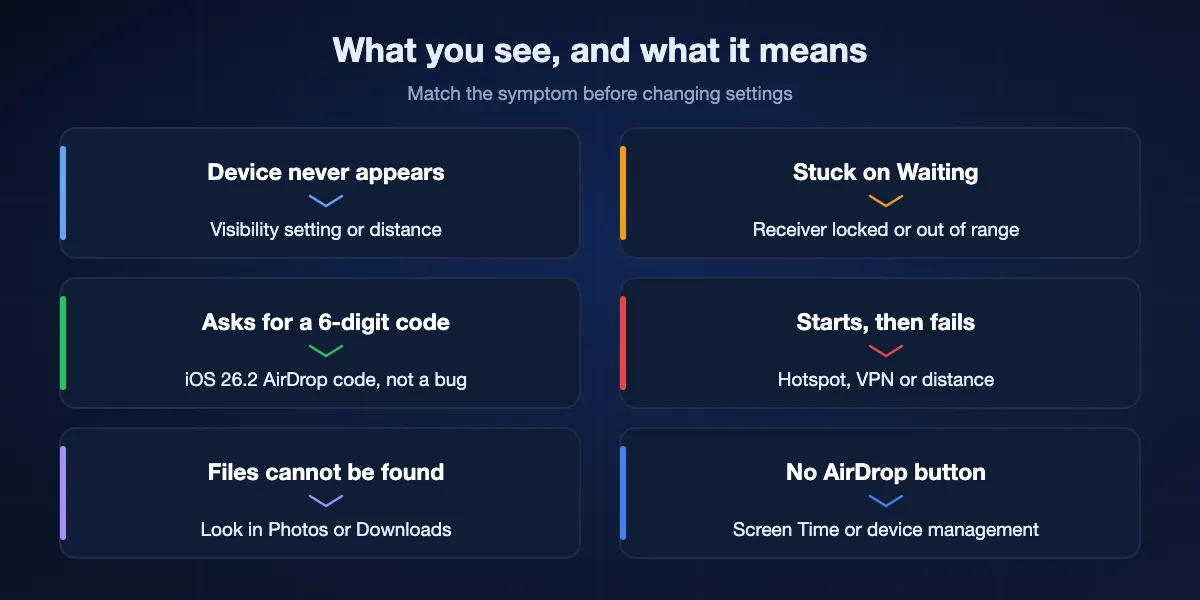
The other device never appears
Visibility is the usual culprit. The receiver is on Contacts Only while you are not in their contacts, their Everyone setting has already timed out, or the device is a Mac set to be discovered by No One. Distance and a locked screen come next.
It appears, then stays on Waiting
The request reached the other device but nobody has answered it. The receiver may not have unlocked the screen to see the prompt, or the connection dropped as one of you walked away. Keep both devices awake and close, and send again.
A six-digit code appears
Both devices run iOS 26.2 or later, the receiver chose Everyone, and you are not in their contacts. Apple now asks the receiver to produce a code that the sender enters. Nothing is broken; follow the prompt.
The transfer starts and fails
Large videos over a weak link, a Personal Hotspot in use, or a VPN or security app interfering with local traffic are common causes. Restart both devices and retry with them side by side.
It worked, but the files are nowhere
On an iPhone or iPad, photos and videos go into the Photos app and other files open in the app that handles them, often Files. On a Mac, many items land in the Downloads folder.
The AirDrop button is missing
A Screen Time restriction or a management profile from an employer or school has turned AirDrop off. No amount of toggling Wi-Fi changes that; the restriction has to be lifted.
What AirDrop needs, according to Apple
Apple's own support articles list a short set of conditions. Checking them in this order rules out the majority of failures in about a minute.
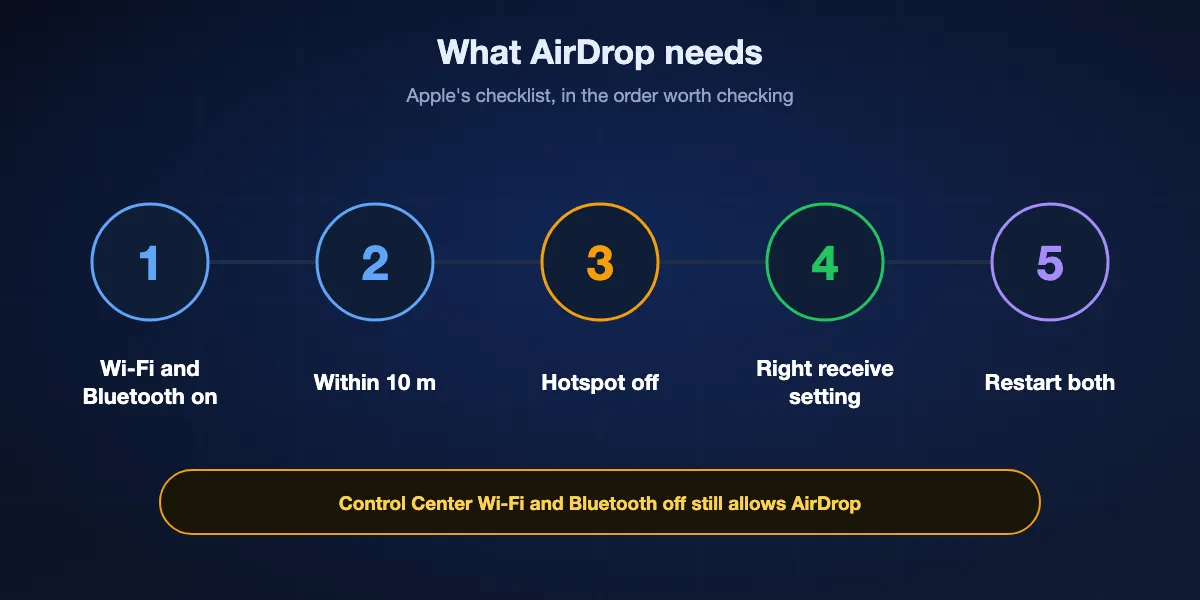
Wi-Fi and Bluetooth switched on
Both devices need both radios. Joining a Wi-Fi network is not required. Note that tapping Wi-Fi or Bluetooth off in Control Center only disconnects from networks and accessories; Apple says AirDrop keeps working in that state, and only the switches in Settings turn the radios off completely.
Within 10 metres
Apple gives 30 feet, or 10 metres, as the range. Walls, bags and crowded radio environments shorten it in practice, so bring the devices into the same room.
Personal Hotspot off
Apple asks anyone sharing a connection through Personal Hotspot to disconnect before using AirDrop. Check both devices, since a phone feeding a laptop in the background is easy to forget.
A receiving setting that lets you in
Contacts Only works when the sender's Apple Account email address or phone number is on the receiver's contact card for them. Otherwise the receiver needs Everyone for 10 Minutes on iPhone or iPad, or Everyone on a Mac.
A restart when the rest checks out
Apple's last step is simple: restart the device and try again. It clears stuck Bluetooth and Wi-Fi states that survive every setting change.
Fixes on iPhone and iPad
Work through these in order on the receiving device first, then on the sending one.
Switch visibility to Everyone for 10 Minutes
Open Control Center, touch and hold the connectivity controls in the top corner, tap AirDrop and pick Everyone for 10 Minutes. The same setting sits in Settings, General, AirDrop. Since iOS 16.2 it falls back to Contacts Only after ten minutes when you are signed in to an Apple Account, so repeat it for a second attempt.
Unlock the receiver and keep it awake
The accept prompt appears on the receiving screen. If that iPhone is face down in a pocket, the sender sees Waiting indefinitely. Unlock it before the other person taps Send.
Hold the phones together
With iOS 17 or later on both iPhones, Apple suggests holding the devices together to start sharing. The same gesture starts NameDrop for contact cards, so choose Share when the options appear.
Check Screen Time restrictions
Go to Settings, Screen Time, Content and Privacy Restrictions, Allowed Apps and Features. If AirDrop is off there, it disappears from share sheets entirely. On a child's device the change has to be made by the parent who manages Screen Time.
Pause the VPN or security app
Some VPNs and firewall apps route or block local traffic, which can stop AirDrop connecting even though discovery works. Pause the app for the transfer and turn it back on afterwards.
Update both devices
Features like AirDrop codes only work when both sides run iOS 26.2 or later, and older software can behave unpredictably with newer peers. Install the latest update in Settings, General, Software Update.
Restart, then reset network settings as a last resort
Restart both devices first. If AirDrop still fails, Settings, General, Transfer or Reset iPhone, Reset, Reset Network Settings clears saved Wi-Fi networks and Bluetooth pairings too, so keep it for when nothing else has worked.
Fixes on a Mac
A Mac has its own discovery setting, a firewall that can get in the way, and a different place for received files.
Allow discovery by Everyone
Open AirDrop from Control Center or the Finder sidebar and set who can discover the Mac to Everyone or Contacts Only. A Mac left on No One will never show up, whatever the iPhone does.
Keep a Finder AirDrop window open
Choosing Go, then AirDrop in the Finder shows nearby devices and keeps the Mac actively looking. It is the quickest way to confirm whether the Mac can see the iPhone at all.
Loosen the firewall
In System Settings, Network, Firewall, open Options. If Block all incoming connections is turned on, AirDrop requests cannot reach the Mac. Turn that option off, or allow incoming connections for the services you use.
Look in Downloads
Apple's guide says items sent to a Mac are usually saved in the app they belong to, while some files go straight to the Downloads folder. Check there before assuming the transfer failed.
Turn Bluetooth off and on
Toggle Bluetooth and Wi-Fi from Control Center, or restart the Mac if the menu bar shows Bluetooth as unavailable. Accessories like keyboards reconnect on their own afterwards.
Changes that look like bugs
Several AirDrop behaviours that send people searching for fixes were introduced on purpose. Knowing the timeline saves a lot of pointless resetting.
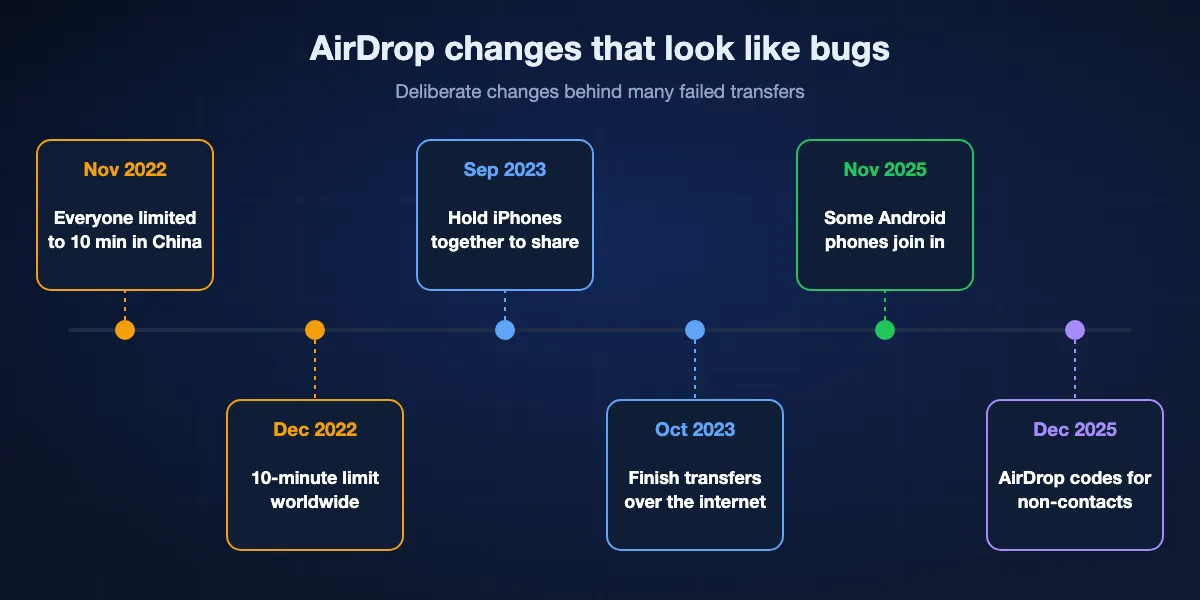
iOS 16.1.1 and 16.2: Everyone became temporary
Apple first limited Everyone to ten minutes on iPhones in China with iOS 16.1.1 in November 2022, then applied the same limit worldwide in iOS 16.2 that December. That is why AirDrop that worked a moment ago stops working without anyone touching it.
iOS 17: bring the phones together
iOS 17 added sharing by holding two iPhones close, alongside NameDrop for contacts. It helps when a list of nearby names is crowded, but both phones need iOS 17 or later.
iOS 17.1: transfers that leave the room
With both people signed in to iCloud, a transfer that has already started can finish over the internet when the devices move out of range. The switch is Use Cellular Data under Out of Range in Settings, General, AirDrop; if it is off, walking away can cancel a large transfer.
iOS 26.2: AirDrop codes
When both devices run version 26.2, the receiver has chosen Everyone and the sender is not in their contacts, the receiver taps Get AirDrop Code and the sender enters it. The sender then stays on a list of known AirDrop contacts for 30 days, which can be managed in Settings, General, AirDrop.
November 2025: some Android phones joined
Google's Quick Share began speaking AirDrop on the Pixel 10 and has since added other recent Android phones. They only see iPhones set to Everyone for 10 Minutes, so an Android friend who appears one minute and not the next is usually a timed-out setting.
When the other device is not an iPhone or Mac
Plenty of AirDrop troubleshooting ends here, because the device on the other end was never going to take part.
An Android phone
When the phone appears on Google's list for Quick Share with AirDrop, it can swap files with an iPhone provided the iPhone allows Everyone for 10 Minutes and, on a Galaxy, the Apple sharing switch is on. Older or unlisted Android phones cannot receive AirDrop in any form.
A Windows PC or Chromebook
Apple has never made AirDrop for Windows, and Quick Share on a PC or Chromebook does not reach Apple devices. No setting on either side changes this, so use a cable, a cloud link or a cross-platform app.
A Linux computer
There is no AirDrop client for Linux either. Open-source tools such as LocalSend and browser-based ones such as BIShare links or PairDrop are the practical options.
Plan B: five ways to send when AirDrop will not
When the fixes run out, or the other device is not Apple, pick a route by where the recipient is and what they use.
BIShare
Best when the recipient uses Android, Windows or Linux, or is somewhere else
Apps for iPhone, Android, Windows, macOS and Linux · MIT licence · device to device over a common Wi-Fi or a phone's hotspot, any file size · encrypted links hold up to 100 GB and last 24 hours in a browser · group rooms · no sign-up
Install BIShare on both devices and they see one another over a common Wi-Fi or a phone's hotspot, with no visibility window to run out and no contact card to match. Files cross directly in either direction without touching the internet. For a recipient who is not close by, make a link: the files are sealed on your device before they upload, and the other person downloads them in a browser.
Keep in mind: Close-range sending requires BIShare on each device, and a link needs a data connection on both sides.
Quick Share with AirDrop
Best when the other device is a recent Android phone on Google's list
Part of Quick Share on Android phones Google lists, from Pixel and Galaxy to several Chinese brands · talks to iPhone, iPad and Mac · device to device, no server · Everyone mode only
Nothing to install on either phone. The iPhone uses AirDrop as usual, and the Android phone uses Quick Share, which now understands the AirDrop protocol. It is the closest thing to AirDrop itself for an Android friend in the same room.
Keep in mind: Only phones on Google's list take part, the iPhone has to allow Everyone for 10 Minutes, and it stops working once the devices are apart.
iCloud link from Photos
Best for sharing photos with anyone when both of you have internet
Built into Photos with iCloud Photos turned on · opens in any browser, including Android and Windows · link expires after 30 days · uses your iCloud storage
Pick photos or videos, open the share sheet and use Copy iCloud Link, then paste the link into any chat. The recipient opens it on whatever device they own and saves the originals. It suits a holiday album that several people want.
Keep in mind: It only covers items in iCloud Photos, the upload counts against your iCloud storage, and the link stops working after 30 days.
LocalSend
Best open-source option on a home or office network
iPhone, Android, Windows, macOS, Linux · Apache 2.0 · same local network · HTTPS, no account
LocalSend lists every device where it is open on the local Wi-Fi and sends with a tap, with no server or account in between. It makes a good permanent replacement if you regularly move files between an iPhone and a Windows or Linux computer at home.
Keep in mind: The app has to be on both devices, anything on a different network is out of reach, and routers that isolate devices can hide them from each other.
USB cable
Best for a whole camera roll onto a computer
Photos app on a Mac, Apple Devices app on Windows · no network needed · full-resolution originals when they are stored on the iPhone
Connect the iPhone, unlock it and trust the computer, then import from the Photos app on a Mac or through the Apple Devices app on Windows. For thousands of photos it is often faster and more predictable than any wireless route.
Keep in mind: You need the right cable and the computer in front of you, and photos kept only in iCloud have to be downloaded to the iPhone first.
At a glance
| Feature | BIShare | Quick Share with AirDrop | iCloud link | LocalSend | USB cable |
|---|---|---|---|---|---|
| Works with Android phones | |||||
| Works with Windows PCs | |||||
| Works when the recipient is far away | |||||
| Works without internet | |||||
| Nearby transfer keeps files off servers | |||||
| No extra app on the iPhone |
As of September 2026. BIShare needs its app on both devices for nearby transfers; its links reach anyone far away but need internet. Quick Share with AirDrop only covers Android phones on Google's list. An iCloud link opens in any browser but uploads to iCloud. LocalSend needs its app on both sides and one local network. A cable to Windows needs the Apple Devices app on the PC, not the iPhone.
Fixing AirDrop without opening yourself up
Most fixes involve making a device more visible, so it is worth closing that door again when you are done.
Let Everyone expire
Everyone for 10 Minutes exists precisely so that an iPhone does not stay open to strangers. Use it for the transfer and let it lapse, and on a Mac switch back to Contacts Only yourself.
Treat AirDrop codes as a feature
The iOS 26.2 code step stops random people nearby from pushing files to you, even with Everyone selected. Only read out a code to someone you are actually trying to exchange files with.
Decline what you did not expect
Unknown senders show a preview and a name before anything is saved. Decline requests you did not ask for, and keep restrictions on children's devices even if it means an occasional failed AirDrop.
AirDrop not working: FAQ
Why is AirDrop not finding the other iPhone?
Usually the receiver is set to Contacts Only while you are not in their contacts, or their Everyone for 10 Minutes setting has expired. Ask them to select it again in Control Center and keep their screen unlocked.
Why does AirDrop say Waiting and never finish?
The request has not been accepted. The receiving device may be locked, out of range or busy with Personal Hotspot. Unlock it, bring the devices within 10 metres, turn off Personal Hotspot and send again.
Why is AirDrop asking me for a code?
Since iOS 26.2, when the receiver chooses Everyone and you are not in their contacts, they tap Get AirDrop Code and tell you the six digits to enter. After that you can AirDrop each other for 30 days.
Why did AirDrop stop working after ten minutes?
Since iOS 16.2, the Everyone for 10 Minutes setting reverts to Contacts Only after ten minutes if you are signed in to an Apple Account. Select it again to continue.
Does AirDrop need Wi-Fi and internet?
It needs Wi-Fi and Bluetooth switched on but no Wi-Fi network or internet. Only the iOS 17.1 option to finish a transfer out of range uses the internet.
Why can't my Mac receive AirDrop?
Check that the Mac is set to be discovered by Everyone or Contacts Only, that Bluetooth is on and that the firewall is not blocking all incoming connections. Opening an AirDrop window in the Finder helps confirm what it can see.
Where do AirDropped files go?
On iPhone and iPad, photos and videos go to the Photos app and other files open in a matching app. On a Mac, items are saved in their app or in the Downloads folder.
Why is AirDrop missing from my iPhone?
It has been switched off in Screen Time under Content and Privacy Restrictions, or by a management profile from an employer or school. Turning it back on requires changing that restriction.
Can I AirDrop to an Android phone or Windows PC?
Only to recent Android phones on Google's Quick Share list, and only while the iPhone allows Everyone for 10 Minutes. Windows PCs, Chromebooks, Linux and other Android phones need a different tool, such as BIShare.
Is BIShare free?
Yes. BIShare costs nothing, its code is published under the MIT licence, it asks for no account and it does not cap direct sending between devices in the same place.
For every device AirDrop cannot reach
Free and open source. Send between iPhone, Android, Windows, Mac and Linux over your own network, or hand anyone an encrypted link.