
iPhone → Android
Передать файлы с iPhone на Android
Большинство инструкций по-прежнему начинаются с фразы «AirDrop не работает с Android». Это перестало быть полной правдой в конце 2025 года, когда Google научил Quick Share говорить на языке AirDrop, а в начале 2026 года Apple добавила в iOS функцию «Перенос на Android». Обе помогают, но каждая охватывает меньше, чем кажется по заголовкам. На этой странице разобрано, какой из восьми реальных способов подходит для одного фото, папки с видео, друга на другом конце города и полного переезда на новый телефон, и где BIShare закрывает пробелы: с любого iPhone на любой Android, напрямую по Wi-Fi или по ссылке. Открытый код, бесплатно, регистрация не нужна.
BIShare наш продукт. Несколько вариантов ниже встроены в телефоны и бесплатны, а если Android-смартфон есть в списке Google, может хватить и самого AirDrop; мы отмечаем, где это так.
Короткий ответ
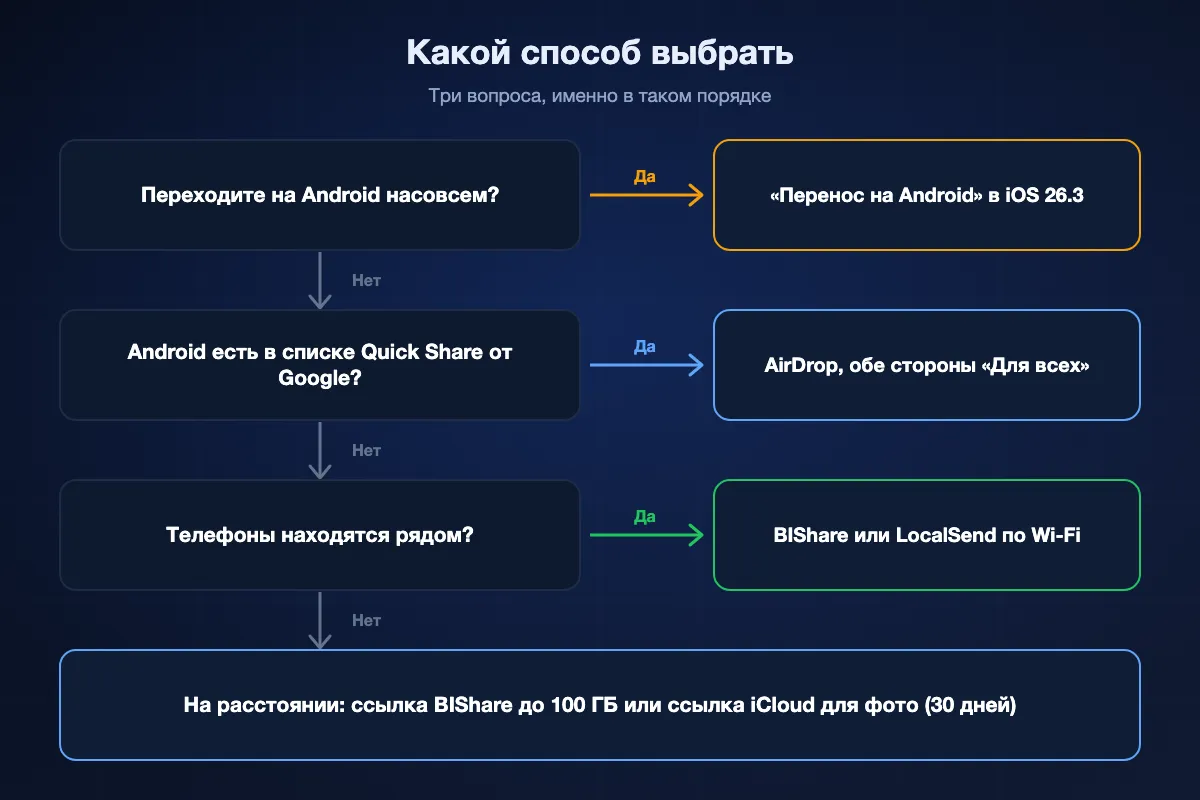
- Android-смартфон это свежий Pixel, Galaxy S или складной: сначала попробуйте AirDrop. Включите на iPhone режим «Для всех на 10 минут», сделайте Android видимым для всех, и он появится в меню AirDrop.
- Любой другой Android в той же Wi-Fi: BIShare на обоих телефонах отправляет оригиналы напрямую и в зашифрованном виде, без ограничения размера.
- Ничего не ставить на Android: отправьте ссылку. Ссылка BIShare вмещает до 100 ГБ и открывается в Chrome; ссылка iCloud делает то же для фото и работает 30 дней.
- Одно большое видео по почте: Mail Drop в приложении «Почта» на iPhone справляется с вложениями до 5 ГБ и работает с адресом Gmail.
- Переходите на Android насовсем: используйте «Перенос на Android» в iOS 26.3 и новее с телефоном на Android 17. Функция переносит фото, сообщения, контакты и даже eSIM, чего не умеет ни одно приложение для обмена файлами.
- Про Bluetooth забудьте: iPhone не отправляет файлы по Bluetooth на Android, даже если устройства сопряжены.
- Длинное видео: сначала сохраните его в приложение «Файлы», затем отправьте эту копию как документ в WhatsApp или Telegram или по ссылке BIShare объёмом до 100 ГБ. Видео, выбранное прямо из галереи, сжимается.
Что изменилось в 2026 году, а что нет
Два изменения от Apple и Google за несколько месяцев поменяли расклад. Ни одно не превращает любую пару iPhone и Android в обмен одним касанием, поэтому полезно точно знать, куда дотягивается каждое.
AirDrop теперь достаёт до некоторых Android
Google сделал Quick Share совместимым с AirDrop, начав с Pixel 10 в ноябре 2025 года. Затем подключились модели Pixel 9 и Pixel 8a, потом флагманы Samsung (Galaxy S24, S25, S26, а также Fold и Flip шестого и седьмого поколений после обновления до One UI 8.5). К июню 2026 года в списке были также OnePlus 15, Xiaomi 17T Pro, Honor Magic V6, Find N6 и серия Find X9 от Oppo и серия X300 от Vivo. Участвовать может любой iPhone. Galaxy A среднего класса, старый Pixel и большинство бюджетных телефонов не могут.
У iOS появился выход
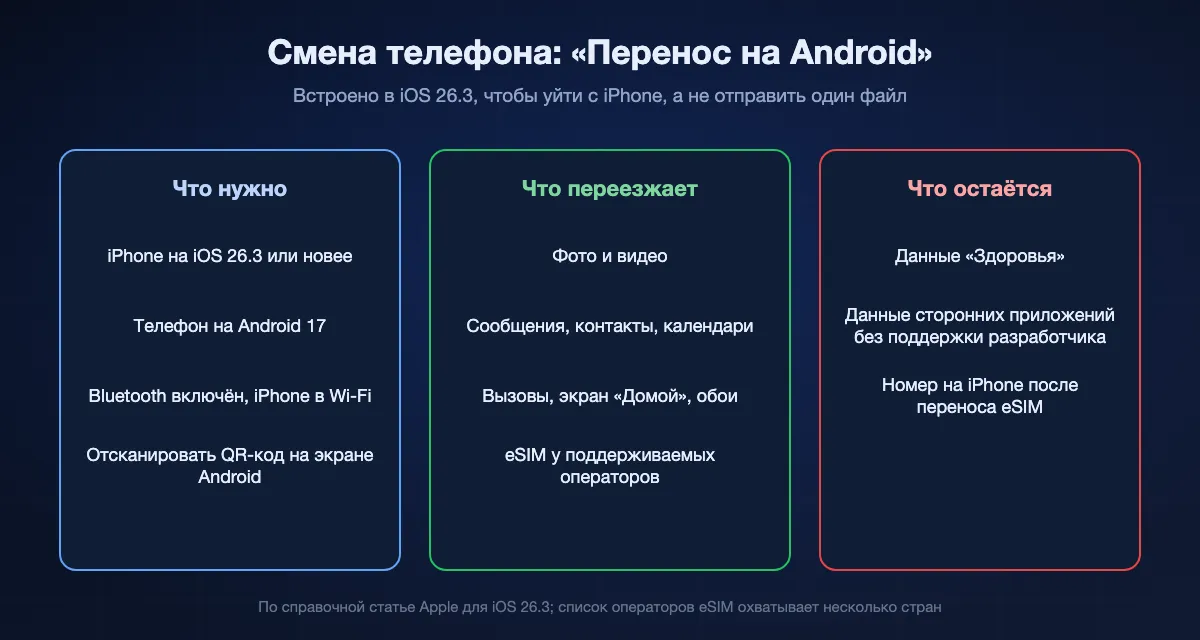
В iOS 26.3 появилась функция «Перенос на Android» в разделе «Настройки», «Основные», «Перенос или сброс iPhone». Она связывается с телефоном на Android 17 по QR-коду и переносит фото, контакты, календари, историю вызовов и сообщения, а у поддерживаемых операторов и номер eSIM. Она сделана для ухода с iPhone, а не для того, чтобы передать один файл другу, который остаётся на своём iPhone.
Чего по-прежнему нет
Встроенного способа отправить файл на Android, которого нет в списке Google. Встроенного способа достать до Android, который не в той же комнате. И вообще передачи файлов с iPhone по Bluetooth. Ради этих трёх пунктов и написана остальная страница.
Восемь способов по порядку
BIShare
Лучший в целом: работает с любым Android, рядом или далеко
Приложения для iOS и Android, а также для компьютеров · лицензия Apache 2.0, бесплатно · без ограничений между телефонами в одной сети · ссылки до 100 ГБ · сквозное шифрование · без регистрации
Модель телефона не важна. Когда приложение стоит на обоих и оба в одной Wi-Fi, Android появляется в списке устройств iPhone, вы выбираете его, получатель нажимает «Принять», и оригиналы уходят напрямую со скоростью вашей сети, не касаясь сервера. Фото сохраняют полное разрешение, видео не перекодируется. Если получатель в другом месте или не хочет ничего ставить, приложение переключается на ссылку (с QR-кодом и коротким 6-символьным кодом как вариантами); получатель открывает её в Chrome, Samsung Internet или любом браузере на телефоне и скачивает до 100 ГБ. Файл шифруется на iPhone до загрузки, а ссылка истекает через 6, 12 или 24 часа.
Подвох: Прямому пути по Wi-Fi нужно приложение и на Android. Ссылки нужны, чтобы передать файлы, а не хранить их, поэтому после истечения ссылки файла больше нет.
AirDrop в Quick Share
Лучший встроенный вариант, если Android есть в списке
Любой iPhone · Pixel 10, 9, 8a, Galaxy S24–S26, Z Fold/Flip 6 и 7, отдельные Xiaomi, OnePlus, Oppo, Vivo, Honor · только рядом · без приложения · ограничение размера не опубликовано
На поддерживаемом телефоне это ближе всего к AirDrop между двумя iPhone. Откройте на iPhone Пункт управления, включите AirDrop «Для всех на 10 минут» и сделайте Android видимым для всех в настройках Quick Share. На Samsung также включите обмен с устройствами Apple. После этого Android появится в меню «Поделиться» на iPhone, как любое устройство Apple, и в обратную сторону тоже работает. Обоим телефонам нужны включённые Bluetooth и Wi-Fi, и находиться они должны в нескольких метрах друг от друга.
Подвох: Режим «Только для контактов» между платформами не работает, поэтому на время отправки обе стороны открыты для всех поблизости. И список не охватывает большинство Android, которыми пользуются сегодня.
Ссылка iCloud или Mail Drop
Встроено в iPhone, открывается в любом браузере
Любой iPhone · ссылка iCloud для фото и видео, истекает через 30 дней · Mail Drop до 5 ГБ, истекает через 30 дней · у отправителя нужен iCloud
Две функции Apple легко упустить. В «Фото» выберите снимки или видео, нажмите «Поделиться» и выберите «Скопировать ссылку iCloud»; ссылка откроется в браузере Android и работает 30 дней. Для файлов, а не фото, прикрепите их в приложении «Почта» и отправьте на Gmail владельца Android. Всё, что слишком велико для обычного вложения, предлагается отправить через Mail Drop: до 5 ГБ, без расхода места в iCloud.
Подвох: Всё идёт через серверы Apple со скоростью вашей отдачи. Ссылкам iCloud нужны включённые «Фото iCloud», а ссылки Mail Drop перестают работать через 30 дней.
Google Диск или Google Фото
Лучший, когда файлы должны остаться в облаке
Приложения для iPhone, предустановлены на большинстве Android · до 15 ГБ бесплатно на Gmail, Диск и Фото вместе · нужен аккаунт Google
У большинства владельцев Android уже есть аккаунт Google и приложения «Фото» и «Диск». Загрузите файлы с iPhone и откройте доступ к альбому или файлу по адресу получателя либо отправьте ссылку. Подходит для семейного альбома, который постоянно пополняется, или папки, к которой вы оба будете возвращаться. В Google Фото проверьте, что качество загрузки стоит «Исходное», если важно полное разрешение.
Подвох: Это загрузка, а потом скачивание, поэтому для больших видео медленно, расходуются 15 бесплатных ГБ, и на iPhone нужен аккаунт Google.
LocalSend
Приложение с открытым кодом для одной Wi-Fi
Приложения для iOS, Android и компьютеров · открытый код, бесплатно · только локальная сеть · шифрование · регистрации нет
LocalSend закрывает ту часть задач BIShare, что внутри одной сети, и делает это хорошо: поставьте на оба телефона, они найдут друг друга, и файлы уйдут напрямую. Для двух человек в одном доме, которые обмениваются файлами только при встрече, это надёжный бесплатный выбор.
Подвох: Не может передать файл на телефон в другом месте и не поможет, если получатель ничего не хочет ставить.
WhatsApp или Telegram, файлом-документом
Годится, если чат уже есть
Обоим телефонам нужны приложение и аккаунт · документы до 2 ГБ · фото, отправленные обычным способом, сжимаются
Если вы и так переписываетесь в WhatsApp или Telegram, это самый простой путь. Всё решает способ прикрепления. Фото из галереи уменьшается и пережимается; то же фото, прикреплённое как документ, сохраняет исходный размер и качество. В WhatsApp нажмите кнопку вложения, выберите «Документ» и найдите файл в «Файлах» или «Фото».
Подвох: Потолок 2 ГБ на файл, копия в истории чата, и легко забыть про документ и отправить размытую версию.
Флешка USB-C
Совсем без сети, для iPhone 15 и новее
iPhone 15 и новее с USB-C · Android с USB-C · флешка в exFAT · приложение «Файлы» на обоих
iPhone с портом USB-C читает и записывает внешние накопители в приложении «Файлы» и умеет там же их форматировать. Скопируйте файлы на флешку, подключите её к Android и откройте его файловый менеджер. Отформатируйте флешку в exFAT, чтобы помещались файлы больше 4 ГБ. Большинство современных Android читают exFAT, Pixel начиная с Android 13; если ваш не читает, FAT32 работает везде, но не принимает файлы от 4 ГБ.
Подвох: Флешка должна быть под рукой, iPhone с Lightning нужен переходник, который работает не с каждой флешкой, а перенос фото из «Фото» в «Файлы» это лишний шаг.
Компьютер посередине
Старый способ, всё ещё работает
ПК с Windows или Mac · два кабеля · интернет не нужен · долго готовить
Подключите iPhone к ПК с Windows, скопируйте фото из папки DCIM в Проводнике, затем подключите Android и вставьте их в его память. На Mac импортируйте через приложение «Фото» и скопируйте на Android через файловый менеджер.
Подвох: Два кабеля, компьютер, запросы доверия на обоих телефонах, а на Mac ещё и отдельное приложение, чтобы просто увидеть память Android. Стоит того, только если больше ничего нет.
Коротко
| Параметр | BIShare | AirDrop + Quick Share | Ссылка iCloud / Mail Drop | Google Диск | Документ WhatsApp | Флешка USB-C |
|---|---|---|---|---|---|---|
| Работает с любым Android | ||||||
| Работает с любого iPhone | ||||||
| Ничего не ставить на Android | ||||||
| Достаёт до телефона не рядом | ||||||
| Сохраняет исходное качество | ||||||
| Без облачного аккаунта и мессенджера | ||||||
| Файлы больше 5 ГБ | ||||||
| Сквозное шифрование |
Состояние на сентябрь 2026. У BIShare «ничего не ставить» относится к ссылке в браузере (100 ГБ); прямому пути по Wi-Fi нужно приложение на обоих телефонах, и размер не ограничен. AirDrop в Quick Share требует поддерживаемый Android, видимость обеих сторон для всех и включённые Bluetooth и Wi-Fi; Google не публикует ограничение размера, соединение между телефонами зашифровано. Ссылкам iCloud нужны «Фото iCloud», срок 30 дней; Mail Drop ограничивает вложения 5 ГБ. Бесплатный Google Диск вмещает всего до 15 ГБ. Документы WhatsApp зашифрованы сквозным шифрованием и ограничены 2 ГБ. Флешке USB-C нужен iPhone 15 или новее и exFAT для файлов больше 4 ГБ.
Перенос всего на новый Android
Отправить несколько файлов и сменить телефон это разные задачи. Если Android заменяет iPhone, используйте инструмент переноса, а не перетаскивайте файлы партиями.
«Перенос на Android», встроенный в iOS 26.3
На iPhone нужна iOS 26.3 или новее, на Android нужен Android 17. Начните настройку Android или откройте на iPhone «Настройки», «Основные», «Перенос или сброс iPhone», «Перенос на Android». Держите телефоны рядом с включённым Bluetooth, отсканируйте камерой iPhone QR-код на экране Android, выберите, что переносить, и подтвердите. Переезжают фото, контакты, календари, история вызовов и сообщения, а также настройки универсального доступа, расположение экрана «Домой» и обои.
У некоторых операторов переезжает и eSIM
Apple называет AT&T, FirstNet, T-Mobile и Verizon в США, KDDI в Японии, Deutsche Telekom в Германии, SFR во Франции и EE в Великобритании. После переноса номер перестаёт работать на iPhone. Данные «Здоровья» не переносятся, а данные сторонних приложений переезжают, только если разработчик это поддержал.
Более старые Android
Телефон, который ещё не на Android 17, по-прежнему предлагает собственный перенос Google при настройке: он копирует с iPhone контакты, события календаря, фото и видео. eSIM он не переносит, а то, что инструмент переноса не забирает, например документы из «Файлов», потом можно передать одним из способов из списка выше.
С iPhone на Android через BIShare, по шагам
Установите на оба телефона и подключите к одной Wi-Fi
Скачайте BIShare из App Store на iPhone и из Google Play на Android, затем подключите оба к одной Wi-Fi. Когда iOS спросит, можно ли BIShare искать устройства в локальной сети, разрешите, иначе Android не появится. Если Wi-Fi нет, общей сетью станет точка доступа телефона.
Выберите файлы и телефон
Нажмите «Отправить», выберите фото, видео или любые файлы из «Файлов» и укажите Android в списке. Получатель принимает, и файлы попадают в галерею или папку «Загрузки» в полном качестве, зашифрованными по пути.
Или отправьте ссылку
Вы не рядом или владелец Android не хочет ставить приложение? Выберите вариант со ссылкой или откройте bishare.app/transfer в Safari и перетащите файлы. Отправьте ссылку или 6-символьный код любым сообщением; она откроется в браузере Android, позволит скачать до 100 ГБ и истечёт через 6, 12 или 24 часа.
Почему фото на Android иногда выглядят не так и как этого избежать
Проблемы с качеством фото между iPhone и Android обычно связаны с форматами и сжатием, а не с самой передачей.
Файлы HEIC
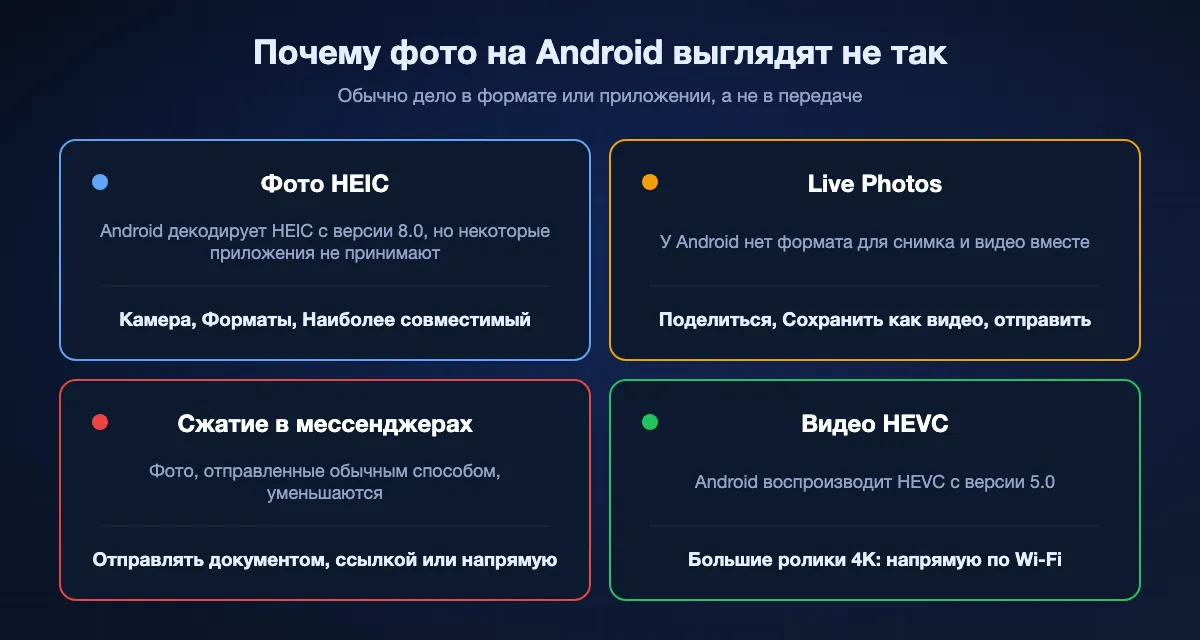
iPhone по умолчанию сохраняет фото в HEIC. Android декодирует HEIC начиная с Android 8.0, и Google Фото его открывает, но некоторые старые галереи, редакторы и сайты до сих пор его не принимают. Если получателю нужен JPEG, перед съёмкой включите на iPhone «Настройки», «Камера», «Форматы», «Наиболее совместимый».
Live Photos
Live Photo это фотография с прикреплённым коротким видео, а у Android нет формата, который воспроизводит их вместе. Рассчитывайте, что дойдёт снимок. Если важен сам момент, откройте Live Photo, нажмите «Поделиться», выберите «Сохранить как видео» и отправьте это видео.
Сжатие в мессенджерах
Мессенджеры уменьшают и пережимают фото и видео, отправленные обычным способом, поэтому чёткий снимок с iPhone приходит мыльным. Отправляйте исходный файл напрямую, по ссылке или документом.
Видео
Видео с iPhone обычно в HEVC, который Android воспроизводит начиная с Android 5.0, так что с ним справится почти любой телефон. Выбор способа важнее всего для очень больших роликов 4K или ProRes: напрямую по Wi-Fi они идут секунды или минуты, а через облако сначала нужно загрузить весь файл.
Как отправить длинное видео с iPhone на Android
На длинных видео ломается большинство способов: файл слишком велик для выбранного пути, или путь незаметно его сжимает. Проверьте размер, а потом выберите путь, который пропустит файл целиком.
Сначала проверьте размер
Видео быстро становится тяжёлым. В настройках камеры iPhone примерно указано, сколько мегабайт занимает минута в каждом качестве, и в 4K это сотни. Сохраните ролик в приложение «Файлы» («Поделиться», «Сохранить в Файлы»): там виден точный размер, и именно эту копию вы и отправите.
Выберите путь, который примет весь файл
До 2 ГБ WhatsApp или Telegram передадут ролик как документ, а Telegram Premium поднимает предел до 4 ГБ. Mail Drop берёт до 5 ГБ, Google Фото до 10 ГБ на одно видео. Ссылка BIShare вмещает до 100 ГБ, а в одной сети Wi-Fi у прямого приложения вроде BIShare или LocalSend ограничения по размеру нет.
Отправляйте файл, а не превью
Мессенджеры сжимают всё, что выбрано из галереи как обычное видео. Прикрепите копию из «Файлов» как документ в WhatsApp или как файл в Telegram, и Android получит ровно то, что ушло с iPhone, в полном разрешении и с исходным звуком.
Чтобы видео шло на старых телефонах
Видео с iPhone по умолчанию в HEVC. Apple отмечает, что ролики в 1080p и не больше 60 к/с совместимы шире всего, а «Настройки», «Камера», «Форматы», «Наиболее совместимый» записывает новые видео в H.264. Переключите это до съёмки, если ролик для старого телефона или простого плеера.
Сколько длится передача
Телефоны в одной комнате упираются в Wi-Fi, а не в приложение. Всё, что идёт через интернет, упирается в вашу скорость отдачи.
Напрямую по Wi-Fi
Если оба телефона рядом с роутером Wi-Fi 5, ждите примерно 40–50 МБ/с; роутер Wi-Fi 6 поднимает это примерно до 70–110 МБ/с. Видео на 1 ГБ проходит заметно меньше чем за полминуты. Через точку доступа телефона рассчитывайте примерно на 10–30 МБ/с.
AirDrop в Quick Share
Два телефона создают собственное соединение ближнего действия, поэтому медленный роутер или его отсутствие не мешает. Подходит для нескольких фото или пары видео; для большой пачки держите оба экрана включёнными, а телефоны рядом.
Ссылки, iCloud, Диск и мессенджеры
Файл один раз загружается и один раз скачивается. При отдаче 50 Мбит/с 1 ГБ загружается около трёх минут, прежде чем Android сможет начать скачивание, а 10 ГБ больше получаса.
Когда Android не появляется
Android нет в меню AirDrop
Проверьте, что телефон есть в списке поддерживаемых и обновлён, что на iPhone выбрано «Для всех на 10 минут», а не «Только для контактов», что Android виден всем и на Samsung включён обмен с устройствами Apple. Обоим нужны Bluetooth и Wi-Fi и разблокированный экран.
Одна Wi-Fi, но телефоны не видят друг друга в приложении
На iPhone откройте «Настройки», «Конфиденциальность и безопасность», «Локальная сеть» и проверьте, что приложению разрешён доступ. Гостевые сети и некоторые Wi-Fi в офисах и отелях изолируют устройства; используйте точку доступа телефона. VPN на любом из телефонов тоже может блокировать поиск в локальной сети.
Bluetooth сопрягается, но ничего не отправляется
Так и должно быть. iPhone обменивается файлами только с другими устройствами Apple, поэтому сопряжение с Android по Bluetooth никогда не предлагает передачу файлов. Используйте Wi-Fi или ссылку.
Фото не открываются на Android
Почти наверняка это HEIC, который не читает используемое приложение. Откройте их в Google Фото или отправьте заново с iPhone в режиме «Наиболее совместимый», который сохраняет новые фото в JPEG.
Скачивание по ссылке еле ползёт
Скорость ссылки ограничена отдачей отправителя. Если оба телефона на самом деле рядом, перейдите на прямой путь по Wi-Fi, который вообще не использует интернет.
Кто может увидеть файлы по дороге
Семейные фото, сканы паспорта и документы заслуживают пути, который не оставляет копий. Вот как сравниваются варианты.
С телефона на телефон, без хранения
Прямой путь BIShare, LocalSend и AirDrop в Quick Share передают данные между двумя телефонами и шифруют соединение. Копии на сервере не остаётся.
Через сервер, который не может прочитать
Ссылки BIShare шифруют файл на iPhone до загрузки и помещают ключ расшифровки после знака # в адресе. Браузеры эту часть не передают, поэтому сервер хранит только нечитаемые данные. Документы WhatsApp тоже зашифрованы сквозным шифрованием, но остаются в истории обоих чатов.
Через сервер, который может
Ссылки iCloud, Mail Drop и Google Диск шифруют файлы при передаче и на своих серверах, но при стандартных настройках ключи у провайдера. Для отпускных фото нормально, для паспортов и договоров стоит подумать дважды. В сравнении лучших приложений для обмена файлами сервисы разделены так же: те, что могут прочитать ваши файлы, и те, что не могут.
С iPhone на Android: частые вопросы
Можно ли отправить AirDrop с iPhone на Android?
Да, если Android поддерживает совместимость Quick Share с AirDrop: Pixel 10, 9 и 8a, серии Galaxy S24, S25 и S26 и Z Fold/Flip 6 и 7, а также отдельные модели Xiaomi, OnePlus, Oppo, Vivo и Honor. Включите на iPhone AirDrop «Для всех на 10 минут». Другие Android принимать AirDrop не могут.
Как проще всего передать файлы с iPhone на Android?
Если Android есть в списке Google, через AirDrop с видимостью обеих сторон для всех. Иначе установите BIShare на оба телефона и отправляйте по одной Wi-Fi или пришлите ссылку BIShare, которая откроется в браузере Android.
Можно ли передать файлы с iPhone на Android по Bluetooth?
Нет. iPhone не передаёт файлы по Bluetooth на устройства не Apple, даже сопряжённые. Используйте приложение для Wi-Fi, AirDrop на поддерживаемый Android или ссылку.
Как сохранить полное качество фото при передаче с iPhone на Android?
Отправляйте исходные файлы напрямую, ссылкой BIShare или iCloud, через Google Диск или документом в WhatsApp. Не прикрепляйте их как обычные фото в мессенджерах, там они сжимаются. Если получателю нужен JPEG, включите на iPhone «Наиболее совместимый».
Как отправить большое видео с iPhone на Android?
В одной Wi-Fi у прямого приложения вроде BIShare нет ограничения размера. На расстоянии ссылка BIShare вмещает до 100 ГБ, а Mail Drop до 5 ГБ. Документы WhatsApp ограничены 2 ГБ.
Как отправить видео документом с iPhone на Android?
Сначала сохраните видео в приложение «Файлы» («Поделиться», «Сохранить в Файлы»). В WhatsApp нажмите плюс, выберите «Документ» и сохранённый файл; в Telegram прикрепите его как файл. Видео придёт без сжатия, до 2 ГБ в обоих приложениях или 4 ГБ с Telegram Premium.
Можно ли передать файлы с iPhone на Android без приложения?
Да. Используйте «Скопировать ссылку iCloud» в «Фото», Mail Drop в «Почте» или bishare.app/transfer в Safari; Android откроет всё это в браузере. Поддерживаемый Android также может принять AirDrop напрямую.
Можно ли в iOS 26.3 перенести данные на Android?
Да, для смены телефона. «Перенос на Android» в настройках переносит фото, сообщения, контакты, календари и историю вызовов на телефон с Android 17, а у поддерживаемых операторов и eSIM. Для отправки одного файла функция не предназначена.
Почему Android не открывает фото с моего iPhone?
Скорее всего, это HEIC. Android умеет декодировать HEIC, и Google Фото его открывает, но некоторые приложения нет. Включите на iPhone формат камеры «Наиболее совместимый», чтобы новые фото сохранялись в JPEG.
iPhone и Android должны быть в одной Wi-Fi?
Только для прямых путей, то есть BIShare с телефона на телефон или LocalSend. AirDrop в Quick Share нужны телефоны рядом с включёнными Bluetooth и Wi-Fi. Ссылки, iCloud, Диск и мессенджеры работают откуда угодно.
Передавать файлы с iPhone на Android бесплатно?
Да. BIShare, LocalSend, AirDrop в Quick Share, ссылки iCloud, Mail Drop и до 15 бесплатных ГБ Google Диска ничего не стоят. Платный тариф нужен только для очень большого или долгого хранения в облаке.
Любой iPhone, любой Android
Бесплатно, без регистрации, код на GitHub. Передавайте файлы через комнату по Wi-Fi или через всю страну ссылкой, которая открывается в браузере Android.