
Wi-Fi file transfer
WiFi file transfer: share files by Wi-Fi between any two devices
Two devices on the same Wi-Fi can pass a file to each other at the speed of the router, with nothing uploaded and no data plan touched. That is the whole promise of sharing by Wi-Fi, and it usually holds. When it does not, the reason is almost always one of three things: the tool quietly fell back to Bluetooth, the network keeps its devices apart, or the file went out to the internet and back without anyone noticing. This page lets you share by Wi-Fi right now with the tool below, then explains what "over Wi-Fi" covers, how fast it really is, which of six tools fits which pair of devices, and what to do when two devices on one network cannot see each other. The tool is BIShare, which works between iPhone, Android, Windows, Mac and Linux. Free, open source, no account.
BIShare is our app, and the tool on this page is its browser version. AirDrop and Quick Share need no network at all, which BIShare cannot match, and the comparison below says so.
Share by Wi-Fi: the quick answer
- Two devices, nothing installed: open this page on both while they are on the same Wi-Fi, start the tool below and pick the other device. The file goes from browser to browser.
- Your own phone and computer, every week: install BIShare or LocalSend on both. They find each other on the network and send directly, with no size limit and no internet.
- Apple to Apple, or Android to Android: AirDrop and Quick Share are built in and make their own Wi-Fi link, so no router is needed.
- Two Windows PCs: Nearby sharing uses Wi-Fi only when the sending PC runs current Windows 11 and both PCs are on the same private network. Otherwise it drops to Bluetooth, which is far slower.
- No Wi-Fi network in reach: turn on one phone's hotspot and join the other device to it. A hotspot is a network, and mobile data can stay off.
- Hotel, office or guest Wi-Fi where devices never appear: the network is keeping them apart. Pair with a private code in the tool, or send a link.
Share by Wi-Fi from this page
Connect both devices to the same Wi-Fi, open this page on each, and start the tool. Every device on your network that has it open appears by name; pick one and choose the files.
Starting makes this device visible to others on your network who have BIShare open. It stops when you close the tab.
What "over Wi-Fi" really means
The phrase covers three different paths. Only the first two keep the file off the internet, and they behave very differently when something goes wrong.
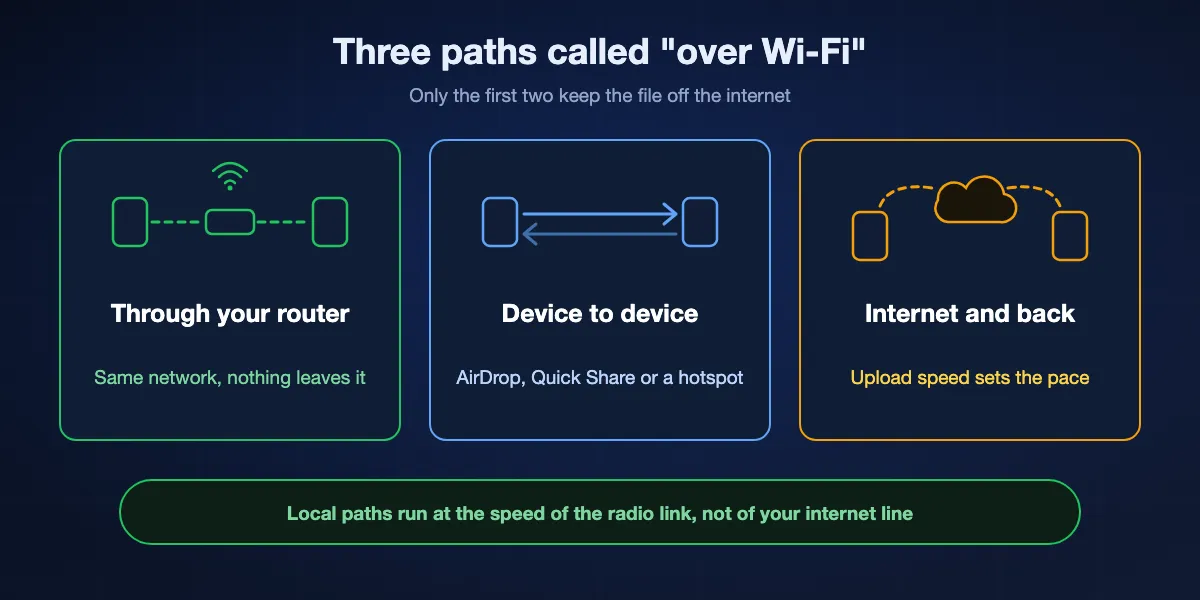
Through your router
Both devices have joined the same network, and the file travels from one to the other inside it. The router passes the traffic along but nothing leaves the building, so the internet line can be slow, capped or dead without affecting the transfer. BIShare, LocalSend and Windows network sharing work this way.
Straight from one device to the other
AirDrop and Quick Share skip the router. They find each other over Bluetooth and then open a private Wi-Fi link between the two devices, which is why they work in a car park. A phone's hotspot does something similar by hand: one device becomes the network and the other joins it.
Out to the internet and back
Uploading to a cloud drive or a transfer site while connected to Wi-Fi is not a Wi-Fi transfer. The file climbs your upload line to a server and comes down again on the other device, so upload speed sets the pace even when the two devices sit side by side. It is the right path only when the other person is somewhere else.
How fast is Wi-Fi file transfer?
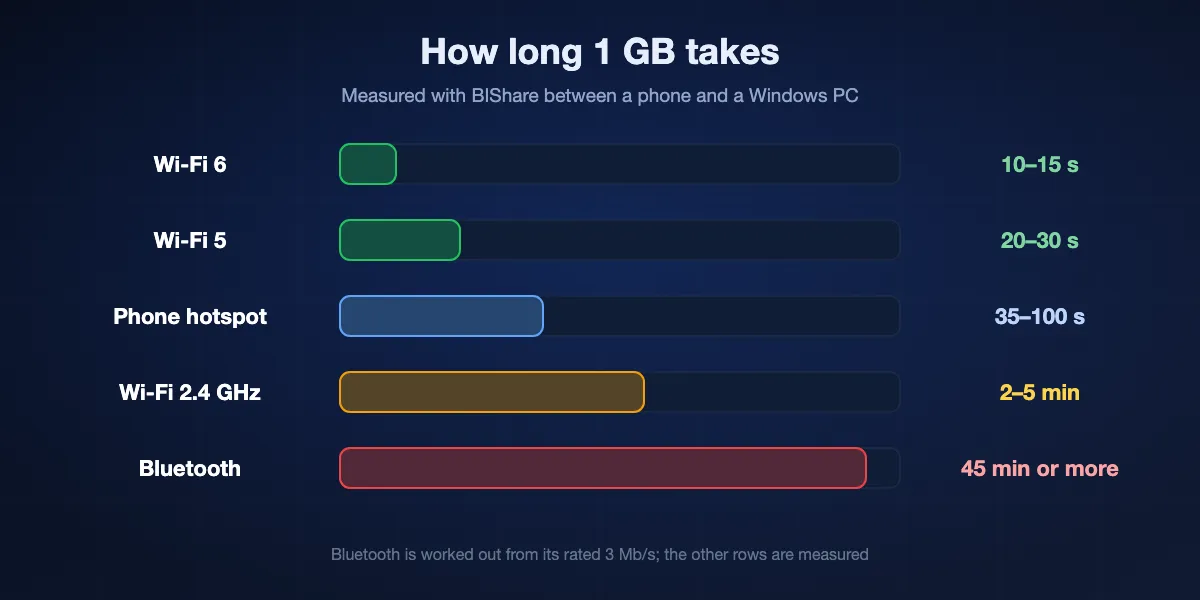
On a local transfer the radio link is the limit, not the app. These are the rates we measure with BIShare between a phone and a Windows PC; AirDrop, Quick Share and LocalSend land in the same ranges on the same hardware.
| Link between the devices | Typical speed | 1 GB takes about |
|---|---|---|
| Wi-Fi 6 on 5 or 6 GHz, same room | 70–110 MB/s | 10–15 seconds |
| Wi-Fi 5 on 5 GHz | 40–50 MB/s | 20–30 seconds |
| A phone's hotspot | 10–30 MB/s | 35–100 seconds |
| Wi-Fi on 2.4 GHz | 3–8 MB/s | 2–5 minutes |
| Bluetooth, for comparison | under 0.4 MB/s | 45 minutes or more |
The Bluetooth row is worked out from its rated 3 Mb/s; the others are measured. Thousands of small photos move more slowly than one large video of the same total size, because every file carries a fixed cost.
What slows it down
Distance and walls, above all. A phone two rooms away from the router often falls back from 5 GHz to 2.4 GHz and loses most of its speed. A crowded network and a router that is ten years old do the rest.
What speeds it up
Stand in the same room as the router, check that both devices are on the 5 GHz band, and connect the computer to the router with a cable if you can. With the PC on Gigabit Ethernet and the phone on 5 GHz we measure 50–70 MB/s.
Why the cloud feels slower
A link or a cloud folder depends on upload speed, which on most home lines is a fraction of the download speed. The gigabyte that crosses the room in 20 seconds can take many minutes to upload first.
Six ways to transfer files over Wi-Fi
BIShare
Best for any mix of devices, with or without an install
iPhone, Android, Windows, Mac, Linux, browser · MIT licence · direct on a shared Wi-Fi or hotspot, no size limit · browser tool pairs by code across networks · links up to 100 GB · no account
The apps find each other on a shared network and send directly, encrypted end to end, in either direction and at any size. The browser tool on this page does the same job with nothing installed, as long as both devices can reach the internet to be introduced. When a network keeps devices apart, a six-character private code connects the two browsers anyway, and for someone far away a link takes over.
Keep in mind: The apps need a Wi-Fi network or a hotspot to exist; they do not build their own link the way AirDrop does. The browser tool needs internet to introduce the devices.
LocalSend
Best open-source app for one home network
iPhone, Android, Windows, Mac, Linux · Apache 2.0 · same local network only · HTTPS between devices · no account
LocalSend lists every device running it on the network and sends with a tap. No server is involved at any point, which is both its appeal and its limit.
Keep in mind: Both sides need the app, nothing reaches a device on another network, and discovery fails on networks that block multicast, guest Wi-Fi among them.
PairDrop
Best browser-only tool
pairdrop.net · any current browser · GPL-3.0, self-hostable · same network, or paired with a 6-digit code · no account
Open the page on both devices and they appear to each other when they share a network. ShareDrop works the same way and now belongs to LimeWire. Browser tools of this kind suit a one-off exchange with a borrowed computer.
Keep in mind: Both tabs must stay open, the devices need internet to find each other, and very large files can strain a phone browser's memory.
AirDrop
Best between iPhone, iPad and Mac
Built into Apple devices · Bluetooth to discover, peer-to-peer Wi-Fi to send · no router, no internet · within about 10 metres
Nothing to set up and no network to join. The two devices build their own encrypted Wi-Fi link, so it works anywhere the two of them are close together.
Keep in mind: Apple devices only, apart from the Android phones on Google's list, and it does not reach Windows or Linux at all.
Quick Share
Best between Android phones, Chromebooks and Windows PCs
Built into Android 6 and later and ChromeOS · app for 64-bit Windows 10 and later · Bluetooth plus Wi-Fi · with a Windows PC: same network, within 5 metres
Share a file to Quick Share and pick the nearby device. Between two Android phones it needs no network: Bluetooth finds the other phone and Wi-Fi carries the file. Google's Windows app is stricter and asks for both devices to be on the same network and within 5 metres. Files arrive in Downloads, in a Quick Share folder.
Keep in mind: No iPhone, Mac or Linux, apart from the AirDrop bridge on listed phones. With Wi-Fi switched off, Google warns that mobile data charges may apply.
Nearby sharing in Windows
Best for a few files between two Windows PCs
Windows 11, or Windows 10 version 1803 and later · Bluetooth, or Wi-Fi on the same private network · My devices only or Everyone nearby
Right-click a file, choose Share and pick the other PC. Microsoft's rule for Wi-Fi is narrow: the sending PC has to run the latest Windows 11, and the receiving PC has to be on the same private Wi-Fi network. In every other case the transfer runs over Bluetooth.
Keep in mind: Windows only, and painfully slow whenever it ends up on Bluetooth. Setting both PCs to the Private network profile is the usual fix.
The six compared
| Feature | BIShare | LocalSend | PairDrop | AirDrop | Quick Share | Nearby sharing |
|---|---|---|---|---|---|---|
| iPhone, Android, Windows, Mac and Linux in any mix | ||||||
| Works with no internet connection | ||||||
| Works with no router or hotspot | ||||||
| Nothing to install | ||||||
| Reaches a device on another network |
As of October 2026. BIShare's ticks combine its two forms: the apps send with no internet over a shared Wi-Fi or hotspot, while the browser tool needs nothing installed but does need internet to introduce the devices. PairDrop needs internet for the same reason. Quick Share is built into Android and ChromeOS and needs no network between two Android devices; its Windows app has to be installed and expects both devices on the same network. Nearby sharing works without a network only over Bluetooth. PairDrop and BIShare reach another network through a pairing code, and BIShare also through a link.
How to share files by Wi-Fi with BIShare
In the browser, with nothing installed
Open bishare.app/transfer, or this page, on both devices and choose the Nearby tab. Each browser is given a name. Tap the other device, pick the files, and accept on the receiving side. Chrome and Edge then ask where to save; other browsers offer a Save button once the file is complete.
With the apps, for regular use
Install BIShare on both devices and connect them to the same Wi-Fi. Open the app, choose the files and tap the other device in the nearby list. There is no size limit, and the transfer keeps running if the internet connection drops.
With a hotspot, when there is no Wi-Fi
Turn on the hotspot on one phone and join the other device to it. The apps then behave exactly as they do on a home network. Mobile data can be switched off; the hotspot only has to exist.
On a network that isolates devices
In the browser tool, switch both devices to Private code, create a code on one and type its six characters on the other. The connection then runs through a relay that cannot read the file. If the other person is not online, make a link instead.
Same Wi-Fi, but the devices cannot see each other
This is the most common complaint about every Wi-Fi sharing tool, and the cause is rarely the tool.
The network isolates its clients
Hotels, cafés, campuses, offices and the guest network of many home routers stop one device from talking to another. Both show the same network name and still cannot connect. At home, use the main network; elsewhere, pair by code or use a hotspot.
Windows treats the network as public
On the Public network profile Windows hides the PC and refuses incoming connections. Open the Wi-Fi network's properties in Settings and choose Private. The same switch decides whether Nearby sharing is allowed to use Wi-Fi.
The iPhone app has no local network access
The first time an app looks for devices, iOS asks for permission to use the local network. If that was declined, the app finds nothing. Turn it back on under Settings, Privacy & Security, Local Network.
The two devices are not really on one network
A laptop on a VPN, a phone that slipped onto mobile data, or a router that keeps its 2.4 GHz and 5 GHz bands apart all put the devices in different places. Turn the VPN off, confirm that both show the same network name, and try again.
Which Wi-Fi route fits which situation
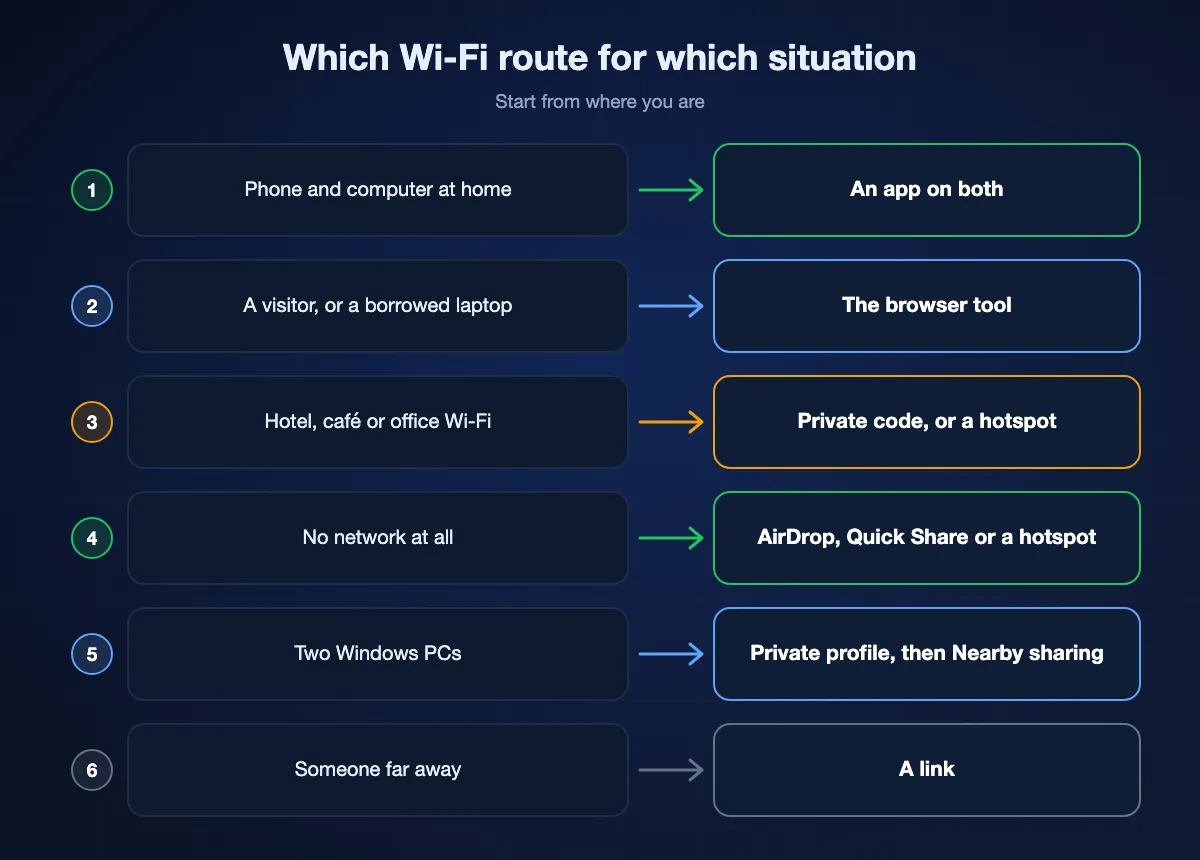
Phone and computer at home, every day
Install an app on both. BIShare or LocalSend finds the other device in a second and sends photos and videos at full quality, with no cable and no size limit.
A visitor's phone, or a borrowed laptop
Use the browser tool. Nobody installs anything or signs in, and the devices only need to be on the same Wi-Fi.
Hotel, café or office Wi-Fi
Expect isolation. Pair the two browsers with a private code, or turn on a phone's hotspot and use that as the network instead.
Outdoors, with no network at all
Between Apple devices use AirDrop, and between Android phones Quick Share. For a mixed pair, one phone's hotspot plus BIShare covers it.
Two Windows PCs
Set both to the Private profile so Nearby sharing can use Wi-Fi, or open a shared folder for anything you will need again. For a large one-off folder a direct app is quicker to set up.
The other person is somewhere else
Wi-Fi sharing ends at the edge of the network. Send a link instead; a BIShare link holds up to 100 GB and is encrypted before it uploads.
Is Wi-Fi file transfer safe?
A file that never leaves the room cannot be read on a server. What remains is the network itself and the people on it.
The transfer is encrypted
BIShare's apps encrypt each transfer end to end, WebRTC encrypts everything that browser tools send, and Apple states that AirDrop's connection uses TLS. Someone else on the same Wi-Fi can see that data is moving, not what it is.
Shared networks have other people on them
On public Wi-Fi, other users of the same tool can turn up in your list. Check the device name before you send, and decline requests you did not expect. A private code keeps the room to your two devices.
Close the door afterwards
Close the browser tab or the app when you are done, set AirDrop back to Contacts Only, and switch Nearby sharing from Everyone nearby to My devices only. Microsoft notes that Everyone nearby makes the PC's name and Bluetooth address available to devices around you.
WiFi file transfer: FAQ
What is WiFi file transfer?
It is sending a file from one device to another across a Wi-Fi link instead of a cable or the internet. Either both devices use the same network, or one device makes a direct Wi-Fi connection to the other, as AirDrop and Quick Share do.
How do I share files by Wi-Fi?
Connect both devices to the same Wi-Fi, open bishare.app/transfer on each, choose the Nearby tab and pick the other device. For regular use, install an app such as BIShare or LocalSend on both; they find each other on the network and send directly.
Does WiFi file transfer use internet or mobile data?
A transfer inside one network, or over AirDrop or Quick Share, does not use the internet. Browser tools need a connection to introduce the devices, and links upload through the internet. On a phone, keep Wi-Fi on so the transfer does not fall back to mobile data.
Is Wi-Fi faster than Bluetooth for sending files?
Much faster. We measure 40–50 MB/s on Wi-Fi 5 and 70–110 MB/s on Wi-Fi 6, while Bluetooth is rated at 3 Mb/s, well under 1 MB/s. A gigabyte takes seconds over Wi-Fi and the best part of an hour over Bluetooth.
Can I transfer files over Wi-Fi without a router?
Yes. AirDrop and Quick Share create a direct Wi-Fi link between two devices. For other pairs, turn on a phone's hotspot and join the second device to it; apps such as BIShare then work as they do on any network, with mobile data off.
Why can't my devices see each other on the same Wi-Fi?
Usually the network isolates its devices, as guest, hotel and office Wi-Fi often do. Other causes are a Windows network set to Public, an iPhone app without Local Network permission, or a VPN. Use the main network, a hotspot or a pairing code.
How do I transfer files from my phone to my PC over Wi-Fi?
Put both on the same Wi-Fi and use a tool that runs on each: BIShare on any phone and any computer, Quick Share between Android and Windows, or a browser tool with nothing installed. Photos and videos arrive at full quality.
What is Wi-Fi Direct?
Wi-Fi Direct is a standard that lets two devices connect to each other over Wi-Fi without a router. Phones use this kind of direct link behind features such as Quick Share, and AirDrop relies on Apple's own version of the idea.
Is there a file size limit when sharing by Wi-Fi?
Not with the apps: BIShare and LocalSend send files of any size across a local network. Browser tools depend on the browser. Chrome and Edge write large files to disk as they arrive, while other browsers hold the file in memory until it is complete.
Is BIShare free?
Yes. The apps and the browser tool are free and open source under the MIT licence, with no account, no ads and no cap on transfers between devices on the same network.
Share by Wi-Fi now
Open the sender on two devices on the same network, or install the app for the pair you use every day.