
iPhone photos to a Windows PC
How to transfer photos from iPhone to PC
Copying a camera roll to Windows looks like a two-minute job until the import window says there is nothing to import, a folder of HEIC files will not open, or half of last summer is missing because it only exists in iCloud. Almost every one of those failures comes from two things: where the full-quality originals actually live, and which format the iPhone hands over. This guide starts there, then ranks eight ways to move the pictures, from Apple's own cable import to iCloud for Windows, Google Photos, OneDrive and direct Wi-Fi apps, with a separate plan for libraries of tens of thousands of shots and a fix for each common import error. BIShare is one of the eight: it sends photos and videos from the iPhone to the PC over Wi-Fi at full resolution, or as an encrypted link the PC opens in a browser. Free, open source, no account.
BIShare is ours. For a whole camera roll, Apple's cable import or iCloud for Windows is often the better tool, and the rankings below say so.
Quick answer
- The whole camera roll, one time: install Apple Devices from the Microsoft Store, plug in the unlocked iPhone, tap Trust, then choose Import in the Windows Photos app.
- Photos keep syncing to iCloud: install iCloud for Windows and turn on Photos; the library shows up in File Explorer and Microsoft Photos.
- A borrowed or work PC: sign in at iCloud.com/photos and download, up to 1,000 items per selection, with a choice of original or most compatible format.
- A handful of shots without a cable: BIShare on the iPhone and the PC sends them over one Wi-Fi at full resolution, or as a link the PC opens in any browser.
- Import says there are no photos: unlock the iPhone, tap Trust again, and if iCloud Photos uses Optimize iPhone Storage, download the originals to the phone first.
- Windows cannot open the files: install the free HEIF Image Extensions for HEIC photos and HEVC Video Extensions for iPhone video, or switch the camera to Most Compatible.
Before you start: are the originals actually on your iPhone?
A cable only sees what is stored on the phone. With iCloud Photos turned on, that may be a small preview rather than the photo, and Apple's support page says to download the originals before importing to a PC.
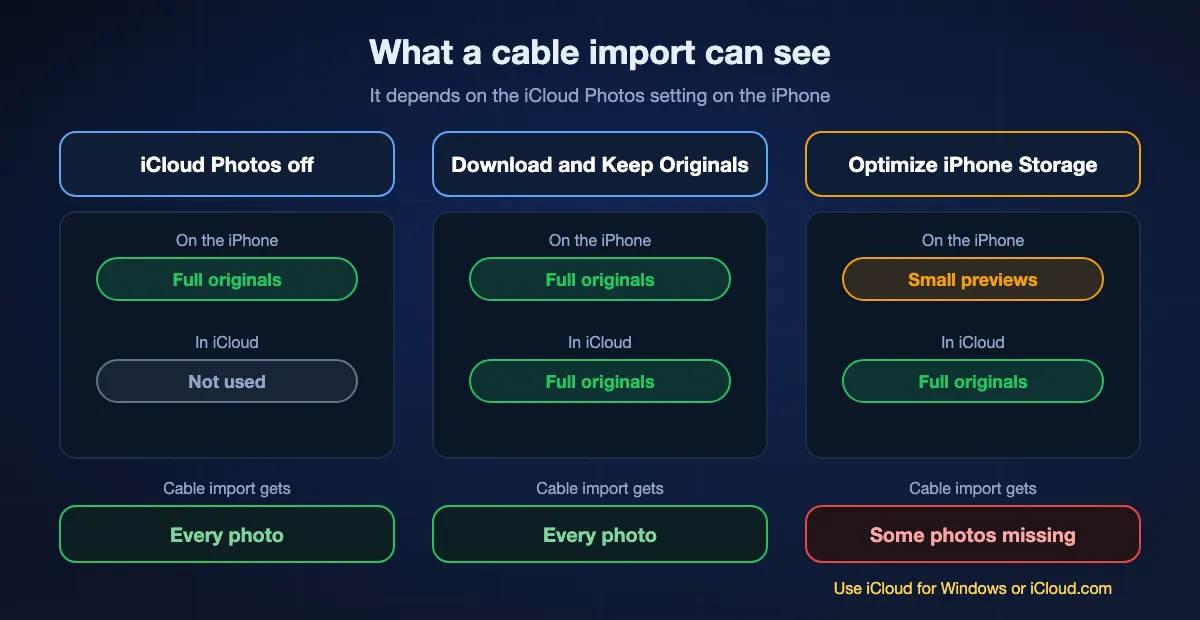
Optimize iPhone Storage keeps thumbnails on the phone
When iPhone storage runs low, this iCloud Photos setting swaps older full-resolution files for lightweight versions and leaves the originals in iCloud. They look fine on the screen, but Windows either skips them or receives the reduced copy. Check it in the Photos settings: if it says Optimize iPhone Storage and your library is bigger than the phone's free space, a cable import will come up short.
Download and Keep Originals fixes it, if there is room
Switching to Download and Keep Originals pulls every full-size file back onto the iPhone over Wi-Fi, which can take hours for a large library and needs enough free storage for all of it. When the phone cannot hold the whole library, skip the cable and get the pictures from iCloud instead, through iCloud for Windows or iCloud.com.
No iCloud Photos means no surprises
If iCloud Photos is off, every photo and video in the camera roll is a complete file on the iPhone, and any route in this guide will find it. The only remaining decision is format, covered further down: HEIC and HEVC as shot, or JPEG and H.264 converted during the transfer.
Eight ways to get photos from an iPhone to a PC, ranked
BIShare
Best without a cable: picked photos and videos straight to the PC over Wi-Fi
iPhone app, Windows app from the Microsoft Store, or any browser for a link · open source (MIT) · direct over one network, no size cap · links up to 100 GB for 24 hours · encrypted · no account
Open BIShare on the iPhone, tap Photos, select the pictures and clips, and choose the PC from the nearby list; the Windows app accepts and saves them to its download folder. Files come across at full resolution in the format they were shot, so a HEIC stays a HEIC and a 4K video stays 4K, with nothing uploaded when both devices share a Wi-Fi network or the PC joins the iPhone's hotspot. When the PC is somewhere else, make a link instead: the batch is encrypted on the phone, and the PC downloads it in a browser within 24 hours without installing anything.
Watch out for: It sends what you select, which suits dozens or a few hundred items better than a 40,000-photo library. Live Photos arrive as the still image, and photos chosen from the library get new file names instead of IMG_1234.
Windows Photos app with a USB cable
Best for copying an entire camera roll in one sitting
Windows 10 or 11 · Apple Devices app from the Microsoft Store · USB cable that carries data · iPhone unlocked and trusted · photos and videos · original files, no account
This is the route Apple and Microsoft both document. Install Apple Devices so Windows has the iPhone driver, connect the phone, unlock it and tap Trust, then open Photos on the PC, choose Import and pick the iPhone. You can select everything or only some items and choose where they are saved, and the originals on the phone stay where they are. For a first full backup it is the fastest option most people have, because nothing waits on an upload.
Watch out for: It only sees files stored on the iPhone, so Optimize iPhone Storage leaves gaps. Imports of thousands of items can stall if the phone locks or the cable is loose, and edits made in the iPhone's Photos app may not come across.
File Explorer and the DCIM folder
Best for dragging out a few folders by hand
Windows 10 or 11 · cable, unlocked and trusted iPhone · This PC › Apple iPhone › Internal Storage › DCIM · folders such as 100APPLE · no install beyond Apple Devices
An unlocked iPhone also appears under This PC, where Internal Storage holds DCIM and a series of numbered folders like 100APPLE and 101APPLE. Copy them to a drive or drag single files out, the same as a camera card. It is handy when the Photos app misbehaves or you want a quick look without an import wizard, and it shows the sidecar files that the Photos app hides.
Watch out for: Folders are split by count, not by date or album, so finding one trip means opening several. Large copies can end with "A device attached to the system is not functioning", which usually means the iPhone is converting files on the fly; setting Transfer to Mac or PC to Keep Originals avoids most of it.
iCloud for Windows
Best when your library already lives in iCloud Photos
Windows 11 for the current version · free from the Microsoft Store · Apple Account · 5 GB free iCloud storage, paid iCloud+ beyond · iCloud Photos in File Explorer and Microsoft Photos
Sign in, turn on Photos, and iCloud Photos appears in File Explorer's navigation pane and inside Microsoft Photos. Double-clicking a thumbnail downloads that item to the PC. Because it reads the cloud copy, it finds the originals that Optimize iPhone Storage moved off the phone, and new pictures keep arriving without a cable.
Watch out for: Only 5 GB of iCloud storage is free, and a typical camera roll outgrows that, so this route usually comes with an iCloud+ plan. A first sync of a big library over home broadband is slow, and edits made on the PC are not sent back to the iPhone.
iCloud.com in a browser
Best on a PC you do not own, with nothing to install
Any browser · Apple Account with two-factor sign-in · up to 1,000 items per selection · download as Unmodified Originals or Most Compatible (JPEG, MP4/H.264)
Go to iCloud.com/photos, sign in, select photos and videos, and use the download button. Apple lets you choose between unmodified originals and a most compatible version, which is the simplest way to hand JPEGs to someone who cannot open HEIC. On a library computer or an office PC, it avoids installing Apple software and leaves nothing signed in once you close the tab.
Watch out for: Selections stop at 1,000 items, so a large library turns into many rounds of select and download. Everything travels through iCloud, so it needs iCloud Photos turned on and the storage to hold it.
Google Photos
Best if you also use Android or want the library in any browser
iPhone app, photos.google.com on the PC · Google Account · 15 GB free shared with Gmail and Drive · backup in Original quality or Storage saver
Install Google Photos on the iPhone, turn on backup, and every picture becomes available at photos.google.com, where you can download single shots, albums or selections from the PC. It is a sensible bridge for a household with both iPhones and Android phones. Apple also offers a tool at privacy.apple.com that copies an iCloud Photos library to Google Photos in three to seven days.
Watch out for: Storage saver can resize photos above 16 MP and video above 1080p, so choose Original quality if the PC copy matters. Backups count against the 15 GB shared with Gmail and Drive.
OneDrive camera upload
Best if you already pay for Microsoft 365 storage
OneDrive iPhone app · Microsoft account · 5 GB free, up to 1 TB with Microsoft 365 · Camera Upload with Include Videos · original sizes on Wi-Fi
In the OneDrive app, Camera Upload sends new photos, and videos if you allow them, into the Pictures area of your OneDrive, which a Windows PC signed in to the same account already syncs through File Explorer. For Microsoft 365 subscribers that is a hands-off pipeline: take the picture, and it lands on the PC a little later.
Watch out for: Five free gigabytes fill up quickly, uploads pause if the app is force-closed, and Camera Upload works with only one account at a time.
LocalSend
Open source Wi-Fi alternative for occasional batches
iPhone, Windows, macOS, Linux, Android · Apache 2.0 licence · same local network · no account, no internet needed
LocalSend finds devices on the same network and sends selected files between them directly, much like BIShare's nearby mode. Install it on both sides, pick photos in the iPhone app and choose the PC. Free, ad-free and actively maintained, it is a solid option for anyone who wants a community-run tool.
Watch out for: It only works on a shared local network, with no link option for a PC elsewhere, and discovery can fail on guest or office Wi-Fi that isolates devices.
At a glance
| Feature | BIShare | Photos app + cable | File Explorer | iCloud for Windows | iCloud.com | Google Photos |
|---|---|---|---|---|---|---|
| Works without a cable | ||||||
| Finds originals kept only in iCloud | ||||||
| No account to sign in to | ||||||
| Handles a 10,000-photo library comfortably | ||||||
| Nothing uploaded to a cloud service |
As of September 2026. BIShare sends selected items and has no size cap when the iPhone and PC share a network; a link carries up to 100 GB for 24 hours. The Photos app and File Explorer need Apple Devices installed and read only files stored on the iPhone. iCloud for Windows and iCloud.com depend on iCloud Photos and iCloud storage, 5 GB free; iCloud.com downloads up to 1,000 items per selection. Google Photos includes 15 GB shared with Gmail and Drive.
Which route fits your situation
Two questions settle it: are the originals on the phone or in iCloud, and is the job a few pictures or the whole library?
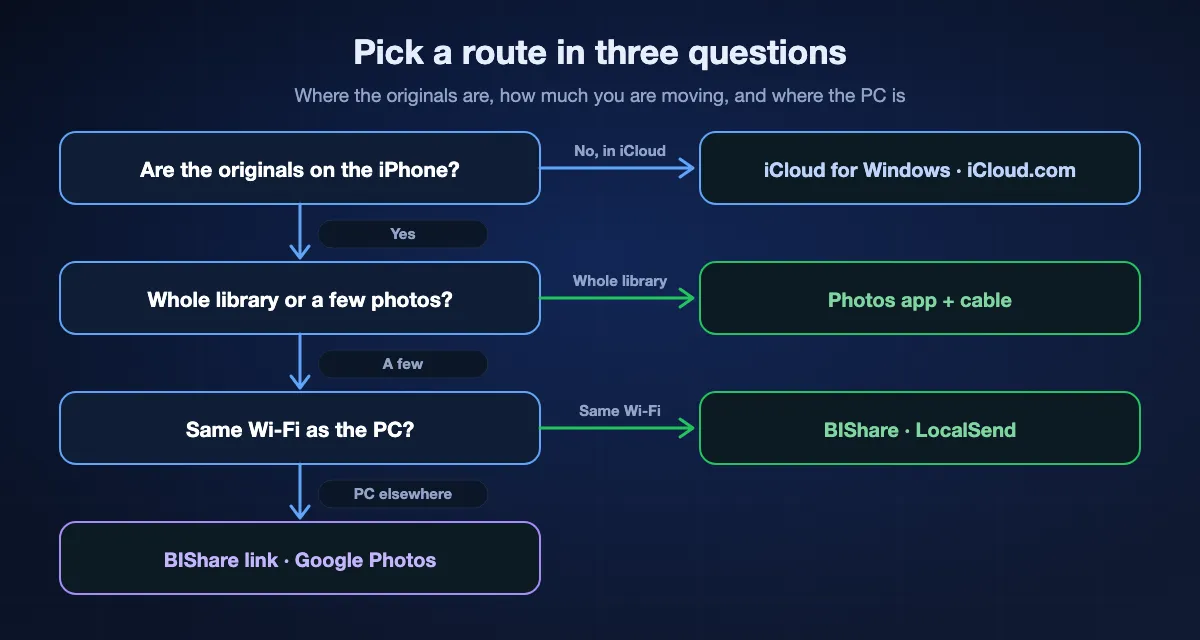
Everything is on the iPhone and a cable is nearby
Use the Windows Photos app. It copies the full camera roll with no storage plan and no account, and it is the route Apple supports.
The library is in iCloud and the phone is short on space
Use iCloud for Windows on your own PC, or iCloud.com on someone else's. Both read the full-resolution files that the phone no longer keeps.
A few dozen shots, no cable in reach
Send them over Wi-Fi with BIShare or LocalSend, or make a BIShare link when the PC is in another building. Nothing is resized, and it takes less time than finding the cable.
An iPhone and Android household
Back both phones up to Google Photos in Original quality and download on the PC from photos.google.com, keeping an eye on the shared 15 GB.
HEIC, HEVC, ProRAW and Live Photos: what arrives on the PC
An iPhone set to High Efficiency saves pictures as HEIC and video as HEVC. What reaches Windows depends on the transfer setting in the iPhone's Photos settings, under Transfer to Mac or PC.
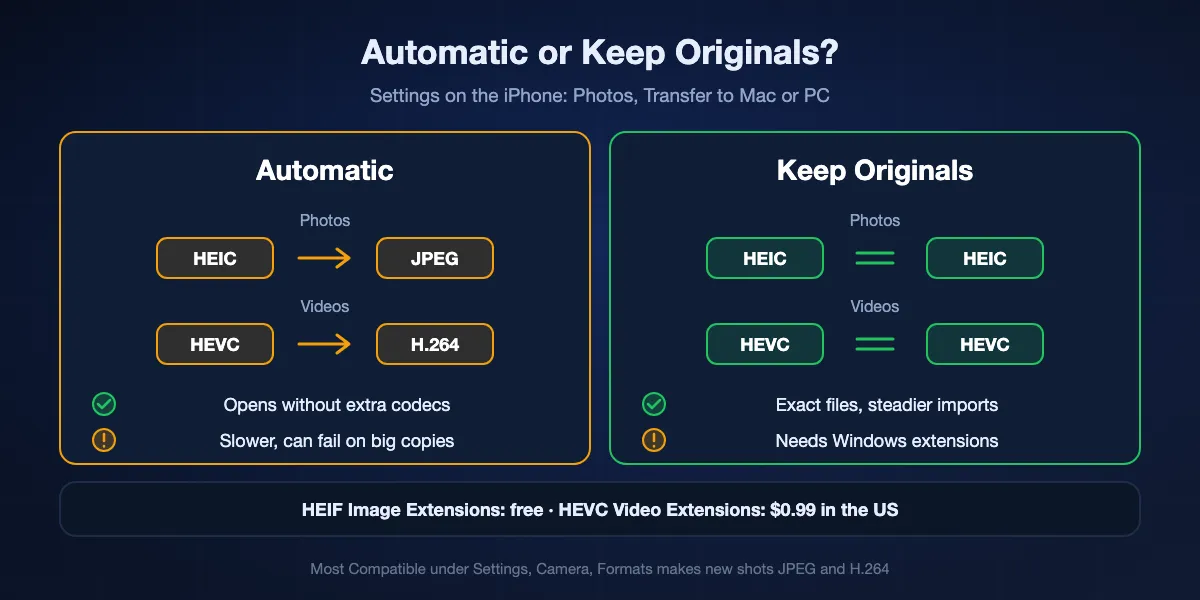
Automatic or Keep Originals
Automatic converts HEIC to JPEG and HEVC to H.264 while copying, when it decides the PC may not support them. Keep Originals hands over the files exactly as shot. Automatic is friendlier for opening files, but converting on the fly makes big cable copies slower and more likely to fail, so for a full backup Keep Originals plus the Windows extensions is the steadier choice.
Opening HEIC photos and HEVC video on Windows
Microsoft's HEIF Image Extensions are free in the Microsoft Store and let Photos and File Explorer show HEIC. HEVC Video Extensions cost $0.99 in the US store and are needed to play iPhone video in Windows apps. Media players with their own codecs, such as VLC, play HEVC without the extension.
Changing the format for future shots
In Settings, Camera, Formats, Most Compatible makes the iPhone capture JPEG and H.264 from then on, which Apple suggests for the widest compatibility. Files take more space on the phone, and some features, such as 4K at 60 frames per second in HEVC, need High Efficiency.
Live Photos and edited pictures
Over a cable, a Live Photo usually arrives as a still image plus a short MOV clip with a matching name; keep both to preserve the motion. Photos edited on the iPhone may come with a small AAE file that stores the edits, and Windows ignores it, so the PC can show the unedited original. Downloading from iCloud.com as Most Compatible, or sharing the edited photo from the phone, delivers the version you see on screen.
ProRAW and ProRes
Apple ProRAW photos are DNG files of 25 MB or more and ProRes video runs to several gigabytes a minute. Windows Photos can list DNG files, but editing them well takes an app such as Lightroom, and ProRes needs a player or editor that supports it. Budget disk space before importing either.
Moving a whole library of thousands of photos
A 30,000-photo library is a different job from a birthday party. Treat it as a project with a checklist rather than one long import.
Check space and count before you begin
In the iPhone's Settings, General, iPhone Storage, Photos shows how much space the library uses; the PC needs at least that much free, plus room to spare. Note the number of photos and videos at the bottom of the Library view so you can compare it with what lands on the PC.
Import in chunks
Selecting a year or a few months at a time keeps each import short, so a locked screen or a loose cable costs minutes rather than an evening. Keep the iPhone unlocked and plugged into power, and set Auto-Lock to Never while the import runs.
Verify before you delete anything
Compare the counts, open a sample of photos and videos from different years, and back the imported folder up to a second drive before clearing space on the iPhone. With iCloud Photos turned on, deleting on the phone also deletes from iCloud and every other device.
Keep dates sorted
Imported files keep the date taken in their metadata, which Photos and most photo tools read for sorting, even when File Explorer shows the copy date in its Date modified column. Choosing a folder structure by year or month during import saves hunting later.
Sending photos from iPhone to PC with BIShare
Install on both devices
Install BIShare on the iPhone from the App Store and on the PC from the Microsoft Store. Put both on the same Wi-Fi, or join the PC to the iPhone's Personal Hotspot, and allow local network access on the iPhone when it asks.
Choose the photos and videos
Tap Photos in the iPhone app and select the pictures and clips you want. They are sent at full resolution in their original format, not squeezed like a chat attachment.
Pick the PC, or make a link
Choose the PC from the nearby devices and accept on Windows; the files land in BIShare's download folder, Downloads unless you change it. If the PC is not on the same network, create a link instead and open it in the PC's browser within 24 hours.
How long does it take?
Transfer time depends on the connection, not the method's name. Cloud routes add an upload from the phone and a download to the PC; cable and Wi-Fi routes skip both.
USB cable speed by model
iPhones with Lightning, and the iPhone 15, 16, 17 and Air with USB-C, connect at USB 2 speeds of up to 480 Mb/s. The iPhone 15 Pro, 16 Pro and 17 Pro models support USB 3 at up to 10 Gb/s, but only with a cable rated for it, and the import software is often the bottleneck anyway.
Wi-Fi between phone and PC
A direct transfer runs at the speed of the local network, which on a modern router is often comparable to a USB 2 cable. Keeping the PC on Ethernet and the iPhone close to the router helps more than any setting.
Through the cloud
iCloud, Google Photos and OneDrive first need the phone to upload the library, and home upload speeds are usually a fraction of download speeds. A first backup of a large library can run for days; after that, only new photos move.
When photos will not import
The PC does not see the iPhone at all
Unlock the iPhone and keep it on the Home Screen, tap Trust when asked, install or update Apple Devices from the Microsoft Store, and try another cable and port. Charging-only cables power the phone without carrying data.
Import finds no photos, or only some
This almost always means iCloud Photos with Optimize iPhone Storage: the originals are in iCloud, not on the phone. Download them to the iPhone first, or take them from iCloud for Windows or iCloud.com.
"A device attached to the system is not functioning"
The copy usually broke while the iPhone was converting files for Windows. In the iPhone's Photos settings, set Transfer to Mac or PC to Keep Originals, reconnect, and import in smaller batches.
Photos arrived but will not open
They are HEIC files. Install the free HEIF Image Extensions from the Microsoft Store, or download from iCloud.com as Most Compatible if the recipient needs JPEGs.
Videos show but will not play
iPhone video is usually HEVC. Buy HEVC Video Extensions in the Microsoft Store, play the clips in VLC, or use Most Compatible for future recordings.
Edits and crops are missing on the PC
The import took the original plus an AAE sidecar that Windows cannot apply. Share the edited photo from the iPhone instead, or download it from iCloud.com as Most Compatible, which applies the edits.
Privacy: location data and who keeps a copy
Photos carry more than pixels. Before moving a library, decide where copies should end up and what information travels with them.
Location travels inside the file
iPhone photos store the date, device and usually GPS coordinates in their metadata, and full-quality transfers keep it. For pictures you will pass on, the iPhone's share sheet has Options, where Location can be switched off for that share.
Cloud routes leave a copy with the provider
iCloud Photos, Google Photos and OneDrive keep your library on their servers. iCloud Photos is end-to-end encrypted only if you turn on Advanced Data Protection; otherwise Apple holds the keys, as Google and Microsoft do for their services.
Local routes leave no third copy
A cable import, a LocalSend transfer and a direct BIShare transfer move photos only between your iPhone and your PC. A BIShare link is encrypted on the iPhone before upload, so the server stores data it cannot read and deletes it after 24 hours.
iPhone photos to PC: FAQ
What is the easiest way to transfer photos from iPhone to PC?
For the whole camera roll, connect the iPhone with a cable, install Apple Devices, tap Trust and choose Import in the Windows Photos app. For a few photos without a cable, send them over Wi-Fi with an app such as BIShare.
Why does my PC say there are no photos on my iPhone?
The iPhone is locked or not trusted, Apple Devices is missing, or the originals are in iCloud because Optimize iPhone Storage is on. Unlock and trust the phone, install Apple Devices, and download originals or use iCloud for Windows.
Can I transfer photos from iPhone to PC without iTunes?
Yes. iTunes is no longer needed on Windows; Apple Devices provides the driver, and the Windows Photos app does the import. Wireless routes need neither.
How do I transfer photos from iPhone to PC wirelessly?
Use iCloud for Windows, iCloud.com, Google Photos or OneDrive through the cloud, or send directly over the same Wi-Fi with BIShare or LocalSend. Microsoft's Phone Link does not transfer photos from an iPhone.
Do photos lose quality when moved from iPhone to PC?
Not over a cable, iCloud, OneDrive or a direct Wi-Fi app. Google Photos in Storage saver can resize, chat apps compress, and the Automatic transfer setting converts HEIC to JPEG while keeping the resolution.
How do I convert HEIC to JPG when transferring to a PC?
Set Transfer to Mac or PC to Automatic in the iPhone's Photos settings, download from iCloud.com as Most Compatible, or keep HEIC and install the free HEIF Image Extensions on Windows.
How do I download more than 1,000 photos from iCloud to a PC?
iCloud.com limits each selection to 1,000 items, so repeat in batches, or install iCloud for Windows, which shows the whole library in File Explorer.
Why are my Live Photos two files on the PC?
Windows receives a Live Photo as a still image and a short MOV clip with the same name. The still works on its own; keep the clip if you want the motion.
Does Phone Link transfer iPhone photos to Windows?
No. Phone Link on iPhone handles calls, messages and notifications; its photo features cover Android phones only.
Is BIShare free for sending iPhone photos to a PC?
Yes. BIShare is open source under the MIT licence, with no ads, no account and no limit on direct transfers over Wi-Fi.
Your iPhone photos on the PC, no cable needed
Open source and free. Send photos and videos over Wi-Fi at full resolution, or share an encrypted link that any PC browser can open.