
"AirDrop speed" is a number people quote without ever having measured it, and it varies enormously — between two recent iPhones in the same hand it can move a gigabyte in well under a minute; between an old iPad and a Mac across a room it can crawl badly enough that you give up. So "AirDrop-like speed on a PC" needs a real definition before it means anything.
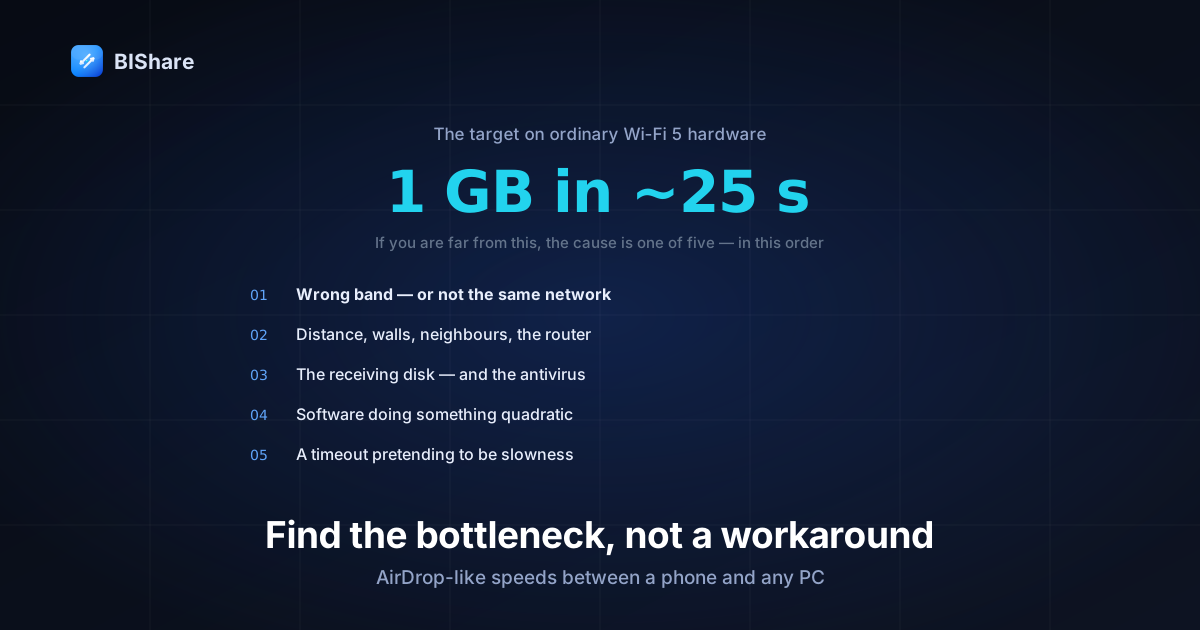
Here's the honest one: a well-configured local transfer between a phone and a Windows PC should move about 40–50 MB/s on ordinary Wi-Fi 5 hardware — a gigabyte in roughly twenty to thirty seconds. That's the target. If you're getting materially less, something specific is wrong, and it is almost always one of five things.
This guide is a diagnostic, ordered by how often each cause turns out to be the real one. Each step has a number to check and a fix. If you just want the setup instructions rather than the physics, the AirDrop for Windows page walks through those in five minutes; this is the piece for when it works but feels slow.
First, know what your link can actually deliver
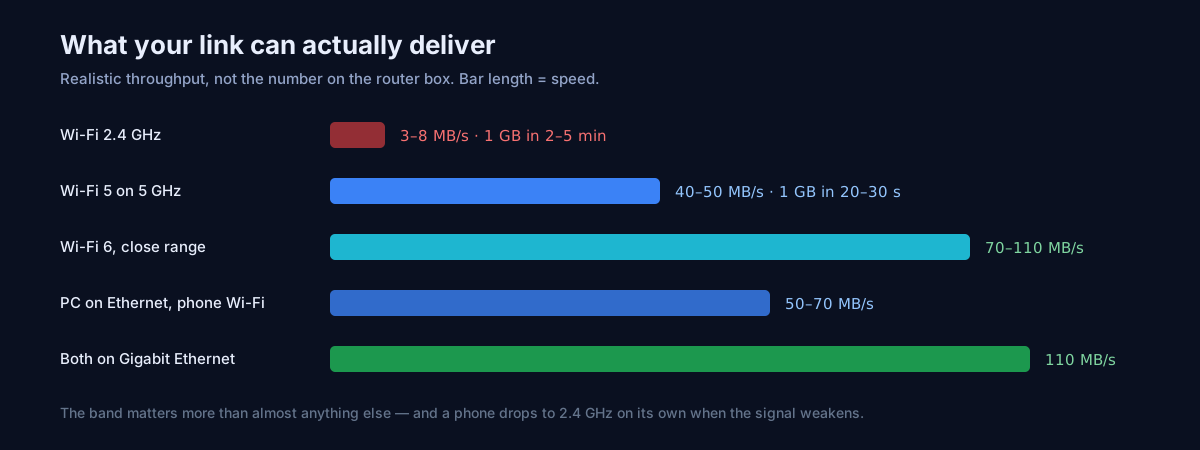
Before blaming software, work out the ceiling you're entitled to. Wireless speeds are quoted as theoretical maximums that nobody ever sees; real throughput is typically a third to a half of the advertised figure, and that's before anything goes wrong.
| Link between the two devices | Realistic throughput | 1 GB takes about |
|---|---|---|
| Wi-Fi on 2.4 GHz | 3–8 MB/s | 2–5 minutes |
| Wi-Fi 5 on 5 GHz | 40–50 MB/s | 20–30 seconds |
| Wi-Fi 6 on 5/6 GHz, close range | 70–110 MB/s | 10–15 seconds |
| PC on Gigabit Ethernet, phone on 5 GHz | 50–70 MB/s | 15–20 seconds |
| Both on Gigabit Ethernet | 110 MB/s | ~9 seconds |
Two things fall out of this table immediately. The first is that the band matters more than almost anything else — 2.4 GHz is roughly an order of magnitude slower than 5 GHz, and it's the band your phone quietly falls back to when the signal weakens. The second is that plugging the PC into Ethernet helps even though the phone is still wireless, because it removes one wireless hop from the path.
Cause 1 — You're on the wrong band, or not on the same network at all
This is the most common answer by a wide margin, and it produces the most confusing symptom: everything works, just slowly.
Many routers advertise the 2.4 GHz and 5 GHz radios under the same network name, and devices choose between them on their own, favouring range over speed. Your phone can sit on 2.4 GHz in the next room while the PC is on 5 GHz — same network name, same everything, and a tenth of the throughput.
Check it: on Windows, open Wi-Fi settings and look at the connection properties, which report the band and link speed. On iPhone or Android, the Wi-Fi details screen shows the frequency. If either device says 2.4 GHz, that's your answer.
Fix it: many routers let you split the bands into separate names (for example Home and Home-5G) so you can pin devices deliberately. It's the single highest-yield change in this entire article, and it takes about five minutes in the router admin page.
The uglier version of this cause is that the two devices aren't on the same network at all — a guest network counts as a different network, and so does a mesh node configured as an isolated segment. If the transfer is running at internet-upload speed rather than Wi-Fi speed, it isn't local at all: it has quietly fallen back to a relay, and you're paying for it in data as well as time.
Cause 2 — The radio conditions, not the radio standard
Wi-Fi is a shared medium, and its advertised speed assumes conditions you probably don't have.
Distance and walls. 5 GHz is fast and bad at penetrating masonry. Two rooms and a wall can drop a device to a fraction of its rated speed or push it onto 2.4 GHz entirely. If a transfer is slow, walking into the same room as the router is a thirty-second experiment worth running before anything else.
Neighbours. In a flat with twenty visible networks, the 2.4 GHz band is effectively a shouting match — which is another reason to force 5 GHz, where there are more channels and less crowding.
Everything else on your network. Wi-Fi time is shared, so someone streaming 4K in the next room is taking a share of the air your transfer needs. This is also why transfers sometimes feel fast at midnight and slow at eight in the evening.
The router itself. Cheap or ISP-supplied routers frequently cap out well below what the standard allows, and older ones may not support the wider channels that make Wi-Fi 5 fast. The transfer can only be as quick as the slowest device in the path, and on a home network that's usually the router rather than either endpoint.
Cause 3 — The receiving disk, and the antivirus in front of it
Here's the one people almost never suspect, and it's specifically a Windows problem.
Files have to be written when they arrive. If the receiving PC has a mechanical hard drive, sustained write speeds around 80–120 MB/s are typical — which is fine — but that number collapses when the drive is fragmented, nearly full, or busy doing something else. On an SSD you'll rarely be disk-limited at all.
The real Windows-specific culprit is real-time antivirus scanning. Every incoming file gets inspected as it's written, and for a large file or a folder of thousands of small ones, that inspection is serialised with the write. The effect is dramatic on small files: a transfer of 5,000 photos can run at a fraction of the speed of a single file of the same total size, because the scanner pays a fixed cost per file.
Check it: open Task Manager during a slow transfer and watch the Disk column and the Antimalware Service Executable process. If the disk is at 100% or the scanner is consuming a core, you've found it.
Fix it: add your transfer app's download folder to Microsoft Defender's exclusion list (Microsoft documents how), or receive to a different drive. Do this deliberately and narrowly — an exclusion is a real reduction in protection, and the correct scope is one folder you control, never an entire drive.
Cause 4 — The software is doing something quadratic
Now the cause nobody outside the development team can diagnose, which is why I want to describe a real one from our own code rather than speak in generalities.
Our receiver reads bytes off the network in whatever sizes the operating system hands over — typically around 64 KB — and reassembles them into the encrypted frames the sender produced. The original implementation accumulated incoming reads in a byte builder and, on each read, materialised the whole pending buffer to check whether a complete frame had arrived.
That is fine when frames are small. When we increased the chunk size to 1 MB to reduce per-chunk overhead, it became actively harmful: assembling one 1 MB frame from 64 KB reads copied 64 KB, then 128 KB, then 192 KB, and so on — about 8.5 MB of memory copying for every 1 MB frame received. The change intended to make transfers faster made them slower, because the cost was quadratic in the frame size and nobody had looked at it that way.
The fix is unglamorous: a fixed scratch buffer with read and write cursors, frames parsed in place, and only the small partial-frame remainder ever moved. No copying proportional to frame size at all.
The reason to tell you this: when an app is slow and the network isn't the problem, this class of bug is usually why — an accidental O(n²) in the assembly path, or a hash computed twice, or work done per chunk that should be done per file. You can't diagnose it from outside. What you can do is compare two apps on the same network with the same file, because that isolates the software from everything else in this article.
Cause 5 — Something is timing out and hiding it
The last cause looks like slowness but is actually failure, and it's worth recognising because the symptom is misleading.
Another one from our own logbook: our receiver reaps idle sessions after 30 seconds to clean up abandoned transfers. The activity clock was set when the session started rather than refreshed as bytes arrived — so a genuinely slow but healthy transfer of a large file would trip the reaper mid-stream. The session vanished, the sender's next chunk hit a 404, and the whole transfer failed. To the user this reads as "big files don't work," which is a completely different diagnosis from the truth, which was "our timeout measured the wrong thing."
Now the clock refreshes on every received byte, so the reaper measures inactivity from the last data rather than from the beginning — abandoned transfers still get cleaned up promptly, and slow ones are left alone.
Watch for the general shape: transfers that fail at the same point every time, or only fail on large files, are usually a timeout somewhere rather than a speed problem. Speed problems are proportional; timeouts have edges.
Why 5,000 photos is not the same as one 5 GB video
People compare these two as if total size were the only variable, then conclude the app is broken. They are genuinely different workloads, and the difference is not a defect.
Every file carries fixed costs that don't shrink with its size: a metadata exchange so the receiver knows the name and length, a file handle opened and closed on disk, a directory entry written, an acceptance check, and — on Windows — an antivirus inspection. Those costs are measured in milliseconds, which is nothing for a 2 GB video and everything for a 400 KB photo. At a hundred milliseconds of overhead per file, five thousand files spend over eight minutes doing nothing but bookkeeping, no matter how fast the network is.
You can see this in your own numbers. Send one large file and measure the rate. Then send a folder of small files totalling the same size and measure again. The gap between those two figures is the per-file overhead, and it's a property of the operating system and disk as much as of the app.
What to do about it: if you're moving thousands of small files and speed matters, zip them first. One large file pays the fixed costs once instead of five thousand times, and the compression is usually irrelevant — it's the file count that was hurting you, not the bytes. Some tools do this for you when you send a folder, streaming the archive as it's built so you don't wait for a zip to be written to disk first.
What not to do: don't conclude from a slow photo batch that the app can't handle large transfers. Those are opposite tests. A tool can be excellent at one and mediocre at the other, and the number that matters is whichever matches what you actually send.
The sending device gets a vote too
Almost all speed advice focuses on the network and the receiving PC. The phone doing the sending can be the bottleneck, and there are three specific ways.
Thermal throttling. Sustained wireless transmission plus encryption plus disk reads makes a phone warm, and a warm phone slows itself down deliberately to protect the battery and chip. The signature is distinctive: a transfer that starts fast and settles into something slower after thirty to sixty seconds, then stays there. If the phone is in a case, in sunlight, or charging at the same time, this happens sooner. Taking the case off for a large transfer sounds absurd and measurably helps.
Power saving. Battery-saver modes on both Android and iOS reduce CPU frequency and can restrict background network activity. A phone at 8% battery in low-power mode is not the same machine as the one at 80%.
The screen turning off. Mobile operating systems are aggressive about suspending apps once the screen locks, and while a well-built transfer app asks to be allowed to continue, the platform still gets the final say. If a long transfer keeps stalling at roughly the point the screen would have dimmed, keep the phone awake and try again — that single test distinguishes a real network problem from a lifecycle one.
And the honest note about age: an older phone with a slower CPU and an earlier Wi-Fi generation simply cannot reach the numbers in the table above, no matter what the router supports. A path runs at the speed of its slowest participant, and in a mixed-age household that's usually the oldest phone rather than anything you can configure.
How to actually measure, in three minutes
Diagnosis needs a number, not an impression.
Use one large file, not many small ones — a 10 GB test file is ideal if you have one.
Measure the link, not the batch. A single 1 GB video measures the link. Five thousand photos measure per-file overhead, which is a different question with different answers.
Time the whole thing with a stopwatch and divide. A gigabyte in 25 seconds is about 40 MB/s. If your app shows a live rate, watch whether it's steady or sawtoothing — a rate that repeatedly climbs and collapses points at radio interference or thermal throttling rather than a fixed bottleneck.
Then change exactly one thing. Move both devices next to the router and repeat. Plug the PC into Ethernet and repeat. Receive onto a different drive and repeat. One variable at a time is the difference between finding your bottleneck in three minutes and guessing for an hour.
Compare against a second app on the same network with the same file. If both are slow, it's the link or the disk. If one is much faster, it's the software — and you've learned something no benchmark article could have told you about your specific setup.
One thing that is almost never the cause: the encryption
Worth closing a common suspicion, because people reach for it early and it's nearly always wrong.
Modern phones and laptops have dedicated AES instructions built into the processor. With them, the cipher used by a well-built transfer app runs at multiple gigabytes per second — dozens of times faster than any Wi-Fi link can deliver bytes to it. Encryption is not competing with your network; it is waiting for it, idle, most of the time.
There is one way this stops being true, and it is a bug rather than a property: if the app was compiled without those instructions enabled, the same cipher falls back to a software implementation that can be an order of magnitude slower — slow enough to become the actual ceiling. That failure is invisible from the outside and produces exactly the symptom this article is about, which is why "turn off encryption to go faster" is bad advice: on a correctly built app it buys nothing, and on an incorrectly built one it hides the real defect instead of fixing it.
So if someone offers you a transfer tool that's faster because it doesn't encrypt, they're describing a tradeoff that shouldn't exist. The honest version is a tool that encrypts and saturates your link, because on current hardware those are not in tension.
What still won't match AirDrop, and why that's fine
Two honest caveats, because "AirDrop-like" shouldn't mean "identical."
AirDrop between two nearby Apple devices can negotiate a direct peer-to-peer Wi-Fi link that bypasses your router entirely, which is why it sometimes exceeds what your network could otherwise deliver and why it works with no Wi-Fi network at all. Cross-platform tools generally route through the access point instead, so on a good router you'll match AirDrop and on a bad one you won't. The workaround, when the router is the bottleneck, is to make your own network: a phone hotspot with both devices on it removes the router from the path entirely — the same trick that makes transfers work with no internet at all.
The second caveat cuts the other way. AirDrop is also the tool that stalls at "Waiting…" for reasons nobody can explain, and its peer-to-peer link degrades quickly with distance and walls. A router-mediated transfer is often more consistent, even when its peak is lower — and consistency is what you actually experience. If you're in the failing-AirDrop case rather than the slow one, that has its own guide.
The order to try things
Condensed, in the order that finds the problem fastest:
- Check the band. If either device is on 2.4 GHz, fix that first — it's an order of magnitude and it's free.
- Move closer to the router, or put both devices on a phone hotspot to remove the router from the path.
- Watch Task Manager during a transfer: disk at 100% or the antivirus scanner busy means the bottleneck is the write path, not the network.
- Plug the PC into Ethernet if you can. Half the wireless path disappears.
- Send one big file rather than thousands of small ones when you're measuring — and when you're not, expect small-file batches to be slower per megabyte for reasons that are real rather than a defect.
- Compare two apps on the same link before concluding the app is at fault.
Do these in order and you'll find the cause in minutes. In our experience the answer is the band roughly half the time, the disk or antivirus a quarter, and something genuinely interesting the rest — which is the ratio worth remembering the next time a transfer feels slower than it should.
The number to hold onto
If you take one figure away, make it this: a gigabyte in about half a minute is what a healthy local transfer between a phone and a Windows PC looks like on ordinary hardware. Not two minutes, and not five.
That figure is useful precisely because it's falsifiable on your own equipment in the time it takes to make coffee. When you hit it, stop optimising — the remaining gains are small and the effort isn't worth it. When you're far from it, the cause is on the list above, and it's usually the first item.