
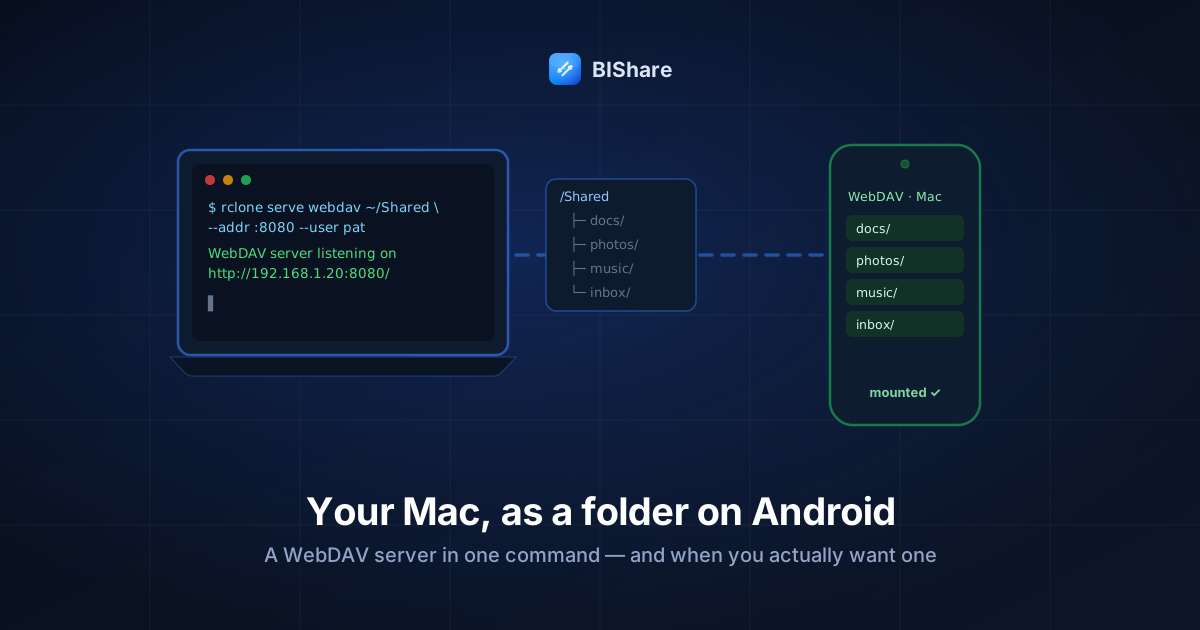
This one is for the tinkerers. Most articles about moving files between Android and a Mac — including ours — are about sending: pick files, push them across, done. This lab is about something different: making a folder on your Mac appear inside your Android phone's file manager, browsable and editable like local storage, over nothing but Wi-Fi. That's what a WebDAV server buys you, and you can stand one up in genuinely one command.
Full disclosure before your first terminal window, because we'd rather lose a reader than mislead one: if your actual goal is just getting files from one device to the other, this entire tutorial is overkill — a direct transfer app connects Android and Mac in two minutes with zero server administration, and we make one. WebDAV earns its setup when you want mount semantics: a persistent network folder your phone can browse, stream from, and save into, on your terms, with no cloud in the middle. If that's the itch — and for a home media stash, a shared project directory, or a document dump it's a real one — roll up your sleeves. Everything below is copy-pasteable.
What you're building
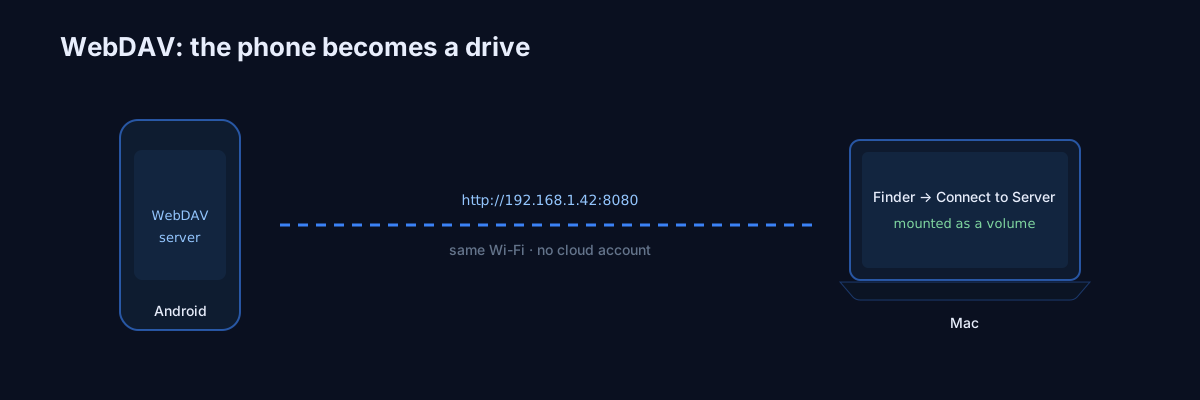
The shape of the lab, in one breath: your Mac runs a tiny HTTP server that speaks WebDAV — plain HTTP with folder verbs added (list, upload, rename, delete). Your Android file manager connects as a client to that server's address and shows the folder as if it were a drive. Same Wi-Fi network, no internet involvement, no accounts anywhere.
What you'll be able to do at the end: browse and stream any Mac folder from the couch, save from the phone straight onto the Mac, and — because the server is plain HTTP — extend the same trick to every other device you own. Prerequisites, all free:
- A Mac and an Android phone on the same Wi-Fi.
- Homebrew on the Mac (the standard package manager; one paste to install if you've never).
- Fifteen minutes the first time; ninety seconds every time after.
A vocabulary note so the rest reads cleanly: the Mac will be the server (it owns the folder and answers requests), the phone the client (it asks). Later we'll flip the roles for fun, but the grammar stays: one side serves, the other mounts.
We'll use rclone as the server. If you know rclone as the Swiss-army knife for cloud storage, surprise: it also serves protocols, beautifully, and its WebDAV server mode has become the sane modern answer on macOS — the classical route of hand-configuring Apache's mod_dav still works, but it's a config-file archaeology dig, and macOS's bundled Apache is on borrowed time anyway. One tool, one command, current documentation: rclone.
Part 1: Serve a folder (one command, honestly)
Install rclone, then serve:
brew install rclone

# Serve ~/Shared over WebDAV on port 8080, with a username + password
rclone serve webdav ~/Shared --addr :8080 --user pat --pass "correct-horse-battery"
That's the whole server. Three notes on the flags while it starts:
~/Sharedis whatever folder you're exposing — make a dedicated one rather than serving~wholesale; scope is a security feature you get for free.--user/--passenable Basic authentication. Never skip these, even at home: an unauthenticated WebDAV share is writable by anything on your network, including the neighbor's compromised smart bulb.--addr :8080binds every interface on port 8080. Any high port works; 8080 is convention and memorable.
The first launch will summon a macOS firewall prompt asking whether rclone may accept incoming connections — Allow it, or the phone will knock forever on a door that never opens. (Dismissed it by reflex? System Settings → Network → Firewall → Options, add rclone, allow incoming.)
Checkpoint 1 — before touching the phone, prove the server exists from the Mac itself:
curl -u pat:correct-horse-battery http://localhost:8080/
A blob of XML (WebDAV speaks XML; it's fine, you never read it) means the server is answering and the credentials work. An error means fix this side first — debugging two devices at once is how afternoons disappear.
Part 2: The Mac's address
The phone needs the Mac's LAN address. Two ways, same answer:
ipconfig getifaddr en0
— or System Settings → Wi-Fi → Details next to your network. You'll get something like 192.168.1.20. Your WebDAV URL is therefore:
http://192.168.1.20:8080
One honest wrinkle: home routers hand out addresses by lease, and the Mac's number can change after reboots or long absences. For a server you'll use weekly, spend two minutes in the router admin pinning the Mac to a fixed address (usually labeled DHCP reservation or static lease). Skip that today if you're just labbing — but when the mount "mysteriously dies" next month, remember this paragraph before blaming the phone.
Part 3: Mount it on Android
Stock Android's Files app doesn't speak WebDAV, so the client comes from a third-party file manager — the well-worn options are Solid Explorer, X-plore, and FolderSync (for automated mirroring rather than manual browsing). The flow is identical everywhere; in Solid Explorer terms:
- New location → WebDAV.
- Host:
192.168.1.20, port8080, plain HTTP (we harden later). - Username
pat, the password, connect.
Your Mac folder opens on the phone like any local directory — thumbnails render, folders nest, long-press menus copy and rename, and files open in whatever app claims their type. The first browse feels genuinely uncanny; that's the mount semantics this whole lab exists for.
Checkpoint 2 — verify both directions, because half-working mounts are sneaky: create a text file on the phone inside the mount, watch it appear in the Mac's folder; drop an image into the folder on the Mac, watch the phone list it. Stream a music file or a video straight from the mount while you're at it — range requests over WebDAV are exactly how a home media stash works from the couch, no copying step at all.
Part 4: Two bonus mounts, since the server's already running
Finder is a WebDAV client too. On any other Mac (or the same one, for the novelty): Finder → Go → Connect to Server (⌘K) → http://192.168.1.20:8080 → your credentials. The share mounts on the desktop like an external disk. This matters beyond novelty: it means one rclone command makes a folder reachable from Android phones, iPhones (the Files app speaks WebDAV natively — add via Connect to Server), Windows machines, and other Macs simultaneously. One server, every client in the house.
The flip: Android as the server. The lab runs equally well reversed — several Play Store apps serve a phone's storage over WebDAV (search "WebDAV server"; terminal-lovers run rclone itself inside Termux), and then the Mac's Finder mounts the phone. Reversing is genuinely useful when the phone is the librarian: pull last month's camera roll from the couch without touching a cable or the phone. Everything else in this guide — checkpoints, security, quirks — applies mirrored.
Interlude: what's actually happening on the wire
You don't need this section to use the mount — but five verbs of protocol anatomy turn every error message from noise into information. WebDAV extends HTTP with folder grammar: PROPFIND asks "what's in this directory?" (that XML from Checkpoint 1 was a PROPFIND answer), GET downloads a file exactly like a browser would, PUT uploads one, MKCOL makes a folder, and MOVE/DELETE do what they say. Every action your file manager performs is a short sentence in this grammar, one HTTP request at a time. That's the whole protocol — and it explains both its charm (anything that speaks HTTP can join) and its tax (a thousand files means a thousand polite, separate conversations). When something misbehaves, the question "which verb is failing?" — browsing (PROPFIND), reading (GET), or writing (PUT) — cuts diagnosis time in half.
When the lab misbehaves
Six failures cover nearly every WebDAV session that goes sideways, each with a distinct signature:
- "Connection refused" from the phone. The server isn't listening where the phone is knocking: the rclone window was closed, the port in the client doesn't match
--addr, or the firewall allowance never happened. Re-run Checkpoint 1 on the Mac; if it passes there and fails from the phone, it's the firewall or the network — keep reading. - Endless spinner, then timeout. Classic same-name-different-network: phone on the guest SSID or cellular, Mac on the main network — or a router with client isolation doing its job. The pillar guide's universal checks apply verbatim; the phone must reach the Mac's address, full stop.
- 401 Unauthorized. Credentials — but twice as often, credential quoting. A password with
$,!, or spaces needs proper shell quoting when you launch rclone, or the server was started with a different secret than you think. Test with a boring temporary password once; if 401 vanishes, it was the shell eating characters, not the phone. - Browsing works, uploads fail. The write path is blocked: either the served folder's permissions are read-only, or — the macOS-specific trap — you served a protected location. macOS gates Desktop, Documents, and Downloads behind per-app privacy consent; a terminal serving
~/Documentswithout that grant can list what it cached and fail on writes with baffling errors. Cleanest fix: serve a dedicated folder outside the protected trio (~/Sharedin our lab, deliberately), or grant your terminal Full Disk Access in Privacy & Security if you know exactly why. - The mount is suddenly gone after a quiet week. DHCP moved the Mac to a new address while you weren't looking. The phone's saved location points at yesterday's number. The fix — and the prevention — is the address-pinning paragraph from Part 2; this is that paragraph collecting its told-you-so.
- Everything works but feels glacial on photo folders. Not a bug; the protocol's request-per-file shape doing exactly what the quirks section warned. Browse and stream over the mount; move bulk media with a tool built for batches.
Four ways people actually use this once it's up
The couch media stash. A ~/Shared/media full of films and albums, streamed from the phone in bed — range requests mean seeking works, and nothing is ever copied to the phone's storage. The single most popular reason home WebDAV exists.
The scanner inbox. Phone scans documents (every camera app scans now); each PDF is saved straight into the mount's inbox/ and is already on the Mac when you sit down. No send step, no "which app did I leave it in."
The family drop folder. One served folder, credentials shared with the household, mounted on everyone's devices — a LAN-only shared drive with no subscription and no company between you. Pair it with the read-write honesty from the quirks list: one password, one power level.
The staging shelf. Builds, backups, ROMs, big one-off artifacts parked where any device can grab them on demand — including that one iPad, since the Files app mounts the same URL. The shelf pattern is where WebDAV's "it's just HTTP" nature quietly shines: everything speaks it.
Making it survive a reboot
The one-command server dies with its terminal window. Three escalation levels, honest effort included:
- Level 0 (fine for most): re-run the command when needed. Ninety seconds, no infrastructure. Shell history (
↑) makes it thirty. - Level 1: keep it in a
tmux/screensession, or make it a Login Item wrapped in a tiny shell script. Survives closed terminals, not reboots-until-login. Honest sweet spot for a personal Mac. - Level 2: a proper
launchdLaunchAgent plist so macOS starts and babysits it at every login. Correct, durable — and the moment your one-liner has become a pet with a feeding schedule. If you're here, you'll also enjoy Syncthing (below); you're that person now, and we say it warmly.
Hardening, or: HTTP is a postcard
Time for the security paragraph this setup genuinely needs. Basic auth over plain HTTP sends your credentials — and every file — readable to anyone positioned on the network. On your own home Wi-Fi, whose members you presumably trust, that's an accepted risk countless home servers run with eyes open. The two rules that keep it honest:
- LAN-only means LAN-only. Do not port-forward 8080 on your router "just to grab a file from work." An internet-facing plain-HTTP WebDAV server with Basic auth is a compromise looking for a timestamp.
- Need remote reach? Add a private layer, not a public hole. The modern pattern is an overlay network like Tailscale: both devices join your private mesh, the WebDAV URL becomes the Mac's Tailscale address, and the server never faces the open internet at all — encrypted transport included, no certificates to babysit. (rclone can also terminate HTTPS itself with
--cert/--keyif you'd rather manage certificates; most home users are happier not.)
For scale: our own transfer paths encrypt end-to-end by default, at the protocol level — that's the bar a from-scratch design can set. A self-hosted WebDAV mount reaches respectable safety too; it just asks you to be the one who sets the bar.
What WebDAV is like to live with
A week of real use surfaces the personality. The pleasant parts: mounts feel magical for browsing and streaming; edits save in place; every platform has clients; the protocol is HTTP, so it traverses odd networks that break fancier things.
The quirks, so they don't surprise you:
- Many small files are slow — structurally. WebDAV is request-per-operation: a folder of 2,000 photos means thousands of round trips just to enumerate and copy. This isn't a knob you can tune; it's the protocol's shape. It's also, candidly, the reason we designed our own transfer path around streaming batches rather than mount semantics — in early prototyping, request-per-file protocols spent more wall-clock time on ceremony than on bytes once file counts grew. Mounts are for browsing; movers are for moving.
- Interrupted big uploads restart. Standard WebDAV has no widely-supported resume for uploads. A 4 GB video that dies at 90% starts over. For exactly that job, use a transfer path built to resume.
- Finder litters. macOS writes
.DS_Store(and._*companion) files into folders it touches, including WebDAV mounts. Harmless clutter your Android file manager will faithfully display; delete or ignore. - One credential = one power level. Basic setups grant read-write to anyone with the password. Fine for a household; wrong for "share read-only with a guest." Per-user permissions push you toward heavier servers — or toward admitting you wanted a different tool.
The footprint, measured honestly
What does leaving this running actually cost the Mac? Pleasantly little — and it's worth saying with numbers-shaped honesty rather than vibes. rclone serving an idle share consumes effectively no CPU; it wakes to serve requests and naps otherwise. Memory sits in the tens of megabytes — a rounding error against any browser tab. Streaming a film to the couch costs the Mac about what any file read costs it; the Wi-Fi radio does the honest work. A MacBook serving the house over an evening will not notice in its battery graph.
Three habits keep the little server a good citizen:
- One port, on purpose. Keep the server on its single chosen port and let the firewall rule match it. The failure smell to avoid is a machine sprouting one experimental listener per weekend until nobody remembers which door leads where.
- Rotate the password when people rotate. Housemates change, guests were given the credentials that one time — the password should have a shorter memory than you do. It's one flag at next launch.
- Serve copies, not originals, of anything precious. The mount is read-write by design, phones are fat-fingered by nature, and a stray delete on the mount is a delete on the Mac. Irreplaceable folders belong behind the mount's boundary, visited by copy, not exposed by reference. (And the two-places rule applies to servers exactly as it applies to transfers.)
So which tool did you actually want?
The decision, compressed — and the full pillar guide if you want the whole map:
- A folder that's just there on every device, browsable, streamable → WebDAV (this lab) — or SMB, the Mac's native sharing (System Settings → General → Sharing → File Sharing), which is faster on a LAN and needs no extra software on the Mac; Android's better file managers mount SMB just as happily. Honest answer: at home, try SMB first; pick WebDAV when HTTP's manners matter — odd networks, mixed clients, or the reverse-proxy and overlay tricks that HTTP inherits for free. Knowing both takes one afternoon and ends the question permanently.
- The same working folder continuously mirrored on phone and Mac → Syncthing, the power tool we tipped in the pillar — replication rather than mounting.
- "I just want these files over there, now, at full speed" → a direct transfer app: discovery, encryption, resume, and the two-minute setup this whole preamble warned you about — or the browser link when it's not even your Mac.
Different verbs, different tools. The failure mode is using a mount as a mover or a mover as a mount, then blaming the tool. We keep all three shapes in our own toolbox — a mount for the media shelf, replication for the working folder, and a mover for everything with a deadline — and the day each one clicked was the day file plumbing stopped being a recurring chore and became a solved category.
The bottom line
A WebDAV server on a Mac is one honest command — rclone serve webdav — plus a firewall click, an IP address, and any decent Android file manager. For browse-and-stream access to a Mac folder from your phone, it's a genuinely elegant little piece of home infrastructure, and building it teaches you more about how file protocols feel than a dozen explainers.
And when the task in your hand is moving files rather than mounting them — which, be honest, is most days — skip the server entirely: BIShare connects Android and Mac directly with nothing to administer, or fling a file through the browser and be done before rclone finishes installing. Right verb, right tool, no blame.