
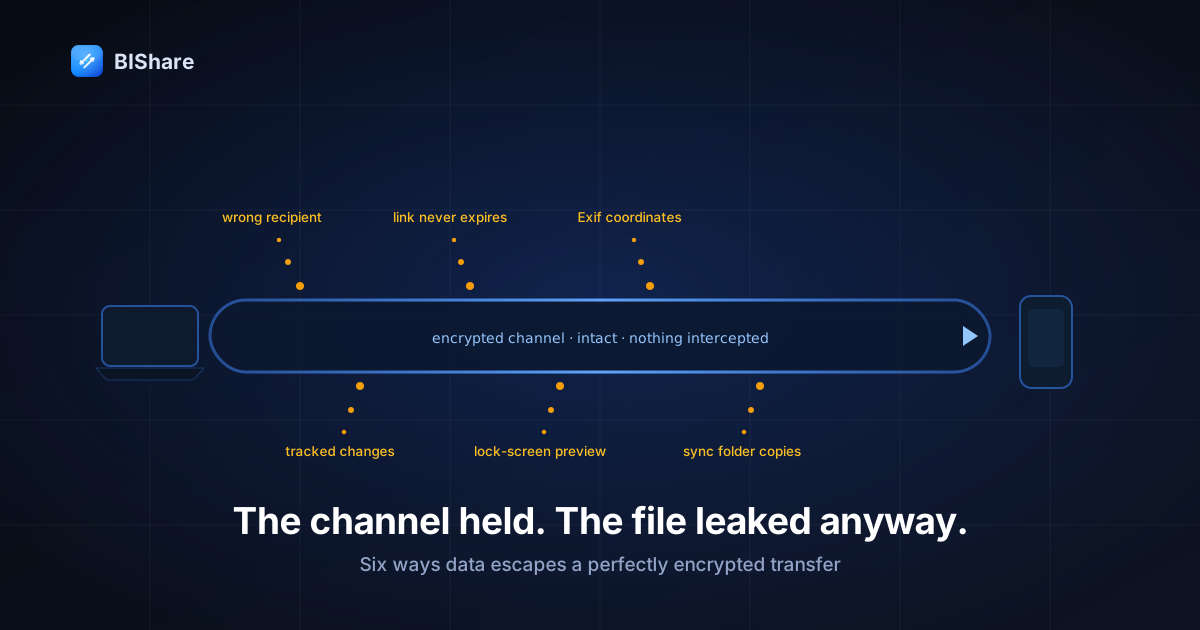
Almost everything written about safe file sharing is about the channel: encrypt it, don't use public Wi-Fi, check the padlock. That advice is correct and it protects against a threat that, in practice, is not the one that gets people. The channel is rarely where things go wrong.
What goes wrong is quieter. A file arrives exactly where it was sent, perfectly encrypted, and discloses something nobody meant to disclose — because of who was in the address field, because of what was inside the file that nobody looked at, or because of what the file kept doing after it landed. No attacker is present in any of these stories. The encryption worked flawlessly in all of them.
So this guide takes a different shape. Below are six reconstructions of how files actually leak, each written the way an incident review is written: what happened, the mechanism that made it possible, and the one control that would have broken the chain. They are composites — assembled from the failure patterns that recur in breach reporting and in support inboxes, including ours — but every mechanism in them is real and every control is available to you today.
Incident 1 — The wrong Sarah
What happened. An HR coordinator sends a spreadsheet of salary bands to Sarah in Finance. She types "Sar", the client offers a completed address, she accepts it, and the file goes to Sarah in the Bristol warehouse — a real colleague who now holds compensation data for the entire department. It's noticed four days later.
The mechanism. Autocomplete is a ranking algorithm operating on a namespace where two entries can be one character apart, and it runs at the exact moment your attention is on the attachment rather than the address. This is not an edge case: misdelivery is consistently among the most common causes of reported data breaches, ahead of most things people install software to prevent. Encryption is entirely irrelevant here — the file was encrypted to precisely the wrong person.
The control. Change the addressing model, not the care level. Telling people to "double-check the recipient" has been tried for thirty years and misdelivery still leads the charts, because the failure happens in the two seconds when checking feels unnecessary. What actually works is making the recipient visible as a thing rather than a string: sending to a device you can point at — the way AirDrop does within Apple's walls — and watching the accept prompt light up on the screen in that person's hands. Proximity converts an address into an observation. When you can't be in the room, the substitute is a channel with a shorter, deliberately chosen membership — a transfer room created for one exchange rather than an address book with four Sarahs in it.
Incident 2 — The link that outlived its reason
What happened. An agency shares a cloud folder with a client during a pitch: "anyone with the link can view." The pitch is lost, the project dies, everyone moves on. Two years later the link is still live, still public, and now contains the folder's current contents — because someone kept using that folder for new work, and the sharing setting was inherited, and nobody re-read a permission they set in 2024.
The mechanism. Links are bearer tokens with an unlimited lifespan and a social life of their own. They get forwarded "so you have it too," pasted into ticketing systems, quoted in reply chains, indexed by anything that can reach them. And crucially, a link grants access to a location, not to a snapshot — so its meaning silently updates as the contents change. The permission you granted was to a folder as it existed once; what it delivers is that folder as it exists forever.
The control. Prefer transfers that expire to shares that persist. A link with a 24-hour life cannot outlive the reason it was created, because the reason rarely lasts longer than a day and the link definitionally cannot. When you genuinely need durable shared storage, the control is a calendar reminder to audit access quarterly — unglamorous, and the only thing that actually catches inherited permissions. Between those two, the honest default for one-off delivery is the expiring one; this is why every browser transfer we issue carries an expiry rather than living forever.
Incident 3 — The photo that carried its coordinates
What happened. Someone sells a bicycle online. They photograph it in their driveway and send the original image to a buyer they've never met. The image file contains the GPS coordinates of the driveway, accurate to a few meters, along with the exact timestamp and the phone model. The buyer now knows where the bike sleeps.
The mechanism. Cameras write Exif metadata into image files: location, capture time, device, sometimes orientation and serial numbers. It travels invisibly because no viewer shows it by default. And here is the part that matters for anyone choosing a transfer tool — the more faithfully a tool moves your file, the more completely it moves the metadata too.
I'll be specific about our own software, because this is a tension we chose rather than a bug we missed. BIShare sends the original bytes: no recompression, no re-encoding, and no metadata stripping anywhere in the pipeline. That's a deliberate promise — it's what makes a 48-megapixel photo arrive as a 48-megapixel photo instead of a social-media mush, and it's the behavior a photographer sending work to a client requires. The unavoidable consequence is that the Exif rides along, coordinates included. Fidelity and metadata hygiene point in opposite directions, and any tool claiming both is quietly doing one of them badly.
The control. Because the tool can't decide for you, decide before sending. On iPhone, the share sheet's Options let you turn off Location for the images you're about to share. On Android, Google Photos offers a "remove location" toggle when sharing. On a computer, right-click a file and remove properties (Windows) or check the Info panel (macOS) before it goes out. For anything public — a marketplace listing, a forum post, a photo of your home — treat location stripping as part of the send, not an afterthought. And if the recipient is a client who needs the originals, send the originals deliberately, knowing what's in them.
Incident 4 — The document that remembered
What happened. A firm sends a client a contract as a Word file. The client opens it, turns on tracked changes display out of curiosity, and reads six months of internal argument: the clause the partners wanted removed, a comment saying "don't show them this number yet," and — in the document properties — the name of the junior who drafted it and every prior filename the document ever had.
The mechanism. Modern document formats are archives, not pages. They carry revision history, comments, author identities, previous versions of edited text, hidden rows and columns in spreadsheets, speaker notes in presentations, and cropped-away regions of images that are cropped only for display. A PDF export usually flattens this, but not always — and PDF has its own famous failure, where a black rectangle drawn over text hides it visually while the text underneath remains perfectly selectable and copyable. Every one of these leaks survives encryption entirely, because the disclosure is inside the thing being protected.
The control. Inspect before sending, with the tool the format's own vendor provides: Word, Excel, and PowerPoint ship a Document Inspector that finds and removes comments, tracked changes, properties, and hidden content in one pass. For anything adversarial or public, export to PDF and then re-open the PDF and confirm the sensitive text can't be selected — if you can highlight it, so can they. And for genuine redaction, use a redaction tool that removes the content rather than a drawing tool that covers it; the visual result is identical and the security result is opposite.
Incident 5 — The filename on the lock screen
What happened. Mid-meeting, a phone sits face-up on the conference table. A transfer arrives and the notification renders across the lock screen: "Received Q3_restructuring_headcount_final.xlsx from Alex's MacBook." Nobody opened anything. Nobody was hacked. Six people at the table now know a restructuring is underway, and the file's contents were never the point.
The mechanism. Filenames are content. They're written by humans in a hurry to be maximally descriptive to their future selves, which makes them maximally descriptive to bystanders, and they surface in places the file itself never reaches: notifications, recent-file lists, backup indexes, sync logs, chat previews. The strongest encryption in the world protects the payload of a transfer and does nothing about its label.
This one implicates our own defaults, so let me name it plainly rather than write around it. BIShare's arrival notification includes the file name and the sender's device alias — that's the design today, verifiable in the source, and it's genuinely useful in the common case where you're waiting for something and want to know it landed. It is also exactly the mechanism above. I don't think it's the wrong default for most people; I do think it's the wrong default for anyone who works with sensitive material on a device that is ever face-up in a room with others, and it's the kind of default worth reconsidering as content-hiding notifications become the norm elsewhere.
The control. Two settings, one habit. On iOS, Settings → Notifications → Show Previews → When Unlocked (or Never) applies system-wide and is the single highest-leverage privacy toggle on the device. On Android, Notifications → Lock screen → Don't show sensitive content does the same job. The habit: name sensitive files boringly. budget_v4.xlsx tells a bystander nothing; the descriptive version tells them everything, and you can always keep the honest name in the folder rather than the filename.
Incident 6 — The copy that kept walking
What happened. A contractor receives a client's data export and saves it to their desktop, which happens to sit inside a personal cloud-sync folder. The file replicates to a consumer account, then to that account's mobile app, then into an automatic photo-and-document backup on a laptop the contractor's family shares. The transfer was one hop. The file is now in five places, three of which the client has never heard of and none of which appear in any contract.
The mechanism. Sync is replication with a friendly name. A file dropped anywhere inside a synced tree is copied to every device and account attached to that tree, silently and immediately, and each of those copies inherits none of the sensitivity that governed the original. This is the leak with the longest tail, because it keeps operating for years after the transfer everyone remembers.
The control. Decide where received files land before you receive them. Point the download or save location at a folder that is not inside any sync root, and keep a deliberate, boring destination for client material — a working folder you clean out, not a desktop that mirrors itself to three services. If your organization has a document system, the discipline is to move files there on arrival rather than to work from the landing spot. As we put it when discussing confidential documents, the transfer path is a corridor, not a filing cabinet.
The six mechanisms at a glance
| What leaked | Mechanism | The one control |
|---|---|---|
| Salary spreadsheet | Autocomplete picked a same-named colleague | Send to a visible device, not a typed string |
| Live client folder | Link granted a location, forever | Prefer transfers that expire over shares that persist |
| Home address | Exif coordinates inside an original photo | Strip location for anything public |
| Internal argument | Tracked changes and properties inside the file | Run the format's own inspector before sending |
| Restructuring plan | Filename rendered on a lock screen | Hide previews; name sensitive files dully |
| Client data export | Landing folder sat inside a sync root | Set a save location outside every synced tree |
Read the middle column as the actual attack surface of everyday file sharing. Not one entry is a cryptographic weakness; every entry is a default doing its job.
The pattern behind them all
Look at the six together and something uncomfortable emerges: not one of them was caused by carelessness in the moment. In every case the person did the obvious thing, the software did what it was designed to do, and the disclosure was produced by a default — autocomplete ranking, permissions inheriting, metadata preserving, formats remembering, notifications previewing.
That reframes what "safe file sharing" means. It isn't a state of vigilance you maintain; vigilance decays and the failures above all occur in the moments when nothing feels risky. It's a small set of defaults you change once, on your side, so that the safe path is the one you're already standing on:
- Send to devices you can see, rather than to strings that autocomplete.
- Give received files a landing folder that no service is watching.
- Prefer things that expire over things that persist.
- Strip metadata for anything public; send originals only deliberately.
- Inspect documents that had a life before they had a recipient.
- Hide previews on the lock screen, and name sensitive files dully.
Each takes seconds and each removes an entire category of incident permanently, which is a far better return than any amount of care applied one file at a time.
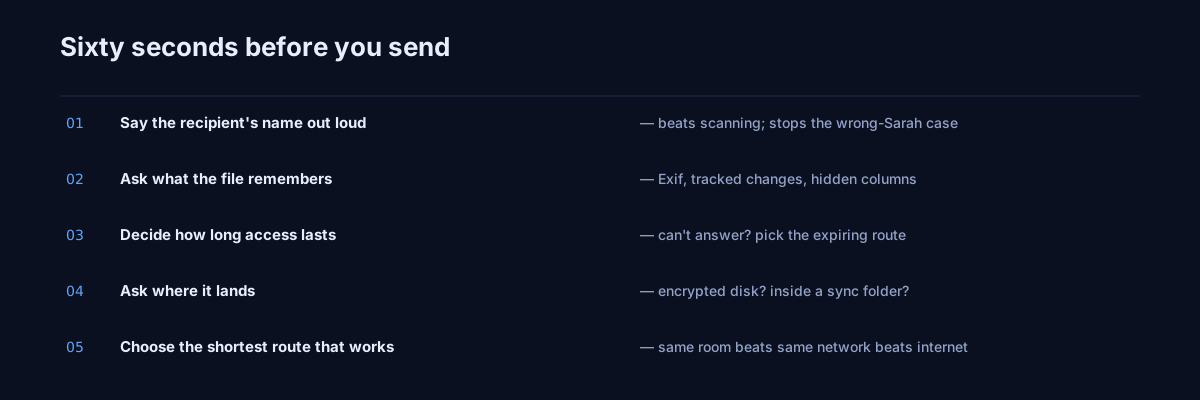
Sixty seconds before you send
For material where a leak would genuinely hurt, this is the whole checklist. It fits in the time it takes the transfer dialog to open.
- Say the recipient's name out loud. Not read — say. It engages a different kind of attention than scanning, and it's the cheapest defense against Incident 1 in existence.
- Ask what the file remembers. Was it edited, exported, commented on, or photographed? If yes, inspect or re-export before sending.
- Ask how long access should last. If the answer is "until they've read it," pick a route that expires. If you can't answer, that's the sign to pick the shorter option.
- Ask where it lands. A device with an encrypted disk and a screen lock, or a shared machine in an office? The answer changes which route you should use, not just how you feel about it.
- Choose the shortest route that works. Same room beats same network beats the internet, every time — the ladder we walked through separately exists precisely so you can drop a rung when the material justifies it.
What a tool can and can't do about leaks
Honesty about the boundary is what makes the rest of the advice usable.
What good software genuinely prevents: interception (end-to-end encryption), silent tampering (authenticated encryption that refuses rather than degrades), indefinite exposure (expiring transfers), and third-party custody — a file that goes directly between two devices leaves no copy for anyone to breach later. Those are real, and they're the categories most people worry about.
What no software can prevent: you addressing it to the wrong person, the file containing something you didn't know it contained, the recipient forwarding it, and a device that was already compromised before the transfer began. These aren't gaps in a product; they're the boundary where technical controls end and process begins. Every one of the six incidents above lives on this side of the line — which is exactly why they keep happening to organizations that bought excellent security software.
The useful synthesis: buy or choose the tool for the first list, and build the five one-time habits for the second. A tool that's honest about which list it's on is worth more than one that implies it covers both.
If it already happened
Incident reviews are only half the value; the other half is knowing what to do in the twenty minutes after you realize. The instinct is to freeze, and the cost of freezing is that the cheapest controls expire first.
Cut access before you explain anything. If the disclosure went out as a link, revoke or expire it now — every minute it lives is a minute it can be forwarded. If it went to a person, ask for deletion immediately and in writing; a same-day request to a colleague is usually honored, a week-old one is archaeology. Do this before drafting the apology, because the apology can be edited later and the exposure window cannot.
Establish what actually went out, not what you think went out. Open the exact file you sent, not the version on your screen. In four of the six incidents above, the sender's mental model of the file differed from the file — that's what made them incidents. Check the metadata, the tracked changes, the tab you forgot was in the workbook.
Write down the timeline while it's fresh. When it was sent, when it was noticed, who received it, what it contained, what you did. Memory degrades within hours and this record is what a regulator, a client, or your own future review will ask for. It is also, unglamorously, what turns an incident into a fixed default rather than one that recurs next quarter.
Then fix the mechanism, not the person. If autocomplete did it, the answer isn't "be careful" — it's changing how that category of file gets addressed from now on. When a leak happens twice, it is almost always because the remedy was addressed to a person rather than to the setting that manufactured the moment.
The leak you'll actually have
If you take one thing from these six reconstructions, make it this: your future incident almost certainly will not involve someone breaking your encryption. It will involve a file going exactly where you sent it, doing exactly what it was designed to do, and carrying one thing you forgot was inside it — or arriving in front of one person you didn't mean to include.
That's genuinely good news, because it means the fix isn't expensive. It's six defaults, changed once, and sixty seconds of attention on the handful of files each year where the stakes are real.